How to Install Apps/Plugins
Overview
Once your device finishes Watchtower's automated provisioning — either from Setting Up an EUD with Knox Direct Enrollment or Setting Up an EUD without Knox Enrollment — Watchtower opens to its Apps and Plugins catalog. Your device already has its baseline app set from the automated install (including ATAK, Watchtower Mobile, and AuthFlow); this guide covers how to install anything else from the catalog.
Which apps you need depends on your role and mission. The catalog lists everything available across the organization, not a fixed list for every device — there's no single set of apps every user installs. If you're not sure which apps you need, check with your Apex Edge administrator or your mission's task list before installing.
Installing apps
- From the Apps and Plugins screen's Available tab, tap INSTALL next to each app you need.
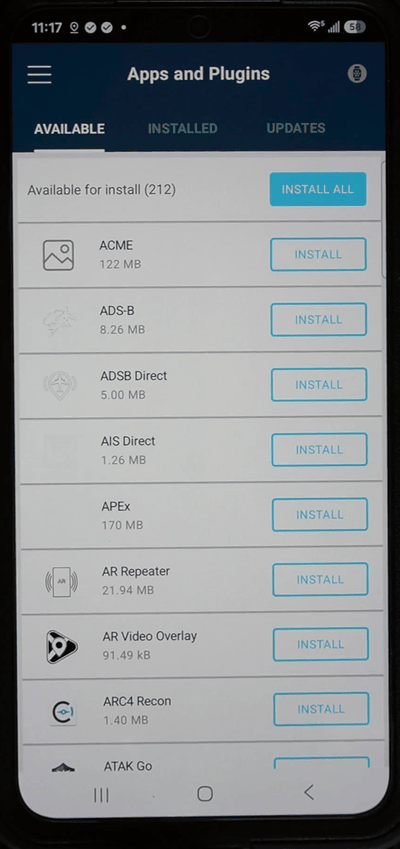
Install only what you need. There's no reason to tap INSTALL ALL — installing apps you don't need wastes storage and clutters the device.
Installs run in the background — you can keep scrolling the catalog while apps download, and a small progress indicator shows on any app that's currently installing. Larger apps (TAKTALK, for example) take noticeably longer than the rest — that's normal, not a stuck install, and you can move on and let it finish in the background. If you tap INSTALL on the wrong app by mistake, just tap CANCEL on that download and start the correct one. The Installed and Updates tabs at the top let you check on what's already on the device or pending an update.
Home screen setup
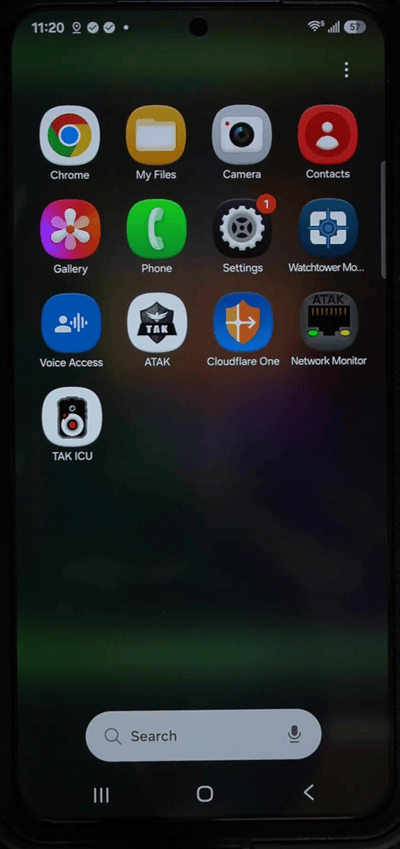
- Once your apps have finished installing, swipe up on the home screen to open the app drawer and confirm they're all there.
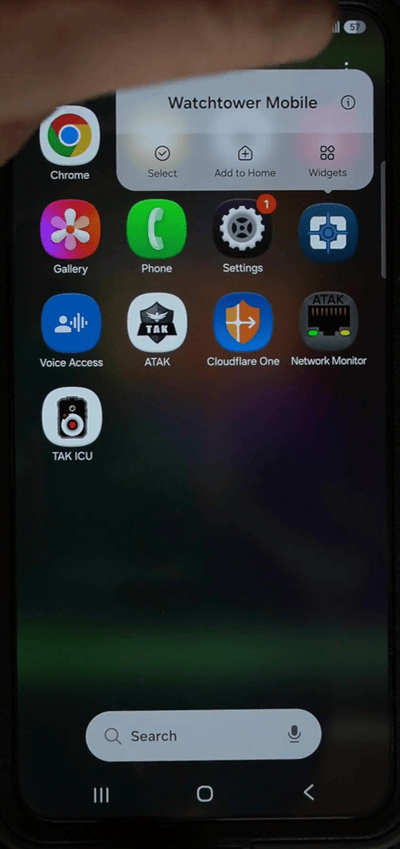
- For any app you want quick access to, long-press its icon in the app drawer and tap Add to Home.
- In this example, ATAK, TAK ICU, Watchtower Mobile, and Network Monitor were added to the home screen this way.
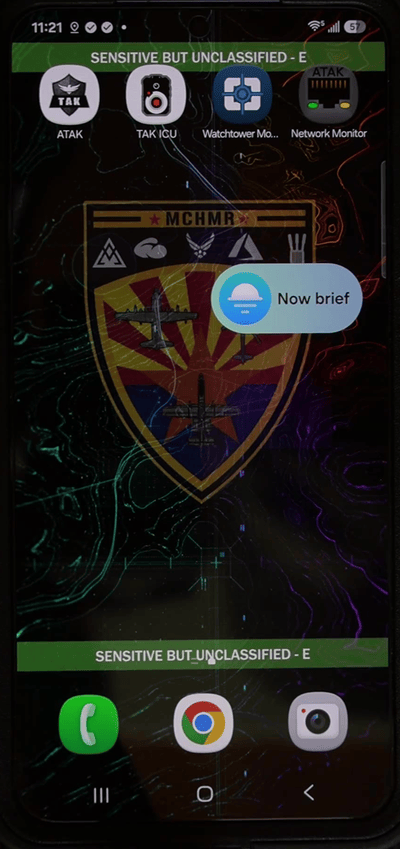
The device is now enrolled, provisioned, and ready to use. Next, set up a Tactical ID account (if you don't already have one) and log in to ATAK using it — see New User Registration and AuthFlow Configuration.
Troubleshooting
- An app in the catalog won't finish installing: confirm the device still has a Wi-Fi or cellular connection, then retry that app's Install button from the Available tab.