Lasso Tool
Overview
Reference material for Lasso Tool in WinTAK, sourced from the official WinTAK 5.7 Software User Manual (26 March 2026).
Manual Reference

The Lasso Tool provides the ability to select several map objects at the same time. Selected items can then be moved, exported or deleted.
Select the Lasso icon and then click and drag to draw a freehand lasso around the items intended to be selected.
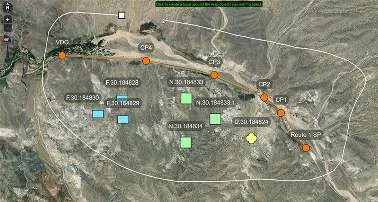
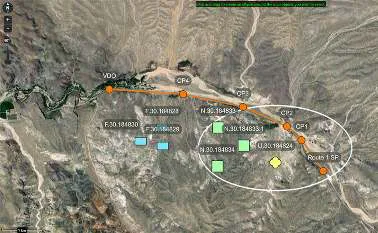
Selecting the drop-down below the Lasso Tool provides access to the Rectangle and Ellipse lasso options. Select the Rectangle Select icon, then click, drag and release to create a rectangular zone around the items intended to be selected.

Select the Ellipse Select icon, then click, drag and release to create an elliptic zone around the items intended to be selected.
Working with the selection
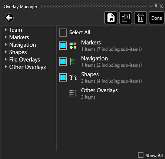
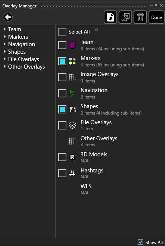
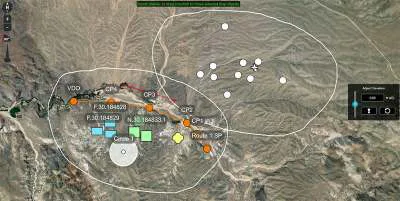
Once the Lasso has been created, Overlay Manager opens and the objects selected by the lasso are indicated by check boxes. If the Show All option is unchecked, only the categories that are included in the lasso will be shown. If it is checked, all Overlay Manager categories will be shown. The objects can then either be exported or deleted using the Overlay Manager Tool.
Adjusting elevation and position
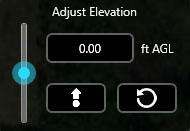
In addition to the export and deletion options, all selected items can have their elevation values adjusted or their physical positions on the map altered. After items have been selected with the Lasso, an Adjust Elevation widget will appear. Use either the slider or select the elevation field to enter in a value manually. Once elevation changes have been confirmed, select Change Elevation. Elevation values can also be reverted back to their original values by selecting Revert to Original Altitude.
To alter the positions of the selected items, click and drag the crosshair located at the center of the Lasso. To confirm the new location for the items, select Move Items on the toolbar. Items can be moved back to their previous location by selecting Undo. Once all changes have been completed, select Done or close the Overlay Manager.
Source
WinTAK Software User Manual, Version 5.7, 26 March 2026, pages 47–48.