Installing Plug-ins
Overview
Reference material for Installing Plug-ins in WinTAK, sourced from the official WinTAK 5.7 Software User Manual (26 March 2026).
Manual Reference
Plug-ins for WinTAK may be installed in two different ways: using the Plug-in Manager or by dragging and dropping .wpk files directly into WinTAK.
Plug-in Manager
The Plug-in Manager Tool provides a user interface for managing online products and product repositories in WinTAK. This tool streamlines the process of obtaining plug-ins and provides a single location for the user to manage TAK products available across all supported TAK product repositories.
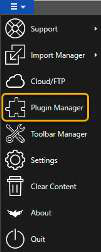
To load/unload plug-ins to the core WinTAK application, select Plug-in Manager from the Application Menu. When launched, Plug-in Manager will display the current set of plug-ins installed. Options available are Refresh the listing, Multi-select and Settings.

To configure where Plug-in Manager searches for available plug-ins, select Settings in the upper right corner. Support is provided for searching both a Web Server (Update Server) or a directory on a local machine.
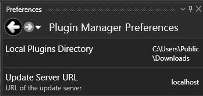
When using a Web Server to deliver updates, an admin must run the wpkbuilder utility and create a plugins.json file. plugins.json defines what plug-ins are available for download. When WinTAK launches, it will automatically install all plug-ins stored in the configured local directory.
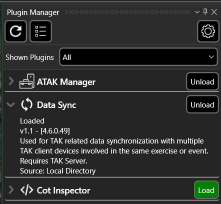
From the status window, the following operations can be performed: check the version, description and status of a plug-in; load or unload a single plug-in; or use the multi-select tool and load/unload multiple plug-ins with a single operation.
The load/unload options are enabled after the user has selected a plug-in(s) to work with.
Drag and Drop Plug-in File
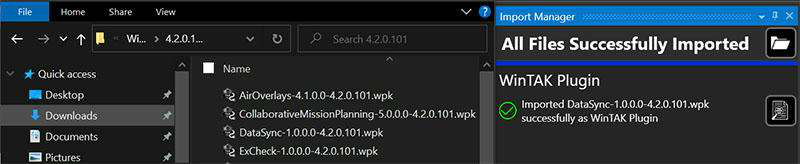
When WinTAK is running, a plug-in WPK file can be dragged and dropped from the Windows File Explorer window onto the WinTAK main screen. The Import Manager recognizes the WPK file, installs and loads it.
Source
WinTAK Software User Manual, Version 5.7, 26 March 2026, pages 85–86.