Data Package
Overview
Reference material for Data Package in WinTAK, sourced from the official WinTAK 5.7 Software User Manual (26 March 2026).
Manual Reference

The Data Package Tool gives the data planner the ability to bundle map items (e.g., routes, placed markers, shapes and imagery) and external files from the device's file system to send to other users on the network. Select the Data Package icon to download, create, edit or send Data Packages.

Select Download to view a list of Data Packages stored on a connected TAK Server. Sort and search for any Data Packages stored on the server and download a copy to the local device.
Creating a Data Package
Select the + button to create a new Data Package. Enter a name for the Data Package and then select Build. Select the Quicksend button to quickly create and send a Data Package that contains one or more files selected from the device's file system.


Select Open Transfer Log to view a history of all Data Packages that have been sent/received on the local device.
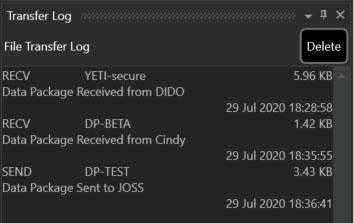

Select the Open Packages Folder icon to see a list of all Data Packages stored on the local device.
After a Data Package has been created or received, an entry for it will be visible in the Data Packages tool.

Select the drop-down arrow on the left side to reveal the contents of the Data Package. The checkbox indicates the visibility status of the content and can be toggled on/off at any time. The file size and callsign of the user that last modified the Data Package will also be visible. Options are available to Edit, Add To, Send or Delete the Data Package.
Editing and adding content
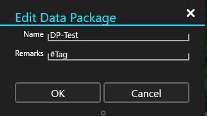
Select Edit to alter the name or apply remarks (hashtags) to the items within the Data Package.
Select + to add more content to a Data Package. Add a single map item by selecting it on the map; add multiple items using the Lasso Tool; add items through the Overlay Manager, allowing for multiple selections via checkboxes; or add saved files via the file browser interface.
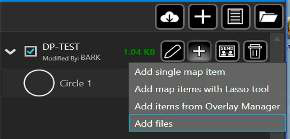
Any file attachments associated with map items will also be added to the Data Package when those items are added. Select Send to send the Data Package to another user or upload it to the TAK Server. Select Delete to remove the Data Package from the local device.
Receiving a Data Package
When a Data Package is received, a dialog window will appear with options to accept or decline the package. Checking the Don't Ask Again box will save the option selected for that user and disable the dialog box from re-appearing when a Data Package is received from them in the future.

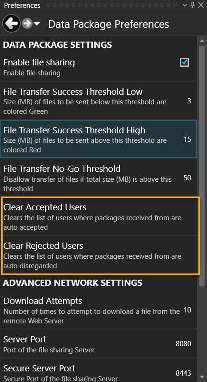
The list of accepted/rejected users can be reset on the Data Package Preferences screen.
Additional Data Package settings can be customized in Settings > Tool Preferences > Data Package Preferences.
Source
WinTAK Software User Manual, Version 5.7, 26 March 2026, pages 49–50.