Cloud / FTP
Overview
Reference material for Cloud / FTP in WinTAK, sourced from the official WinTAK 5.7 Software User Manual (26 March 2026).
Manual Reference

The Cloud/FTP feature allows users to upload/download files from an external server. The types of servers supported are OWNCLOUD, FTP and FTPS.
To access, select Cloud/FTP from the additional tools' menu in the upper left corner.
From the initial screen the user can add a server, select which server to use, download, upload or delete a file.

Adding a server
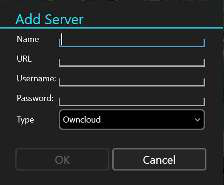
Select the + icon to launch the Add Server dialog. Enter the requested server information into the fields and specify the type of server to be defined. When all fields are complete, select OK to activate the connection to the server.
An error message will appear at the bottom of WinTAK if there is an issue with the entered credentials.
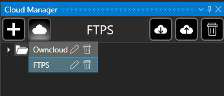
Select the Cloud icon to display the Select Server options drop-down. If multiple servers are defined, choose the desired server to use for the current operation. Existing server settings can also be edited or deleted here.
Downloading Files
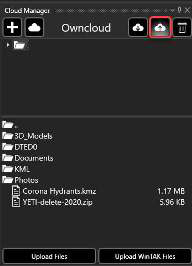
After choosing the desired server, select the Download Cloud icon to select files to download from that server. Left click on the folder name in the upper area and the files available in that folder will be presented in the lower area.
If the folder contains additional folders, those will be listed beneath the parent folder in the upper area. Select all files in the lower area that should be downloaded, then choose whether the selected files should be downloaded to the local device or imported directly into WinTAK.
If the Download Selected Files button is selected, a Windows file explorer window will open to choose where to save the file.
If the Import Selected Files button is selected, the file is downloaded and imported into WinTAK. The Overlay Manager can then be opened to navigate to the item.

Uploading Files
After choosing the desired server, select the Upload Cloud icon to either browse the file system and upload selected files or to select files from WinTAK Overlay Manager to upload.
To select files with a Windows file explorer window, select the Upload Files button. Navigate to the desired folder, select the file(s) for upload then select OK. The files will be uploaded to the directory that was selected on the server.
To select files with Overlay Manager, select the Upload WinTAK Files button. The Overlay Manager will open to the File Overlays category. Drill down into Overlay Manager to display the files and select a file. The selected file will be uploaded to the server.
Uploading From Overlay Manager
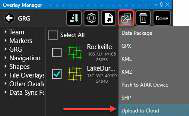
Cloud/FTP support is also integrated into the Overlay Manager workflow. To initiate an upload from the Overlay Manager, select the Multiselect icon, choose the category and file(s) to be uploaded, then select Export. From the export drop-down, select the Upload to Cloud option.
Once the Cloud Manager window is open, select the server/directory for the upload and then select the Upload Selected Files button at the bottom of the window. The selected files will be uploaded to the directory that is selected on the server.

Source
WinTAK Software User Manual, Version 5.7, 26 March 2026, pages 78–80.