Logging In (OAuth)
Overview
This module covers connecting the WinTAK desktop client to the MCHMR TAK Server (tak.mchmr.us) using Auth Flow — WinTAK's OAuth2/OpenID Connect authentication method — instead of a client certificate and LDAP username/password.
There are two separate ways to authenticate WinTAK to the MCHMR TAK Server: Manage Server Connections (client certificate enrollment plus your Tactical ID username and password — see Logging In (LDAP)) or Auth Flow (OAuth2/OpenID Connect through your default browser), covered here. Check with your admin if you're not sure which one your account should use.
Prerequisites
- A Tactical ID account — see New User Registration.
- WinTAK installed on the machine.
- Network access to
tak.mchmr.us. - The TAK Server must support OAuth2/OpenID (Auth Flow) connections.
Steps
-
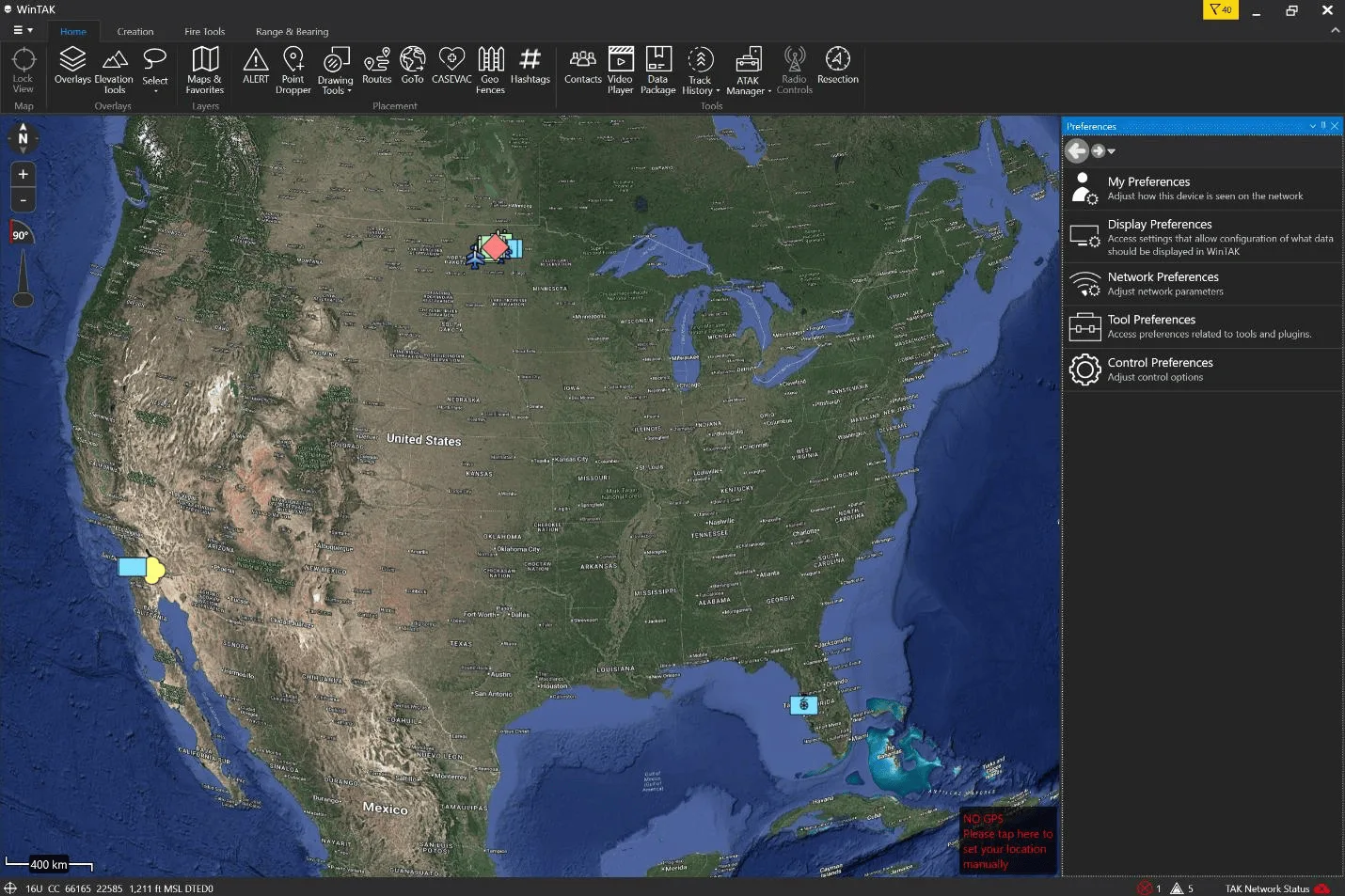
Click the hamburger menu in the top-left corner of WinTAK and select Settings. This opens the Preferences pane on the right side of the window.
-
In the Preferences pane, click Tool Preferences.
-
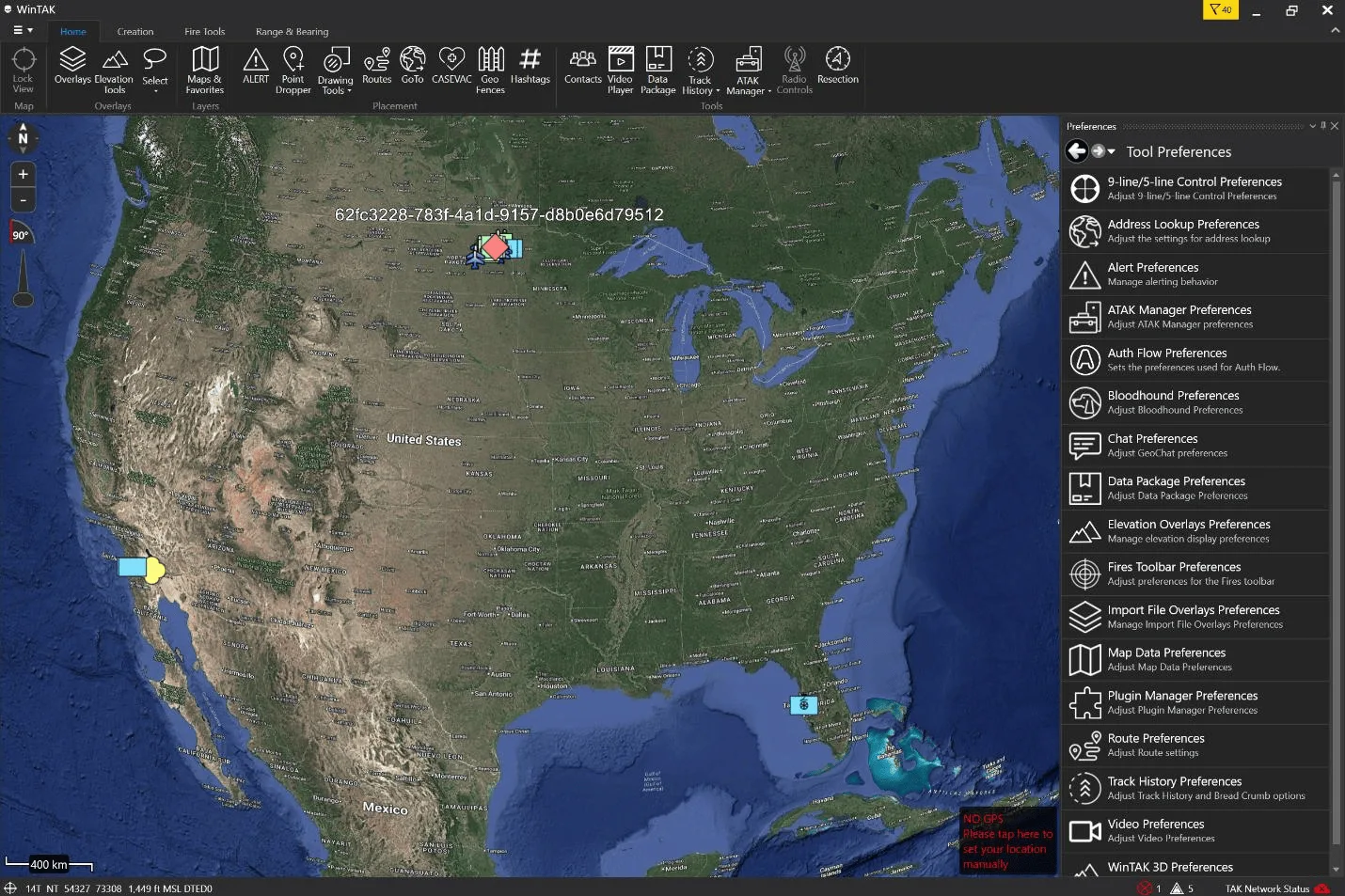
Scroll down the Tool Preferences list and click Auth Flow Preferences.
-
Enter the Client Id — for MCHMR, this is
atak-eud. Leave Scope blank. Click OK.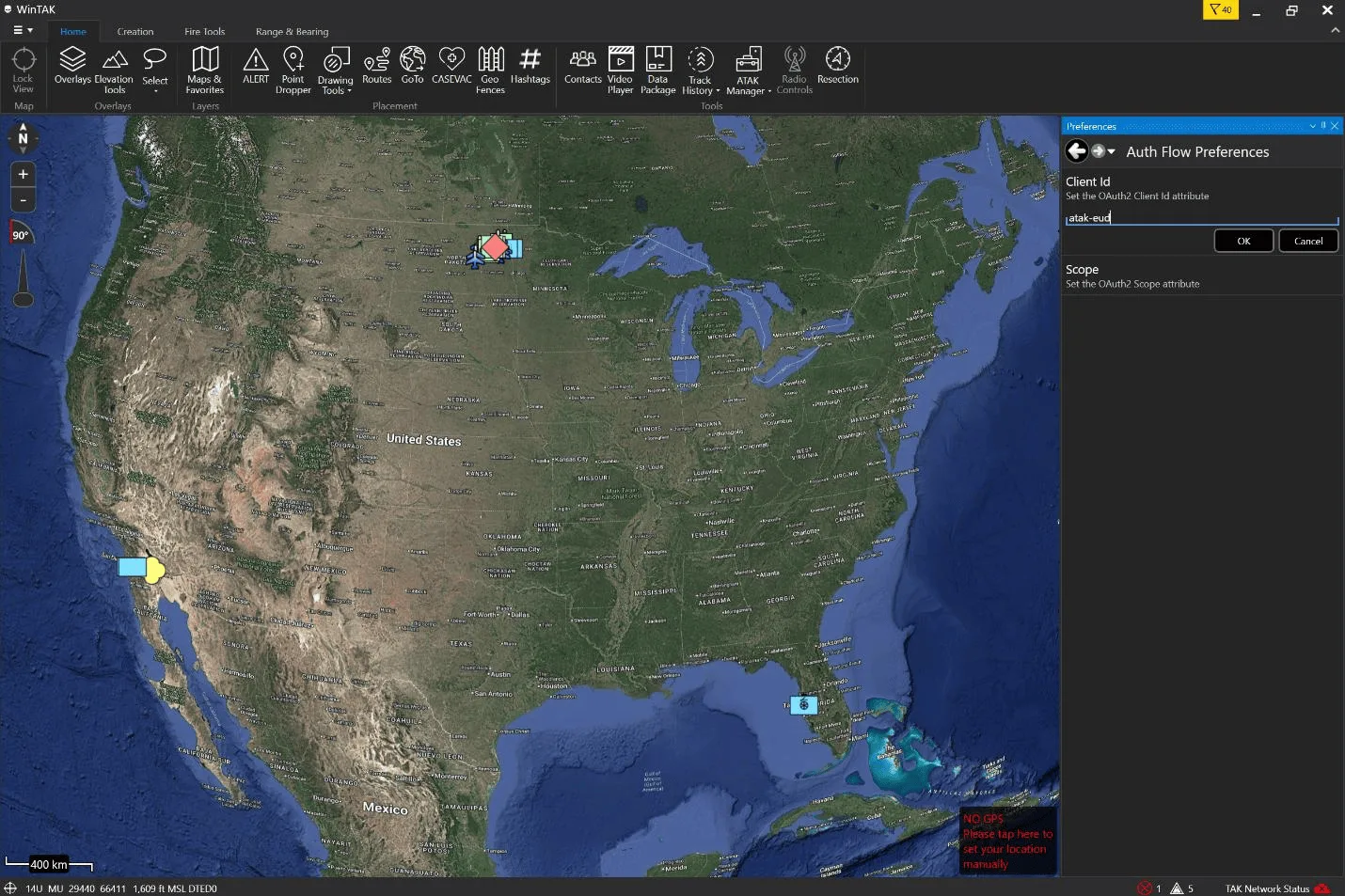 note
noteThis only needs to be set once per device — it's a Tool Preference, not something you set per server connection.
-
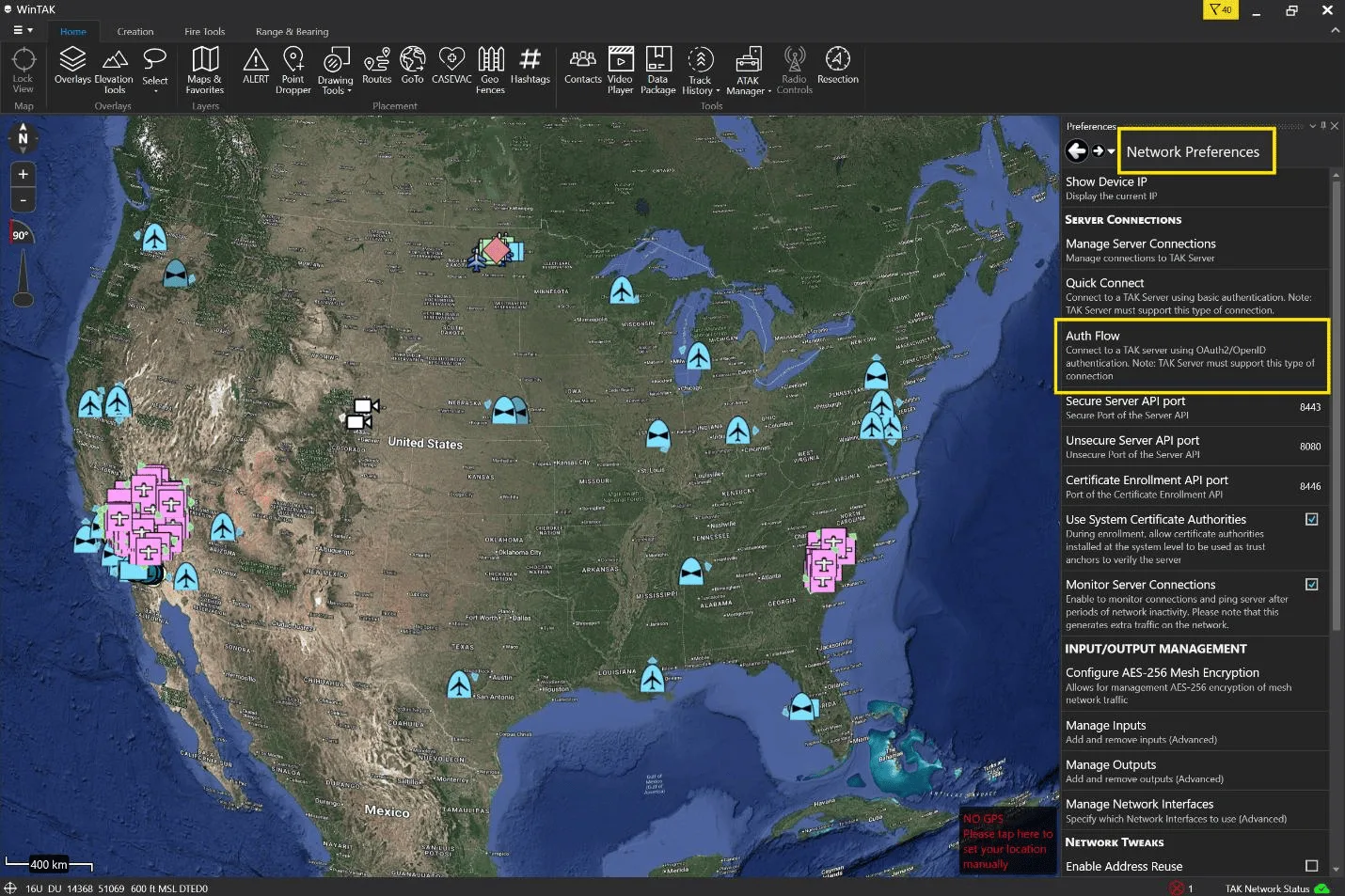
Click the back arrow to return to Preferences, then click Network Preferences. Under Server Connections, click Auth Flow (this is the same section as Manage Server Connections — Auth Flow is a separate, alternate path into the same TAK Server).
-
In the Auth Flow dialog, enter the server address —
tak.mchmr.us— and click OK.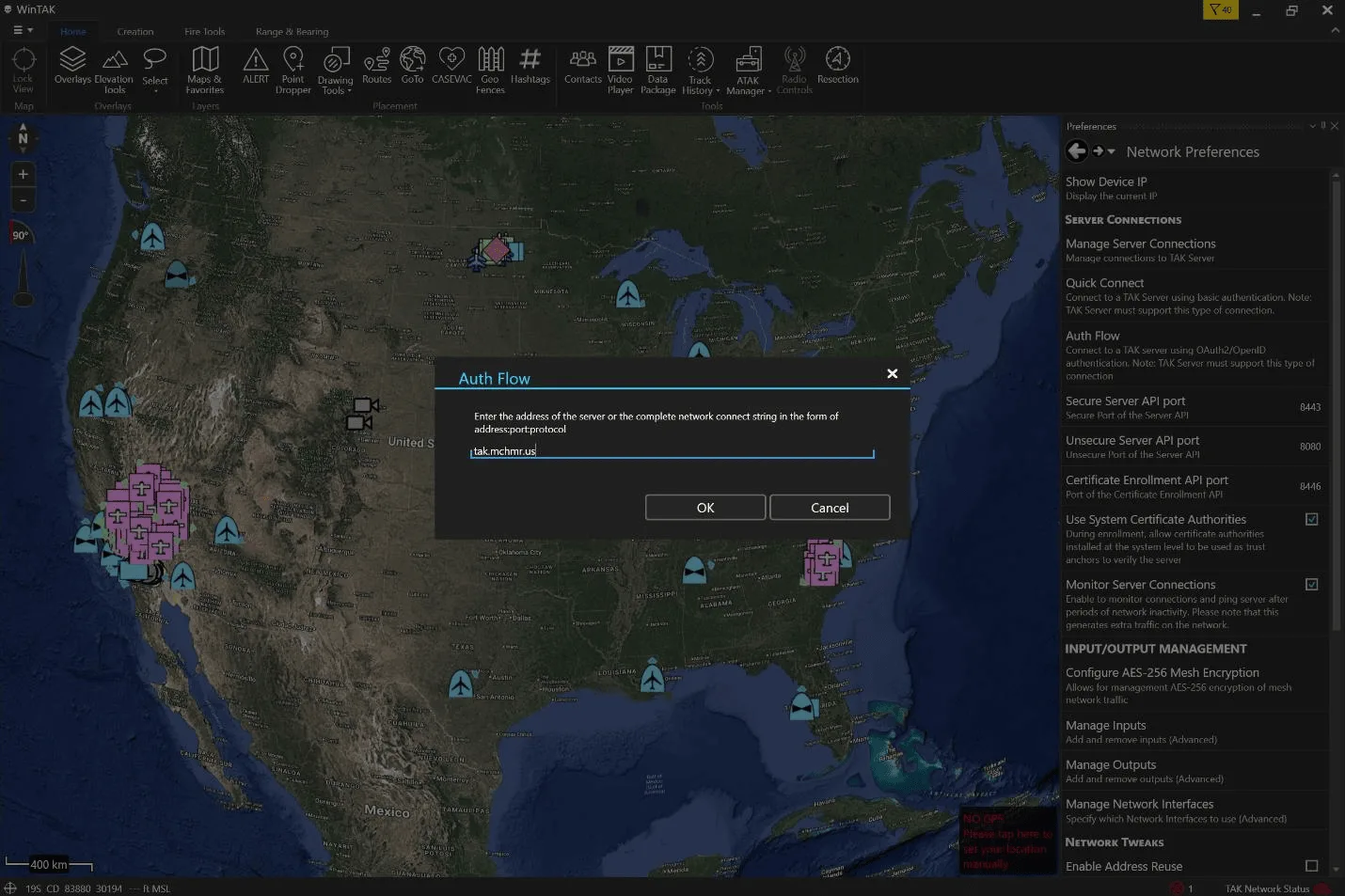
-
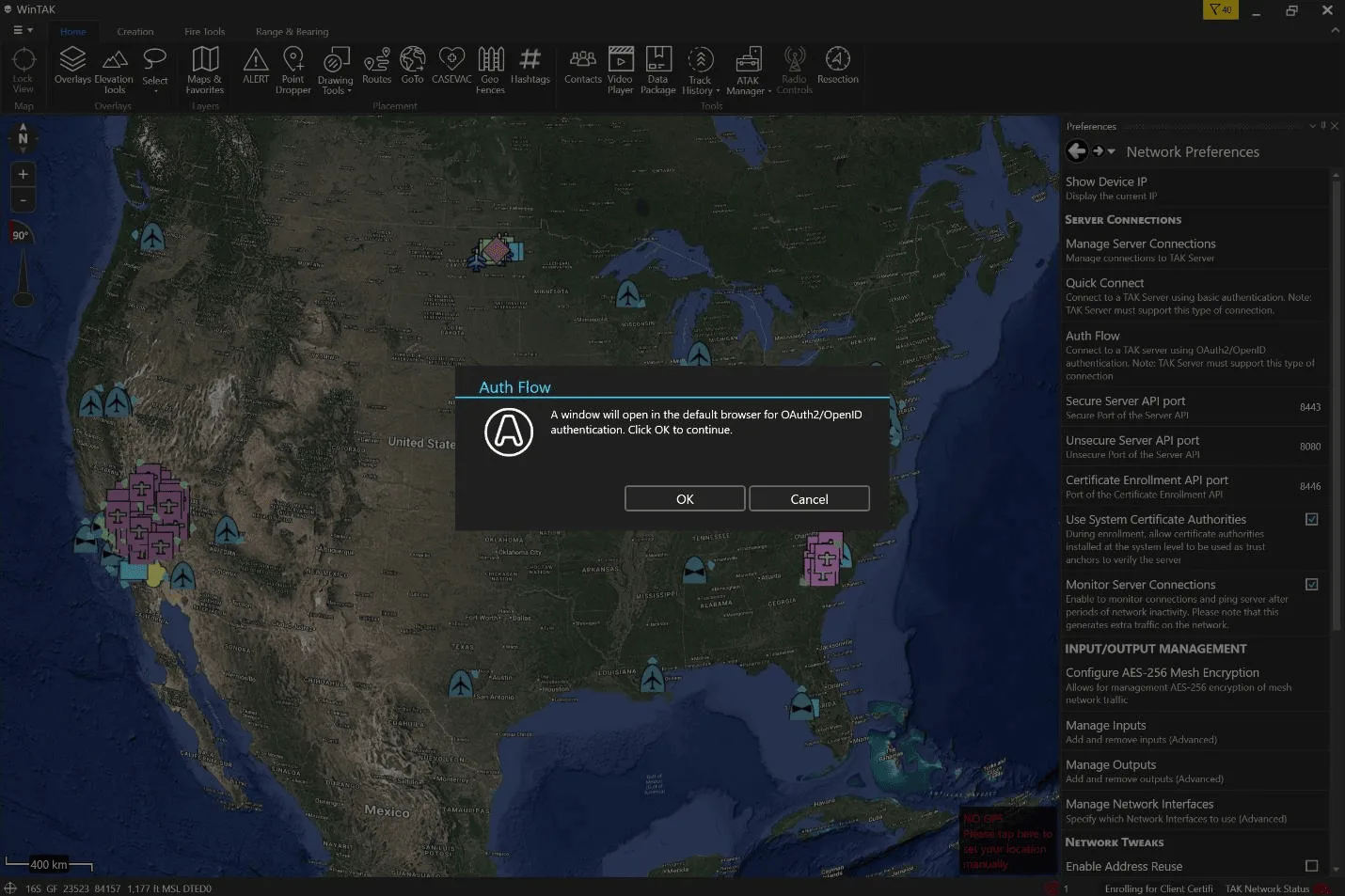
WinTAK prompts that a browser window is about to open for authentication. Click OK to continue.
-
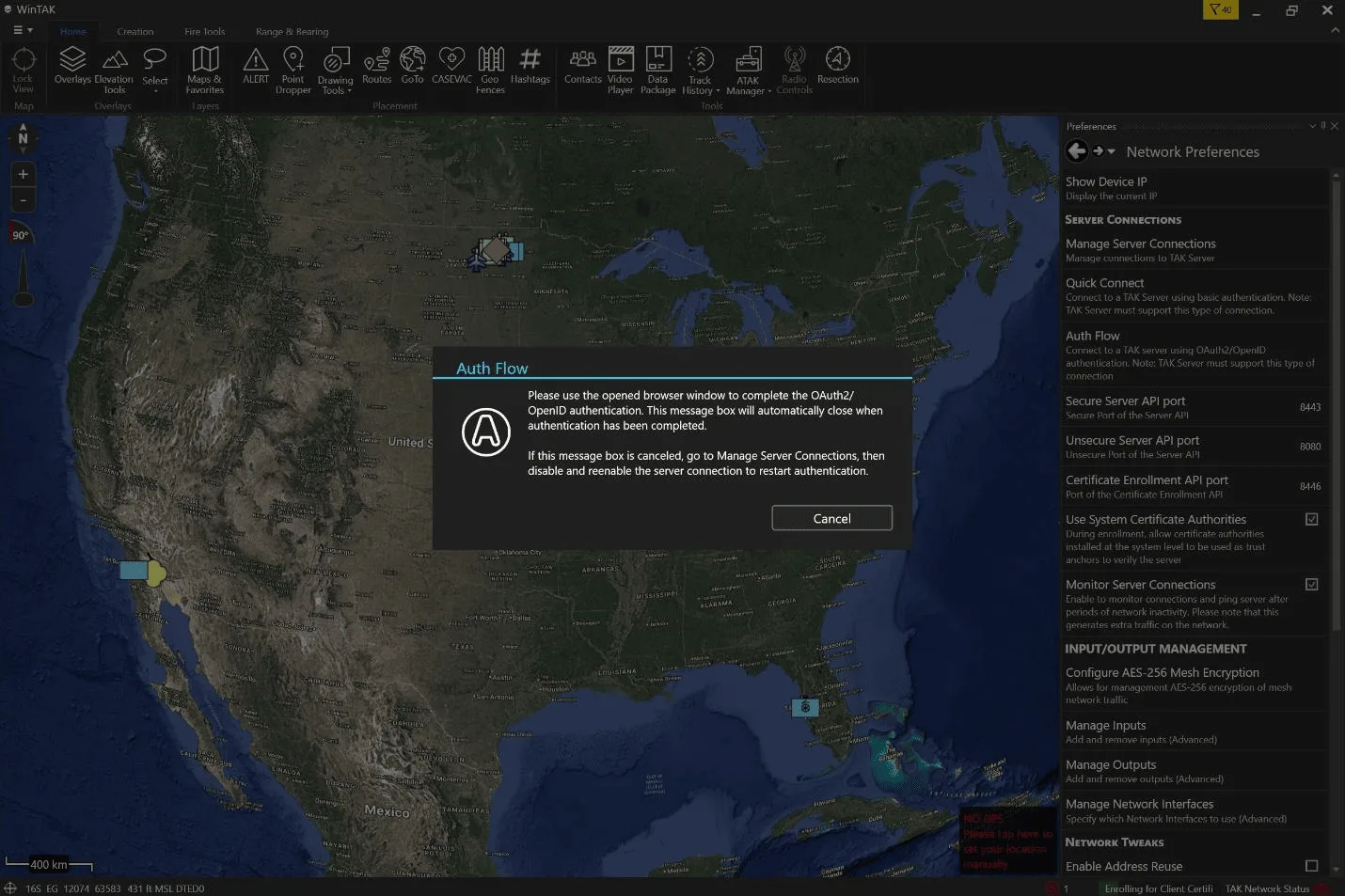
Your default browser opens to MCHMR's sign-in page while WinTAK shows a waiting message. Complete sign-in in the browser window — once authentication succeeds, WinTAK's message box closes automatically.
 caution
If you cancel this message box before finishing in the browser, go to Manage Server Connections, then disable and re-enable the server connection to restart authentication.
-
Return to Manage Server Connections and confirm
tak.mchmr.usshows a green checkmark with a connected (cloud) icon next tossl://tak.mchmr.us:8089. That means you're connected — any devices/groups already set up for you will appear, and you're in the IL2 environment.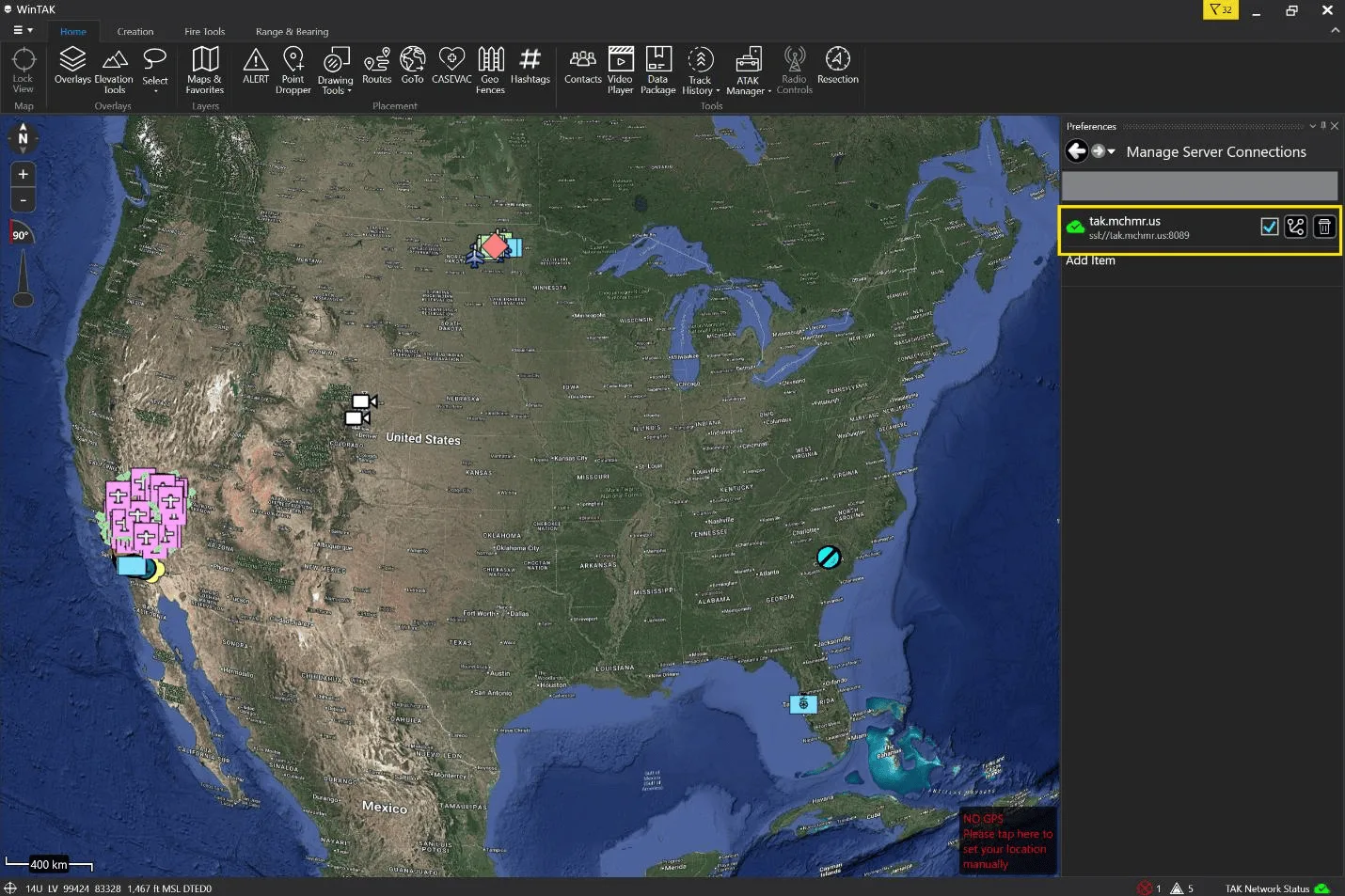
Screenshots
Inline above, next to each step.
Troubleshooting
If the connection does not turn green after signing in through the browser:
- Confirm the Client Id in Tool Preferences → Auth Flow Preferences is set correctly (
atak-eudfor MCHMR). - Double-check the server address (
tak.mchmr.us) entered in the Auth Flow dialog. - If the message box was cancelled or closed before sign-in finished, go to Manage Server Connections, then disable and re-enable the connection to restart Auth Flow.
- Verify the machine has network access to
tak.mchmr.us. - Confirm the TAK Server is configured to support OAuth2/OpenID (Auth Flow) connections — not every server has this enabled.
Related modules
- Logging In (LDAP) — the client certificate + LDAP username/password path into the same server.
- Channel Selection — filtering which entities show on your map once you're connected.
- New User Registration — creating the Tactical ID account used to authenticate here.