Logging In (LDAP)
Overview
This module covers connecting the WinTAK desktop client to the MCHMR TAK Server (tak.mchmr.us), enrolling for a client certificate, and authenticating with your Tactical ID credentials.
There are two ways into the MCHMR network: logging into auth.mchmr.ai with your Tactical ID account gets you in through the "front door" and lets you use WebTAK from a browser. This module covers the other path — connecting the WinTAK desktop client directly to the tak.mchmr.us server. Either way, you're authenticating with the same Tactical ID account.
Prerequisites
- A Tactical ID account (username and password) — see New User Registration.
- WinTAK installed on the machine.
- Network access to
tak.mchmr.us.
Steps
-
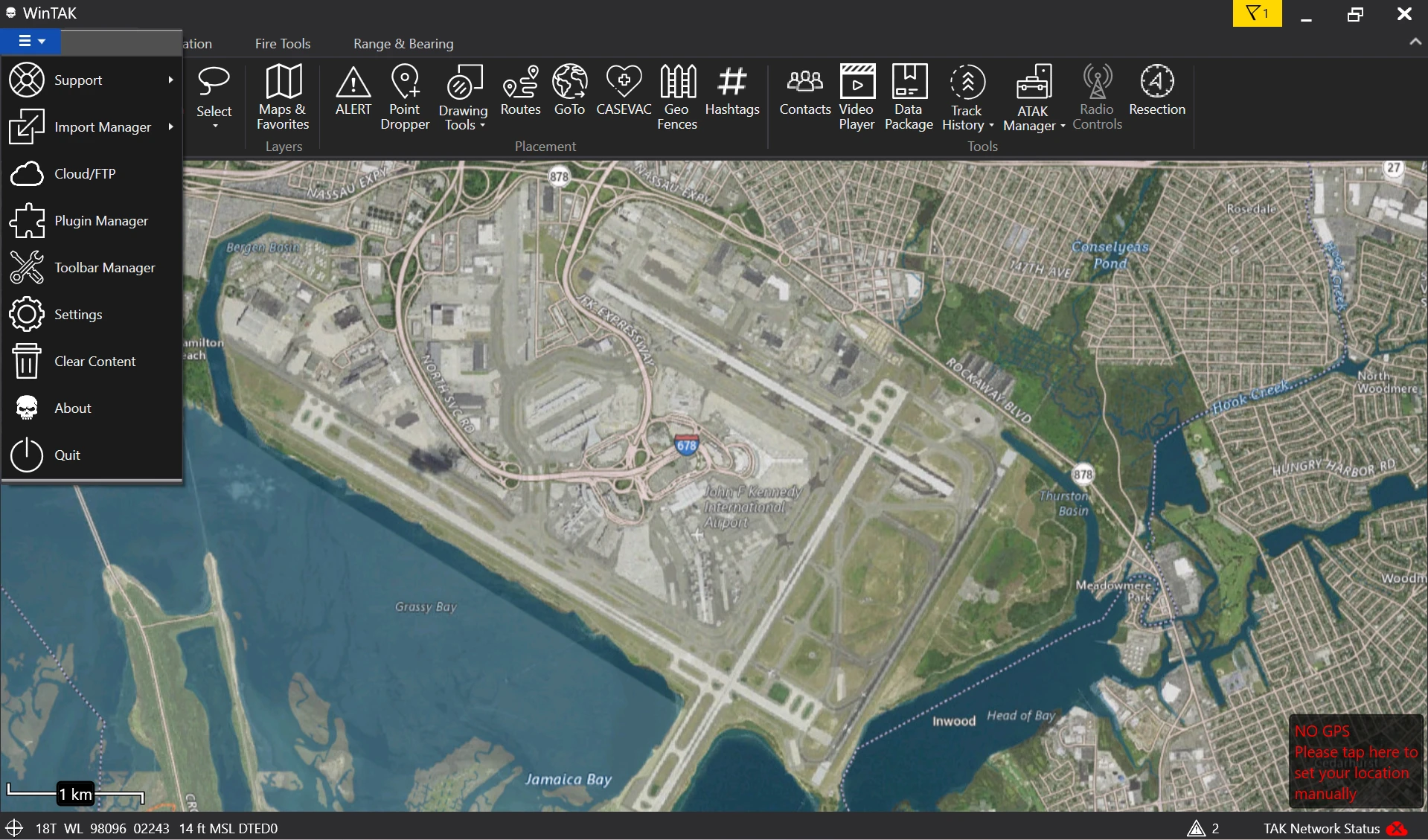
Click the hamburger menu in the top-left corner of WinTAK and select Settings. This opens the Preferences pane on the right side of the window.
-
In the Preferences pane, click Network Preferences.

-
Scroll to the Server Connections section and click Manage Server Connections. Everything else in Network Preferences can stay at its default, out-of-the-box setting.

-
The Manage Server Connections panel opens (blank the first time). Click Add Item.

-
A blank connection form opens. Leave Protocol at its default (
SSL) and Port at its default (8089).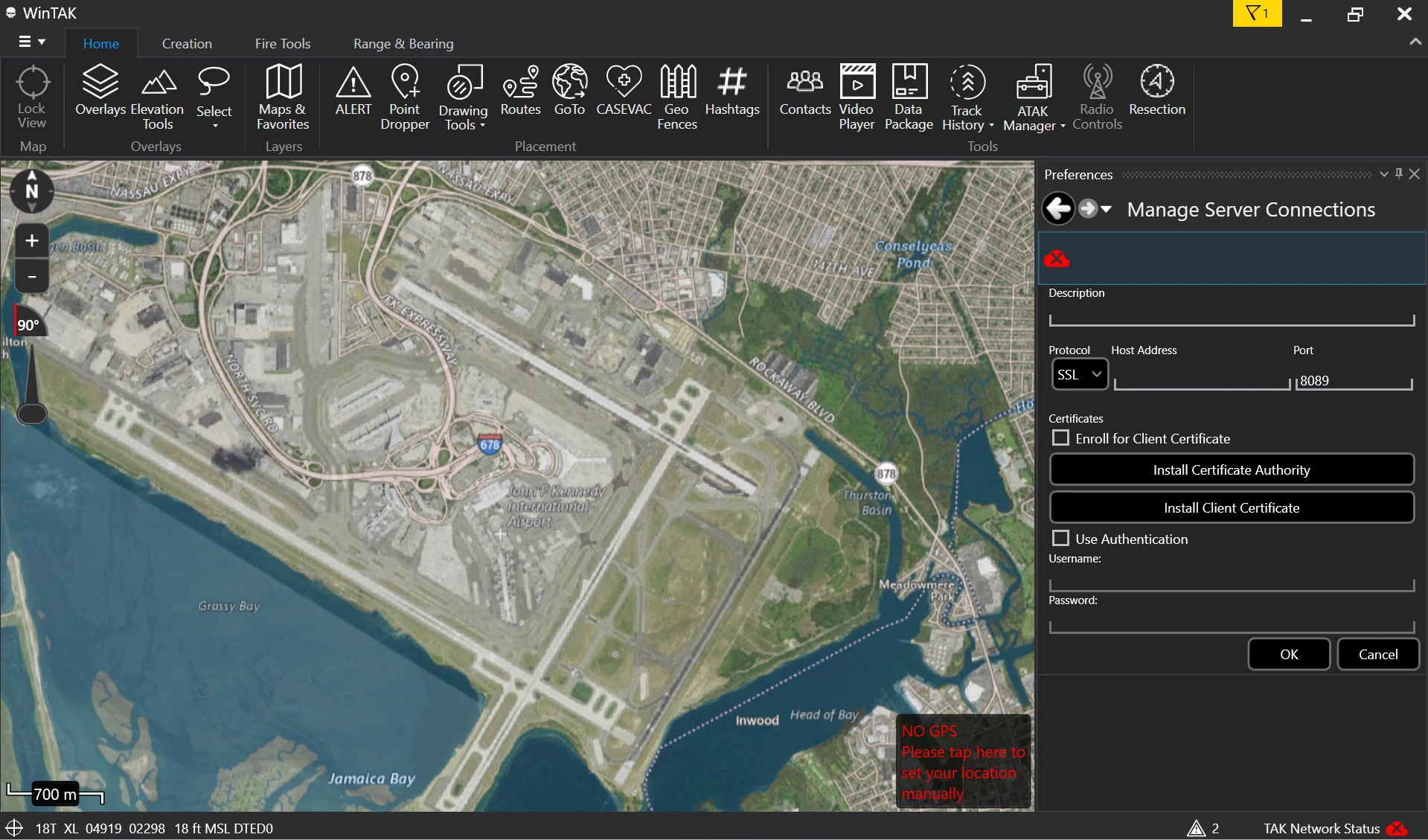
-
Enter
tak.mchmr.usas both the Description and the Host Address. Check Enroll for Client Certificate and Use Authentication, then enter the Username and Password you used when you created your Tactical ID account. Click OK.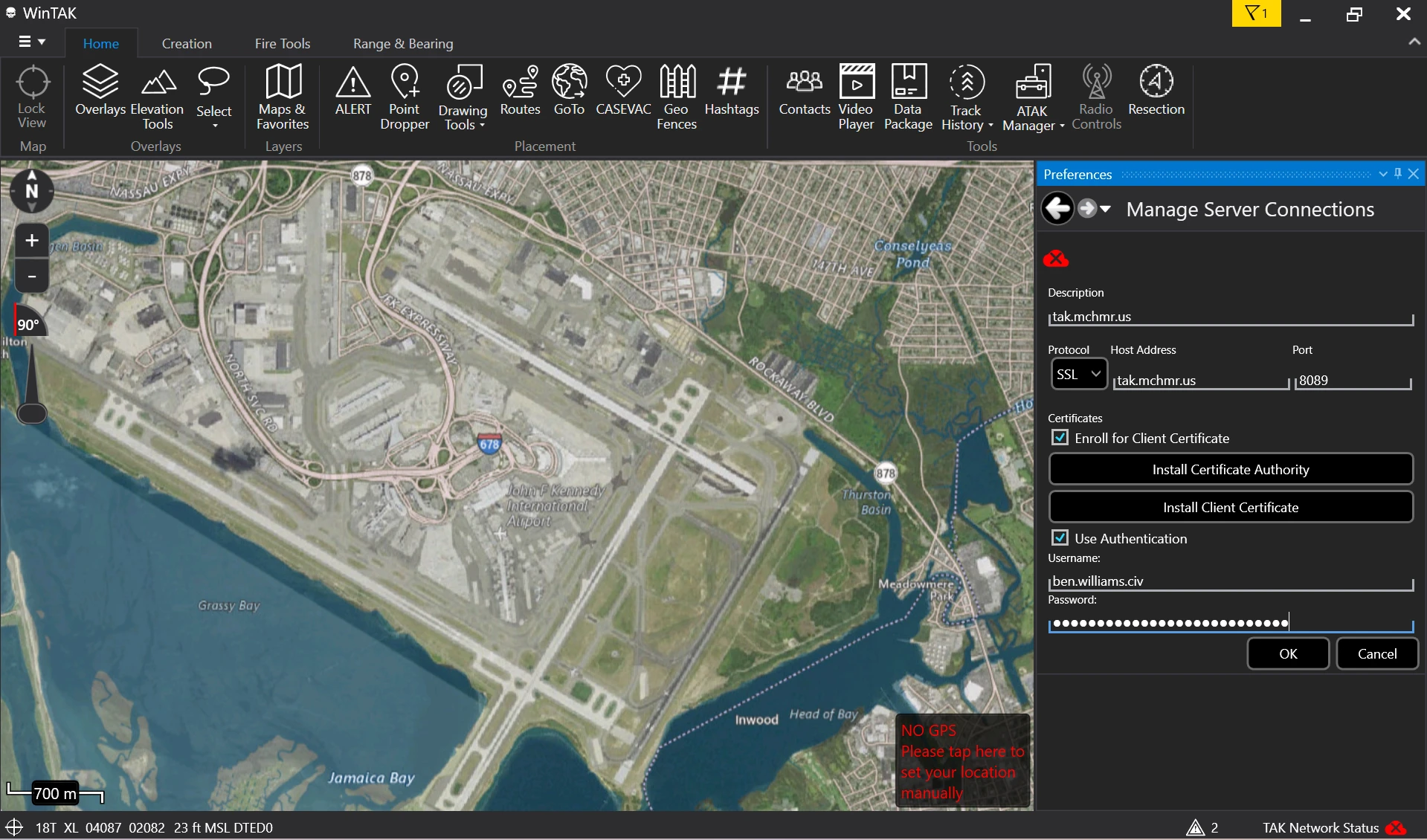
Log in with your username, not your email address. If you log in with your email address, the map and channels will not populate.
This login is authenticated against LDAP. If your account requires TOTP MFA, WinTAK's credentials dialog has no separate MFA field — enter your code in the Password field by appending it after your password with a semicolon, in the form password;mfacode (e.g. MyP@ssword123;482913). Depending on your account, an Enter Credentials dialog may also pop up asking you to confirm the same username and password again — click OK to continue.
-
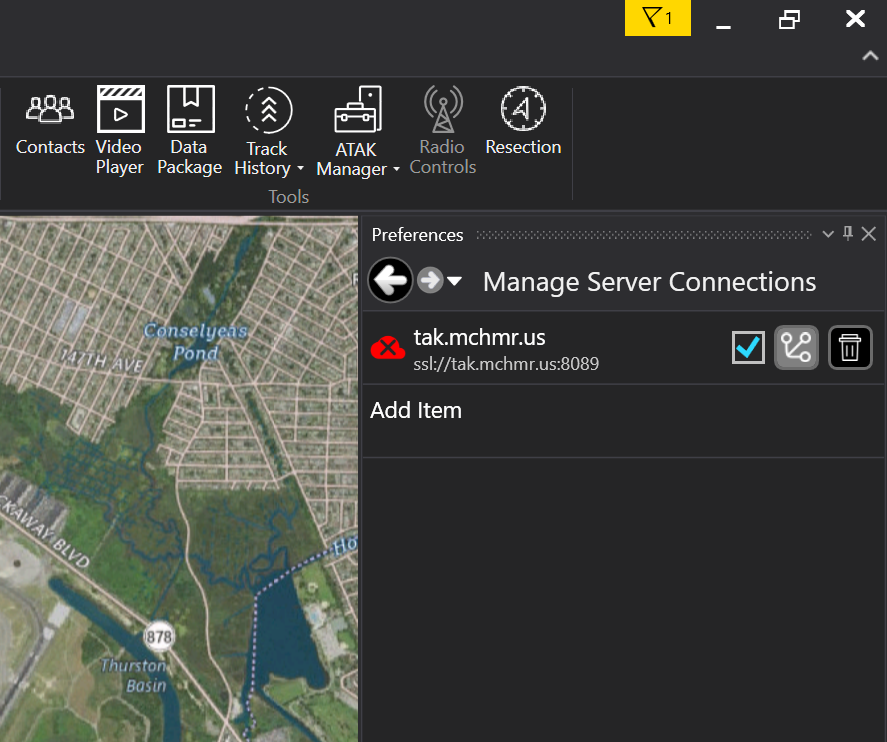
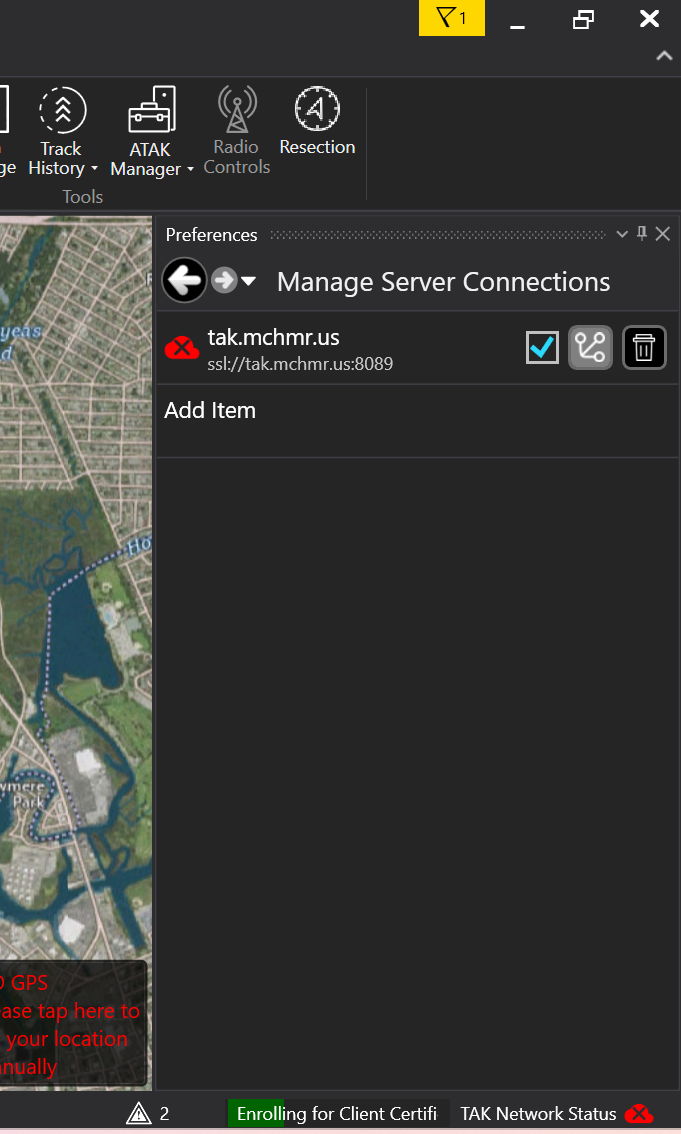
WinTAK returns you to Manage Server Connections. The new entry shows a red icon while it works on enrolling — that's expected at this point.
-
Watch the bottom-right of the window — an Enrolling for Client Certificate... progress indicator spins while WinTAK enrolls and connects.
-
Once it's done, you'll see a green cloud icon with a checkmark next to
tak.mchmr.usin Manage Server Connections. That means you're connected — any devices/groups already set up for you will appear, and you're in the IL2 environment.
Screenshots
Inline above, next to each step.
Troubleshooting
If the connection does not turn green after clicking OK:
- Double-check the Host Address (
tak.mchmr.us) and Port (8089) are correct. - Confirm Protocol is set to
SSL. - Re-enter your Tactical ID username and password if the Enter Credentials dialog reappears.
- If you connect but the map and channels are empty, check that the Username field contains your username and not your email address, then re-enter your credentials.
- If your account has TOTP MFA enabled, confirm you entered it in the Password field as
password;mfacode— a missing or malformed MFA code will look like a normal authentication failure. - Verify the machine has network access to
tak.mchmr.us. - A red icon on the connection right after clicking OK is normal while enrollment is in progress — give it a few seconds to turn into the green checkmark before troubleshooting further.
Related modules
- Logging In (OAuth) — the OAuth2/OpenID (Auth Flow) path into the same server.
- Channel Selection — filtering which entities show on your map once you're connected.
- New User Registration — creating the Tactical ID account used to authenticate here.