Channel Selection
Overview
Once WinTAK is connected to the MCHMR TAK Server (see Logging In (LDAP) or Logging In (OAuth)), you'll start seeing map tracks ("dots") from everyone on the channels you have access to. With a lot of users and feeds on the network, that can get noisy fast.
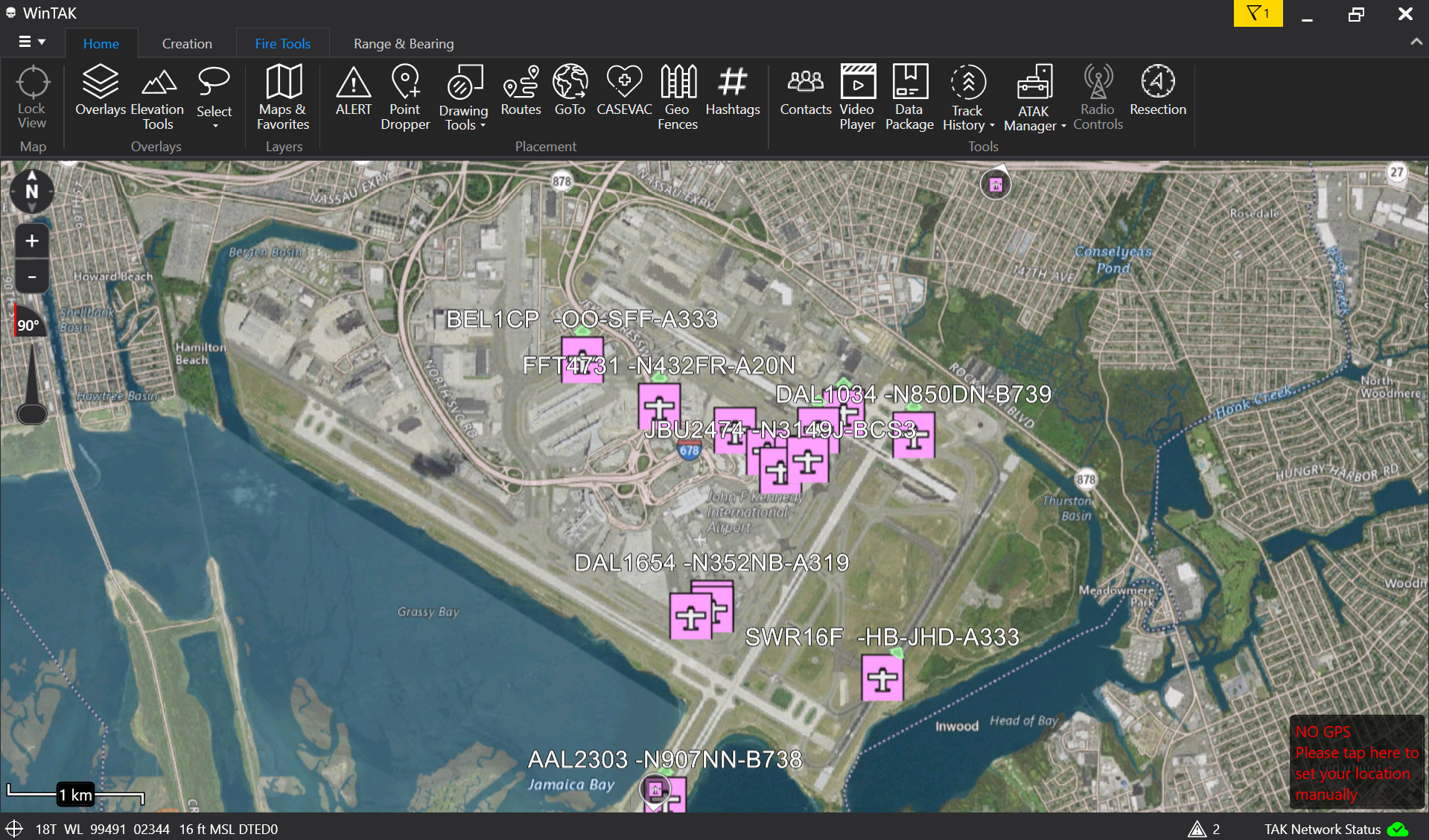
The channel selector lets you turn off specific channels you don't want cluttering your map, without affecting anyone else's view. Your selections are local to your own WinTAK client.
Prerequisites
- WinTAK connected to
tak.mchmr.us(see Logging In (LDAP) or Logging In (OAuth)).
Steps
-
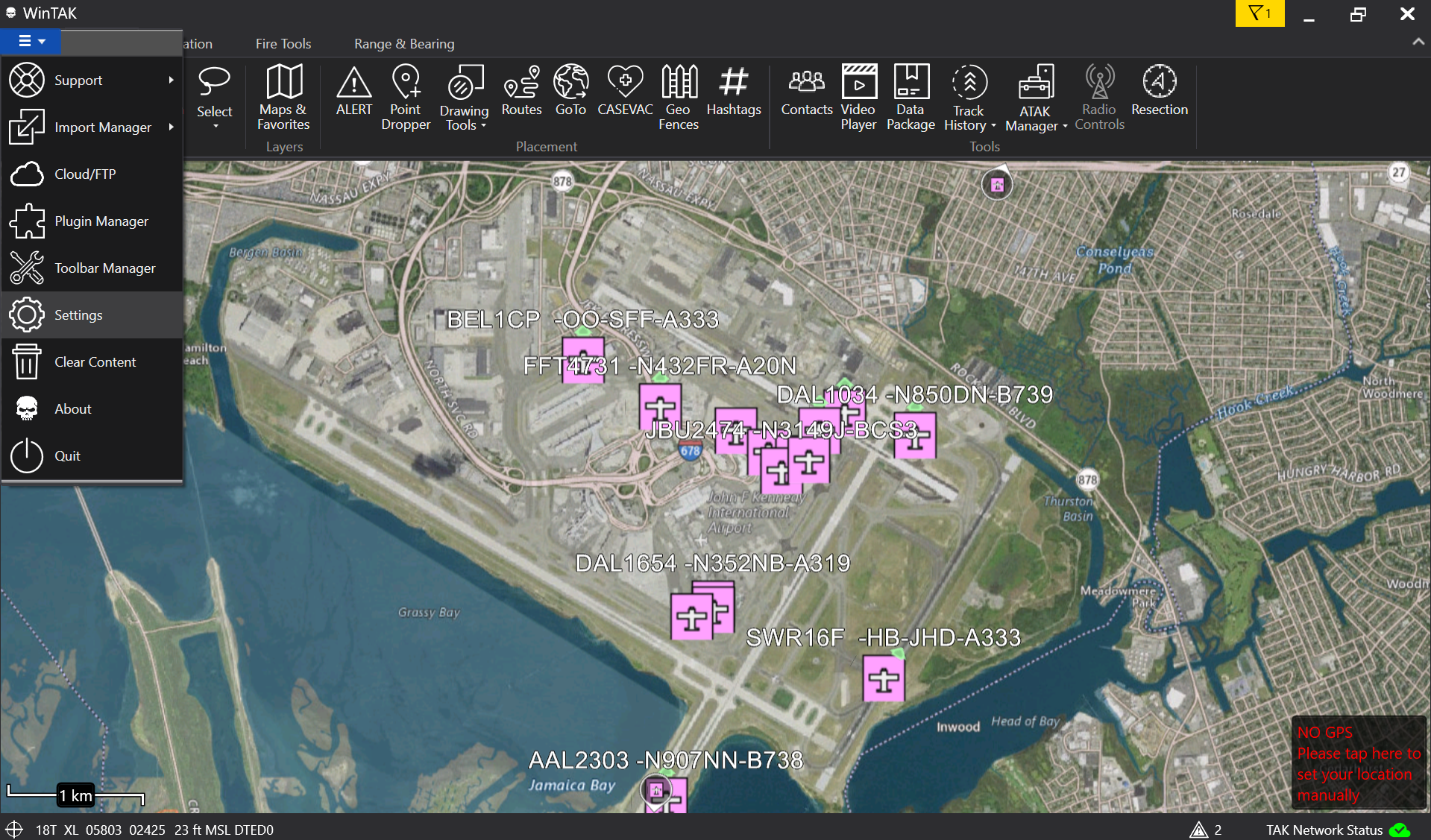
Click the hamburger menu in the top-left corner of WinTAK and select Settings.
-
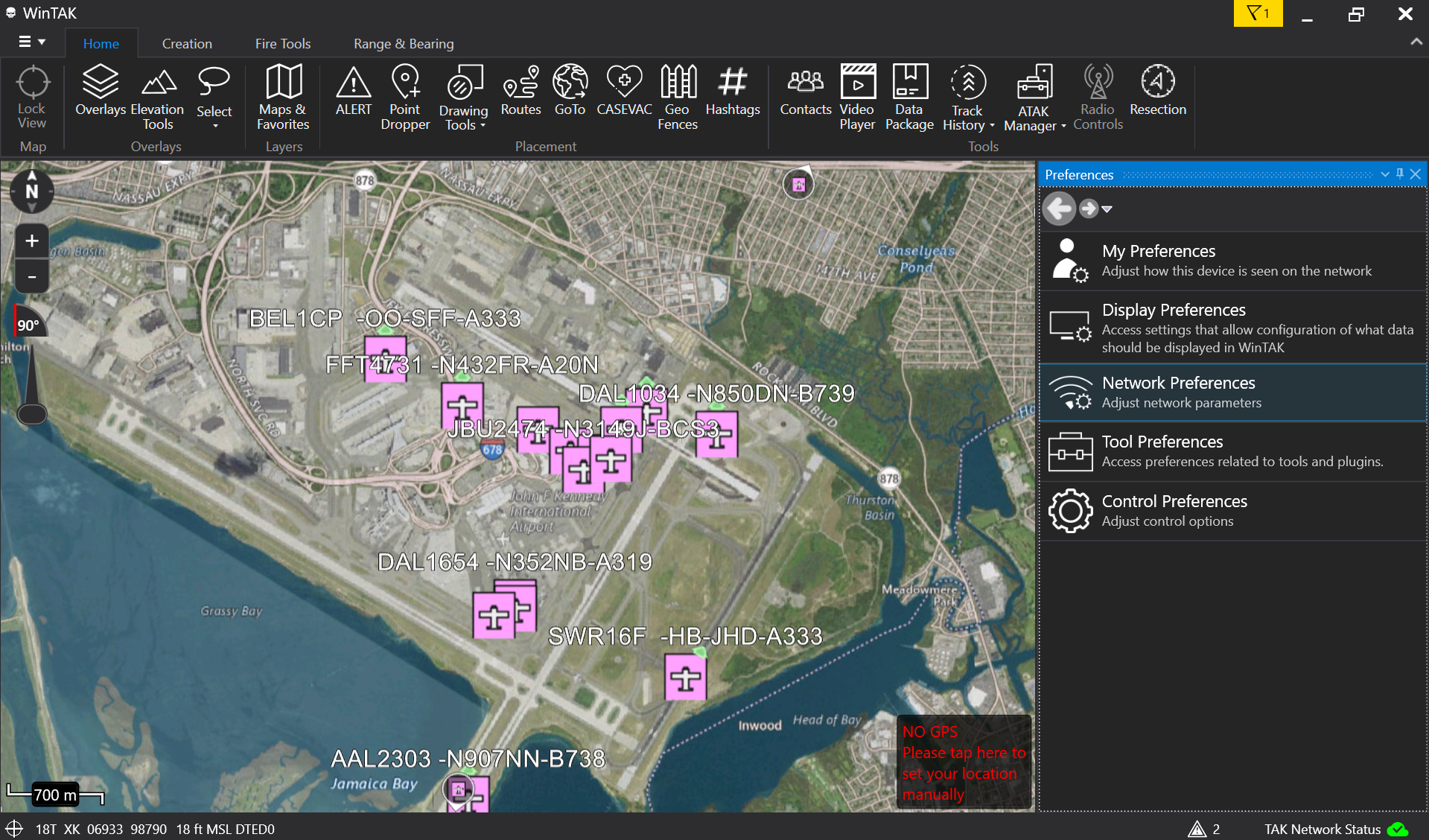
In the Preferences pane, click Network Preferences.
-
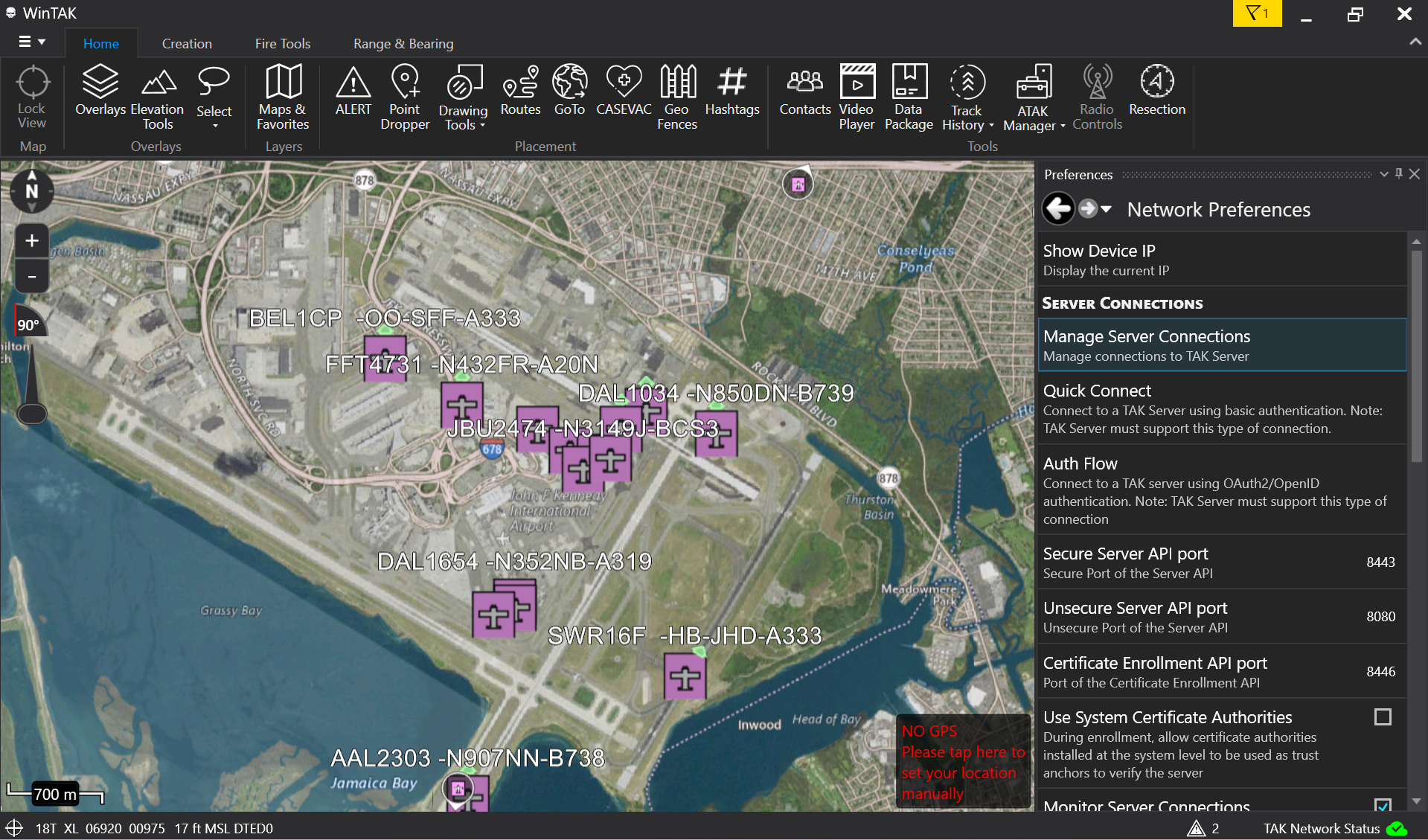
Scroll to the Server Connections section and click Manage Server Connections.
-
Find your
tak.mchmr.usconnection in the list. Next to the checkbox, click the channel selector icon — the one that looks like three circles connected by a line.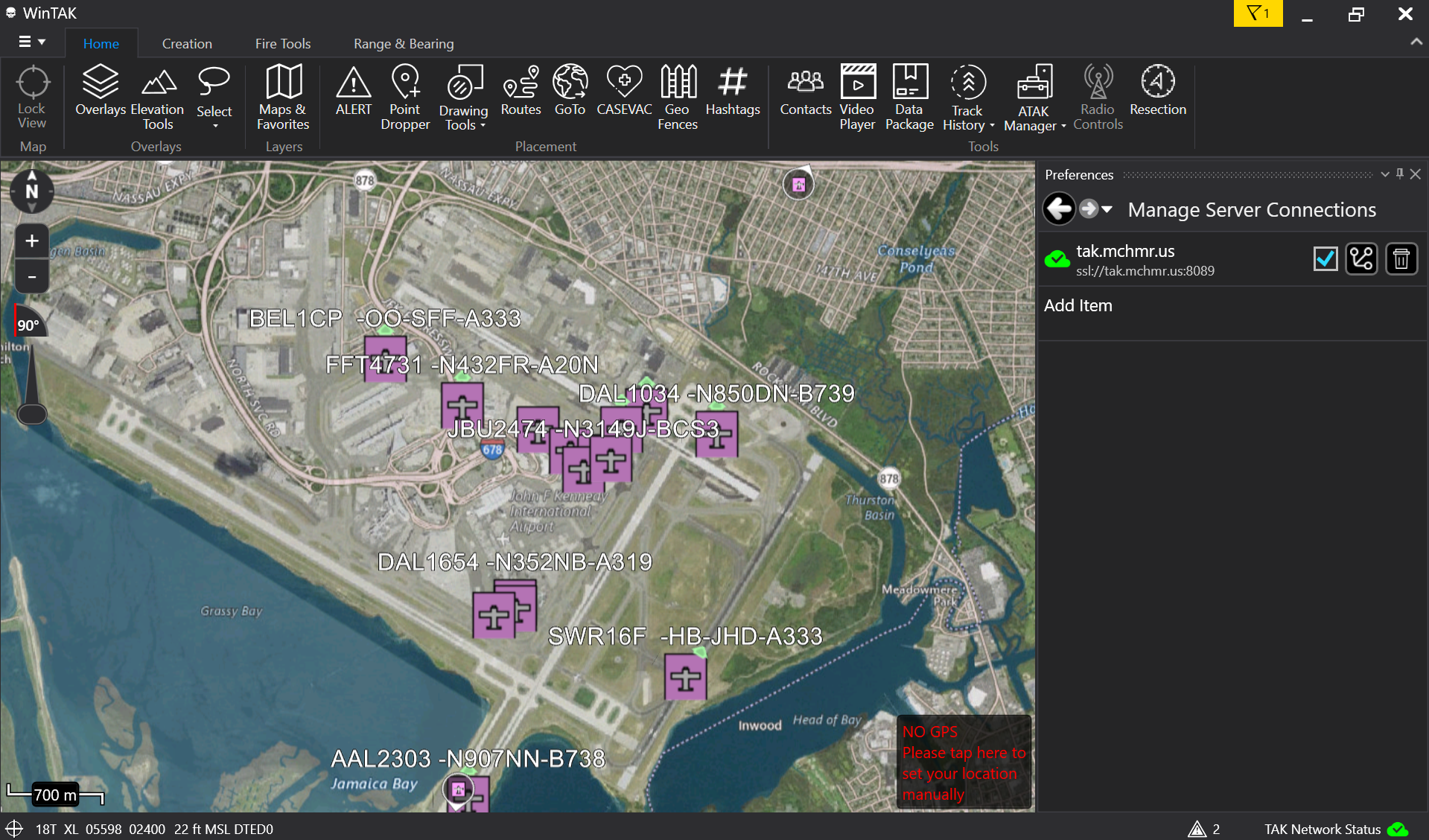
-
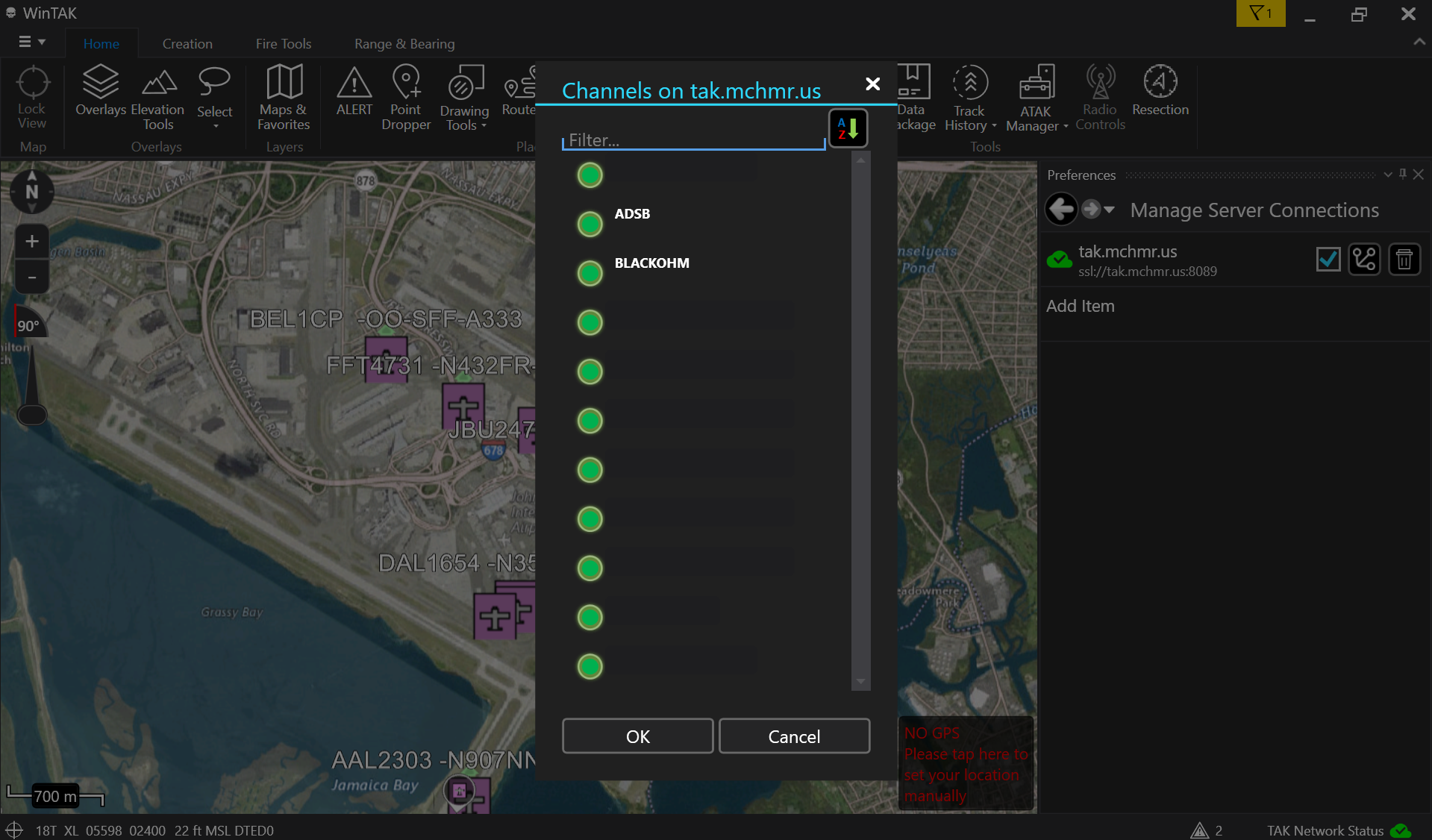
The Channels on tak.mchmr.us dialog opens, listing every channel available on the server. Each channel has a toggle next to it — green means it's currently showing on your map. Use the Filter box to search if the list is long.
-
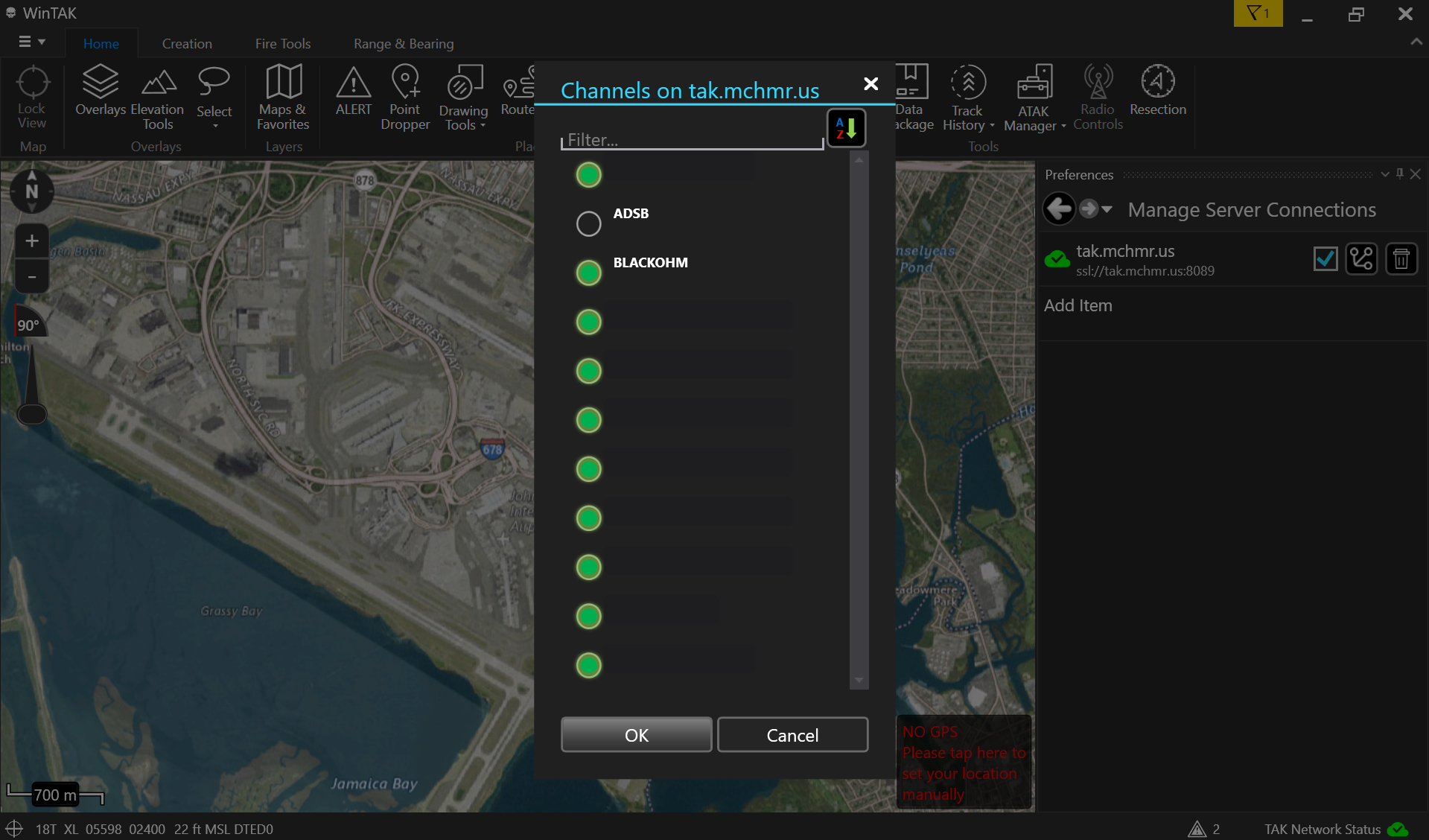
Click a channel's toggle to turn it off. For example, deselecting ADSB stops that feed from cluttering your map — other channels keep showing normally, and other users on the network are unaffected either way.
-
Click OK to apply your selection and return to Manage Server Connections.
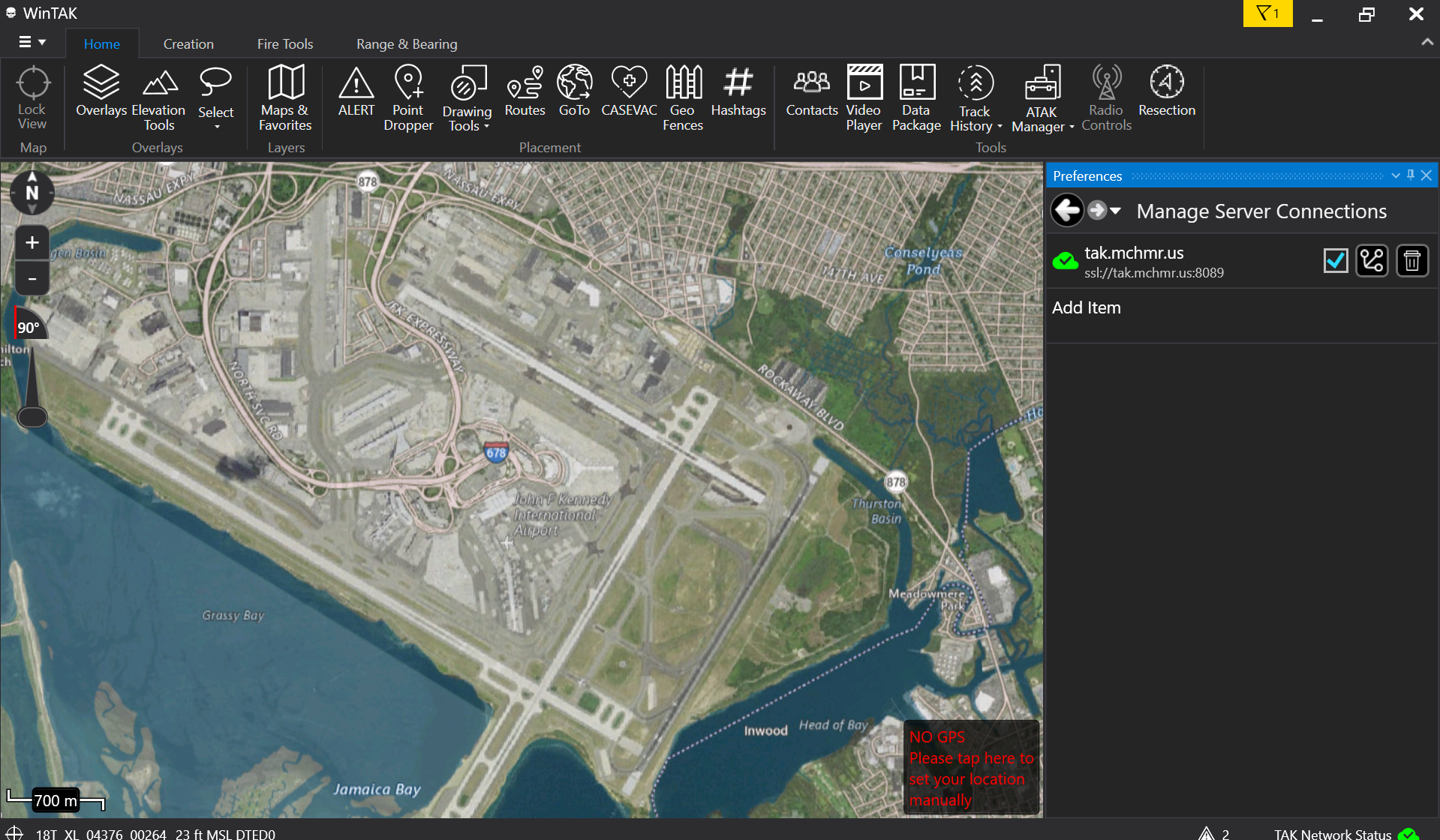
Your map now only shows tracks from the channels you left turned on. Reopen the channel selector at any time to turn channels back on or off.
Screenshots
Inline above, next to each step.
Troubleshooting
- If clicking the channel selector doesn't do anything, confirm you're clicking the icon next to the checkbox — not the checkbox itself or the trash can icon, which control the connection as a whole rather than individual channels.
- If a channel you turned off is still showing tracks, make sure you clicked OK (not Cancel) to apply the change, then reopen the channel selector to confirm the toggle is still off.
- Turning a channel off only affects your own map. If teammates report they still see everything, that's expected — this setting isn't shared across the network.
Related modules
- Logging In (LDAP) — connecting WinTAK to the MCHMR server in the first place.
- Logging In (OAuth) — the alternate Auth Flow connection path.