Logging In
Overview
Covers logging in to Tactical ID and launching WebTAK, the browser-based TAK client. This module isn't part of the originally scaffolded module set — it was added based on an uploaded reference guide ("Logging In to WebTAK Guide") and follows the same folder pattern as the ATAK, WinTAK, and iTAK modules.
Prerequisites
- A Tactical ID account. If you haven't registered yet, see the Tactical ID registration modules (e.g. New User Registration, DoW User Login/Registration).
Steps
Log in
-
Go to
https://auth.mchmr.ai/, or navigate directly tohttps://portal.apps.mchmr.aito go straight to WebTAK. -
Either page prompts you to log in. Do not enter a username and password directly on this screen — select Login with TacticalID instead, and authenticate with your Tactical ID account.
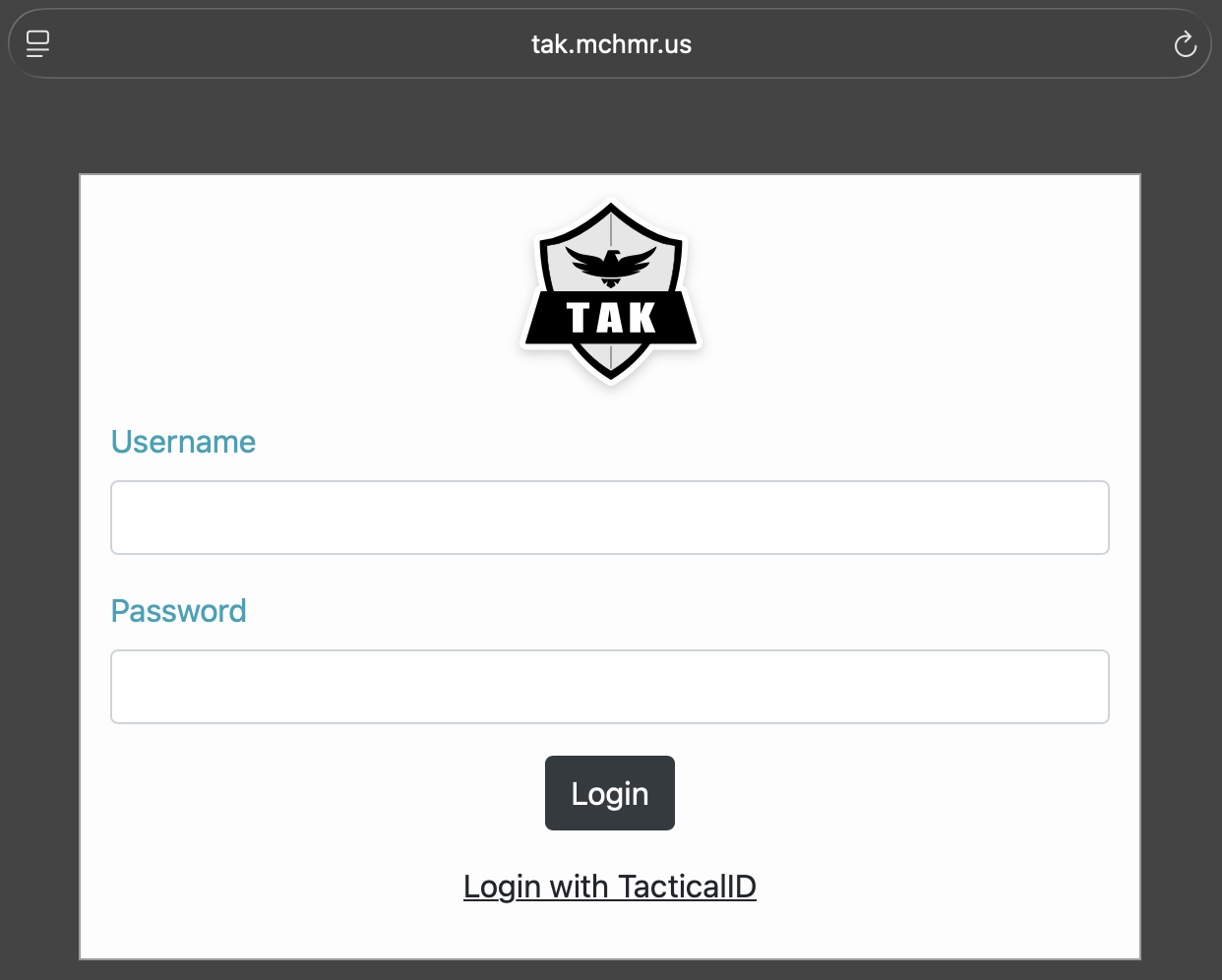
-
If you went through
auth.mchmr.ai, you'll land on the My Applications screen, under Command & Control, showing the apps available to you.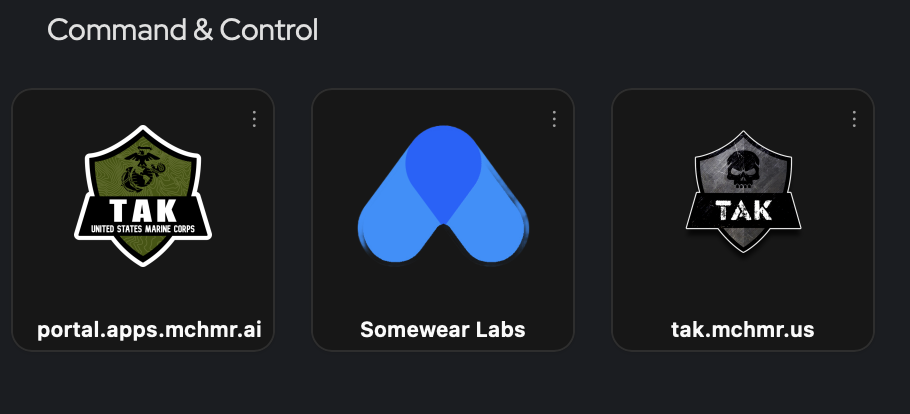
Launch WebTAK
-
Under Command & Control, select a TAK icon to launch the application. Your organization may show more than one TAK tile if it has multiple TAK Server environments (for example,
portal.apps.mchmr.aiandtak.mchmr.us) — pick the one for the server you need. -
A distribution notice appears: "Distribution Statement A: Approved for public release; distribution is unlimited." Select OK.
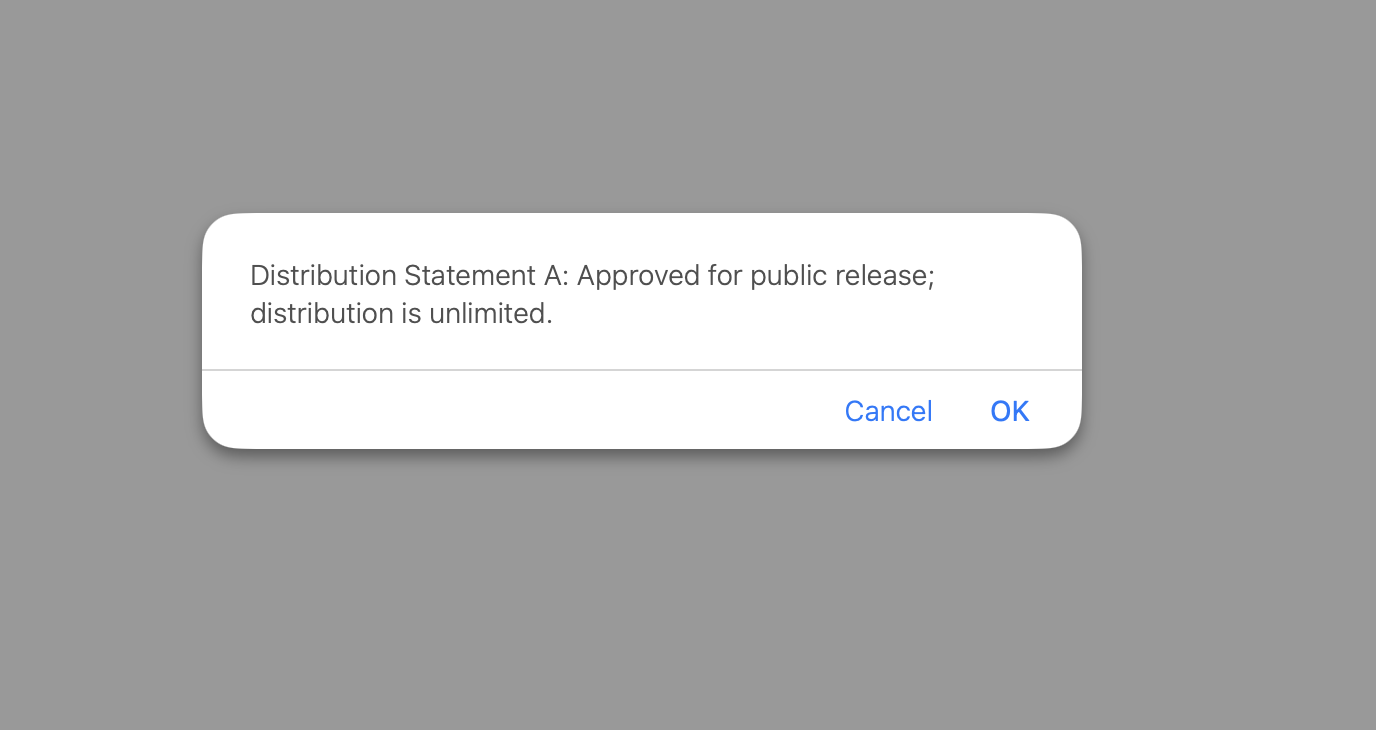
-
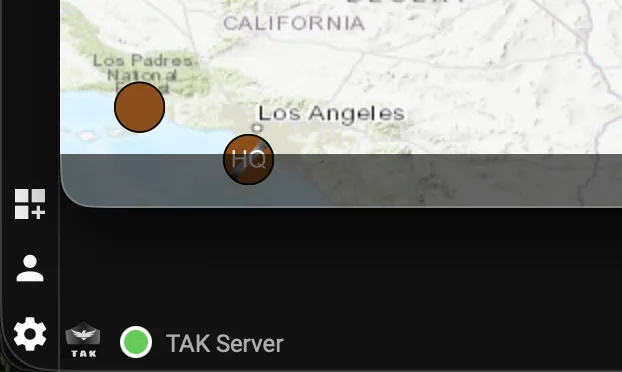
The map begins to load and populate.
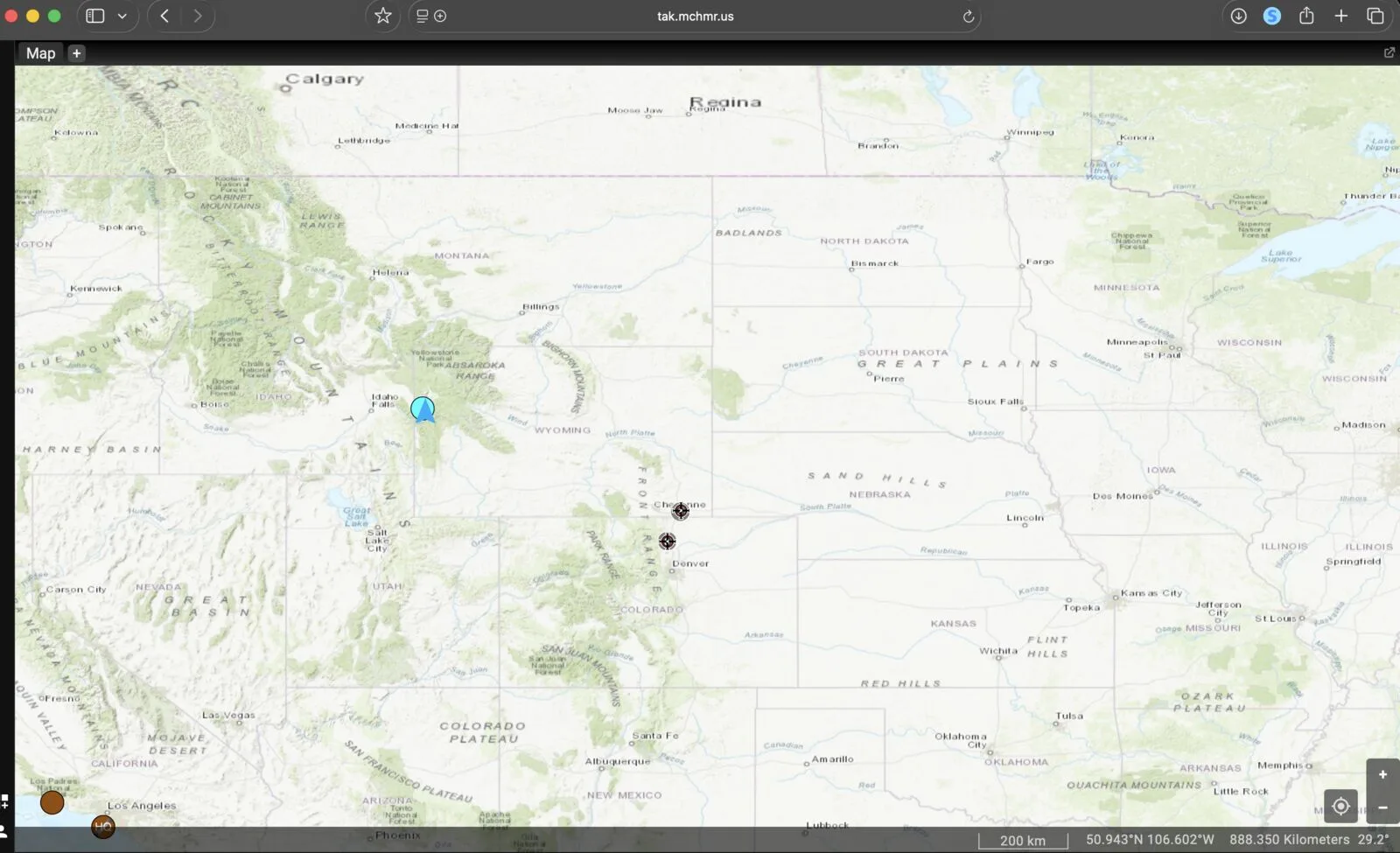
A green status indicator next to TAK Server in the bottom-left corner confirms you're connected.
-
A pop-up may ask whether to share your location. Select Allow to place a marker on the map at your position, or dismiss it to skip.
Troubleshooting
- Not sure whether to use
auth.mchmr.aiorportal.apps.mchmr.ai: both work —auth.mchmr.aishows your full application list first, whileportal.apps.mchmr.aigoes straight into WebTAK after login. - Entered a username and password directly on the login screen: don't — always select Login with TacticalID and authenticate through your Tactical ID account instead.
- Not sure which TAK tile to pick on My Applications: each tile points to a different TAK Server environment; pick the one your organization has told you to use.
- Map doesn't populate after clicking OK: give it a moment to load; if it stays blank, check network connectivity.
- Location marker doesn't appear: confirm you selected Allow on the location-sharing prompt — your browser may also need location permissions enabled at the system level.