Track History
Overview
Reference material for the Track History tool/feature in ATAK, sourced from the official ATAK 5.8 Software User Manual (chapter 21, "Track History").
Manual Reference
The device’s GPS can be used to track movements with the Track History Tool. These tracked paths can be exported to a TAK Server, to a route or to a KML, KMZ, GPX, or CSV file. A GPS position must be established before tracking can begin.

Tracks can also be recorded for other users/markers by selecting the Breadcrumb option from the marker’s radial.
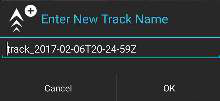
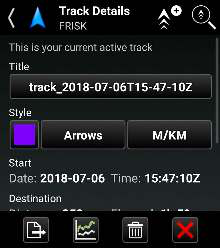
Selecting the Track History icon will open Track Details for the current active track. The track title, color and style can be modified. Initiate a new track by selecting the Add Track icon. Accept or edit the default track name and select the OK button to begin the new track. User location data is recorded as breadcrumbs in a new track file.
Use the Track Search function to view track information that has been previously saved locally or on a TAK Server. The tool searches the track database for matches against the specified time range and by user callsign. Matching tracks are displayed as a list and can be selected to view on the map interface.

Track History
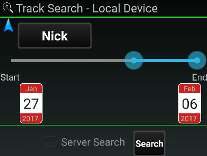
Select the Track Search icon to access the function. Specify callsign and time frame, check the box for Server Search (if desired), then select Search. The track list will appear. The query results can be sorted by Track Name or Start Time. Select any of the query results to move to that track. Once selected, the name, color and style of a selected track can be modified, or the track can be cleared. Convert a track to a TAK route, publish to a server or export it as a KML, KMZ, GPX or CSV file by selecting the desired track and then Export. Enter a file name then select Next and choose the export format. Select Done or Send when the export completes.
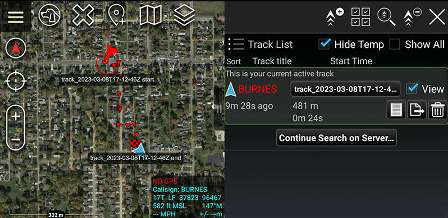
When viewing the track list, the Track History Toolbar will appear at the top of the Track History pane. The options include Add a Track, Multi-select, Track Search and Clear Tracks. The Track History list allows a user to view and select the tracks of other users that they have saved locally. The Track Search – Local Device provides the ability to perform a tailored search for tracks meeting specific criteria. Use the searching option to retrieve all the tracks on the device.
Track History and Bread Crumb options can be configured in the Settings > Tool Preferences > Specific Tool Preferences > Track History Preferences.

Source
ATAK 5.8 Software User Manual, 07 July 2026 (Unclassified), pages 75–76.