TAK Package Management
Overview
Reference material for the TAK Package Management tool/feature in ATAK, sourced from the official ATAK 5.8 Software User Manual (chapter 28, "TAK Package Management").
Manual Reference
The primary user interface for managing products and product repositories in ATAK is the TAK Package Management Tool. This tool streamlines the process of obtaining plug-ins and provides a single location to manage TAK products available across all supported TAK product repositories. To install tools or plug-ins into Android OS and load them, select the Plugins icon from the additional tools and plug-ins menu.

Actions available from here include viewing the status, availability, and details of all available products. Products can also be installed, updated or uninstalled from this menu. Select Search (magnifying glass) to enable a text search field that can also filter by status and origin.


Tap Multi-Select to install/uninstall/load or resolve incompatibilities for multiple products at once. Select Sync to resync the local device with available product repositories. Depending on the screen size, or current orientation of the local device, additional options will be placed in the overflow menu (three dots). Select Settings (gear) to access the TAK Package Management preferences. Select Check Versions to check the server repository version. Select About (i) to display the ATAK version, plug-in API, device and Android build.
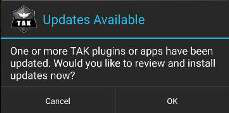
Upon opening ATAK or after a product repository sync is completed, if any current products have available updates (e.g., a new version of an application or plug-in), a prompt will appear to open the TAK Package Management view for updates. Note that compatible products may still function when not up to date; however, incompatible products will not be loaded until they are updated.
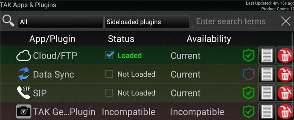
Each plug-in in the list is marked with a shield icon. The color of the shield indicates the signing service used during the build process. A green shield denotes that the plug-in or application was signed through the official government signing service, while a blue shield denotes that it was signed through a third-party pipeline. The shield color reflects only the signing source and does not indicate trust level, endorsement, or security status.
TAK Package Management
To enable or disable auto synchronization of the device with all configured product repositories, select the Overflow Menu icon from the TAK Package Management screen then select Edit and check the Auto Sync box. If Auto Sync is enabled, the sync occurs each time ATAK is started. If a newly installed plug-in is not on the list, select the Sync icon to update the local list. Note: The status of installed but inactive plug-ins will appear as STATUS: Not Loaded.
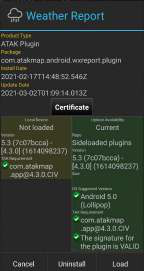
Over-the-Air Update Server product repository is disabled by default but may be enabled to (1) view status of remote repository (status of last sync attempt), (2) view time of last successful sync with the remote repository and/or (3) switch to a custom or private remote repository (change the URL).
To enable Over-the-Air Server product repository, open TAK Package Management > select the Overflow Menu > select Edit, then check the box for Update Server. Update Server URL becomes available (empty by default). Select to enter the URL for the desired repository server and select OK.
Select Quick Configure Update Server URL from a TAK Server to quickly configure the update server URL based on an existing TAK Server connection. Return to the TAK Package Management screen and press Sync to populate server and local plug-ins. The server status information will appear near the top of the screen.
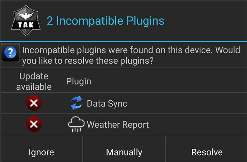
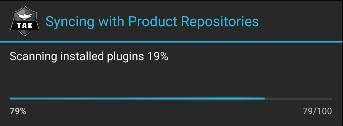
If running Update Server provides multiple base versions of ATAK (e.g., 5.6.0, 5.7.0, and 5.8.0) and it is preferred to upgrade base versions, select the Overflow Menu > Check Versions > Choose the desired version. If unselected, the repository chosen will be the one that aligns with the current ATAK version. ATAK automatically synchronizes with the configured product repositories the first time it runs after being upgraded to a new version. This allows ATAK to check for available updates and incompatible plug-ins. If a repository sync is manually initiated by the user, a sync operation will display a progress dialog. Auto sync operations which occur during startup do not display a progress dialog, minimizing interference of the user working in other tools.
Source
ATAK 5.8 Software User Manual, 07 July 2026 (Unclassified), pages 87–88.