Other Features
Overview
Reference material for the Other Features tool/feature in ATAK, sourced from the official ATAK 5.7 Software User Manual (chapter 31, "Other Features").
Manual Reference
Plug-ins must be installed and then loaded to function in ATAK.
Installing a Plug-in - Manual Installation
If an update server is not available, a manual install can be done. Acquire the plug-in .apk file, place it on the local device, browse to it, then select the apk to launch it. Android will prompt for permission to install. Allow the installation to run until notified that it is complete.
Launch ATAK and open the TAK Package Management screen by selecting Plugins from the Additional Tools menu or by navigating to Settings > Tool Preferences > Package Management.

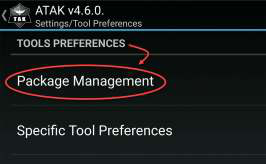
A list of currently installed plug-ins will be displayed. Also included in the list are available stand-alone applications.


If the newly installed plug-in is not on the list, select the Sync icon to update the local list.
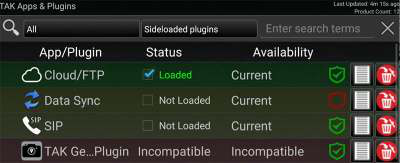
Manual Installation
The status of installed but inactive plug-ins will appear with a status of Not Loaded. Select the checkbox and then Load for the new plug-in to be loaded. The plug-in can be unloaded by unchecking the box. When the plug-in has a status of Loaded, it is ready for use. The status of an installed plug-in that is no longer compatible with ATAK will appear with a status of Incompatible.
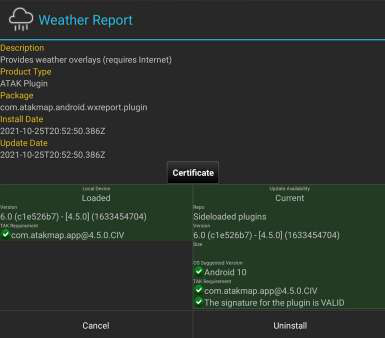
The lists of plug-ins and applications will also have a red or green shield associated with it. A green shield signifies an officially signed plug-in or application. A red shield signifies that the plug-in or application is not officially signed. If an updated plug-in is not available, the plug-in should be uninstalled. To uninstall the plug-in, select the Trashcan icon.
The Information icon provides additional information about the plug-in.
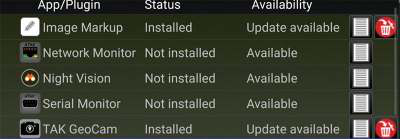
To install a stand-alone application that has a status of Not Installed, select the application entry from the list. Once the selected application dialog appears, select the Install option. Once installed, the application is loaded.

The application can also be upgraded to a newer existing version if the status is Update Available. Select the application entry in the list and once the application dialog appears, select the Update option. The application can also be uninstalled from this dialog by selecting the Uninstall option.
Installing a Plug-in - Update Server Installation
Plug-ins can also be installed via an Update Server. The Update Server can be configured by selecting Settings > Tool Preferences > Package Management > select the Additional Options drop-down > Edit. Check the box for Update Server and configure the three subsequent fields.
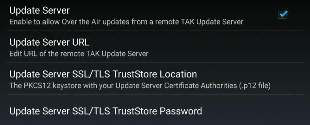
Launch ATAK and go to the TAK Package Management screen by navigating to Settings > Tool Preferences > Package Management. A list of currently installed applications and plug-ins will be displayed.
Select the Sync icon to update the list from the server.
The plug-ins and applications listed can be installed, loaded, upgraded and uninstalled in the same manner that was described in the previous section.
Installing a Plug-in - Automatic Provisioning (Link EUD)
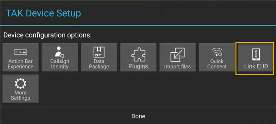
Using the Link EUD option when ATAK is initially configured, links the user device to an organization’s server. The list of available plug-ins will be updated in TAK Package Management, based on the user’s role in the organization. To manually refresh the list, select the Sync icon.
User Feedback
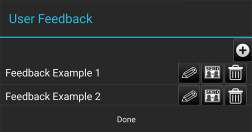
ATAK users can initiate feedback and issue reporting. To access the User Feedback Tool, navigate to Additional Tools and Settings > Settings > Support > User Feedback. From the User Feedback dialog, select + and complete the text fields using text entry or the Android speech to text feature accessed by selecting the Microphone on the top row of the QWERTY keyboard. Associated files, like log files and screenshots, can be added by selecting Attachment > Edit > and + to navigate within the Android internal file structure system to the desired file(s). When the form is completed with the required information, select Send and the bug report will automatically be uploaded to a repository when a connection is available.
Source
ATAK 5.7 Software User Manual, 13 March 2026 (Unclassified), pages 92–95.