Import Tool
Overview
Reference material for the Import Tool tool/feature in ATAK, sourced from the official ATAK 5.7 Software User Manual (chapter 25, "Import").
Manual Reference
Select the Import icon to import supported files into the TAK application from an SD card or via the network.

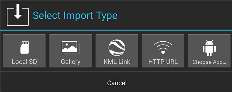
From the Select Import Type interface window the following can be selected: Local SD, Gallery, KML Link, HTTP URL or Choose App.
Select LOCAL SD to import from a folder residing on the internal or external SD card. Navigate to the folder from where files are to be imported. Various types of files can be imported via Import Manager including: ATAK configuration, Data package zip files, Elevation Data (such as DTED, SRTM, Quantized Mesh or other forms), imagery and overlay files.
Imagery file types that are supported include XML, SQLite, MVT, GeoPackage with imagery, CADRG, CIB, ECRG, GeoTiff, JPG2000, KMZ with imagery, MrSid, NTIF, and PFPS. Overlay file types that are supported include DRW, GPX, KML, KMZ, LPT and Shape.
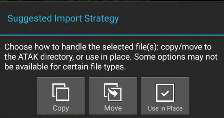
Select OK to confirm the files to be imported, then choose an import strategy. Select Copy to copy the chosen files to the ATAK directory. Select Move to move the file from its original location to the ATAK directory. Select Use in Place to import the file from its current location in the storage directory.
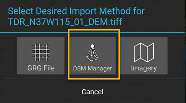
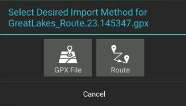
Depending on file type, most imported files will be accessible via Maps and Favorites, Data Package or Overlay Manager. Some file extensions, like GPX or ZIP files for example, may result in a prompt for the user to select which import method to use. Import Manager is extensible when plug-ins are installed. Plug-ins that provide an alternate way to process a given file format will appear as an option for that file type.

Import
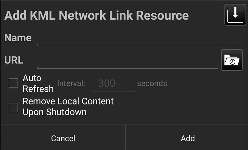
Select KML Link to import a KML file via the network using HTTP or tap HTTP URL to import other file types via the network using HTTP. Enter a name for the link, a valid HTTP URL and a refresh interval (KML link only). Finally, indicate whether the local content should be removed when ATAK is shut down. Select Add to save the link.
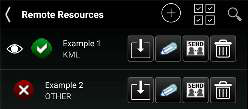
Once the KML Link or Remote File Resource has been added, it will be listed in the Remote Resources category in Overlay Manager. The red status indicator appears next to files that are available for download but have yet to be added. Selecting the Download icon initiates the download process after the user verifies the activity. The green status indicator lists files that have been successfully downloaded.
Source
ATAK 5.7 Software User Manual, 13 March 2026 (Unclassified), pages 81–82.