Go To
Overview
Reference material for the Go To tool/feature in ATAK, sourced from the official ATAK 5.7 Software User Manual (chapter 16, "Go To").
Manual Reference
Select the Go To icon to enter coordinates and navigate to a specific location on the map.

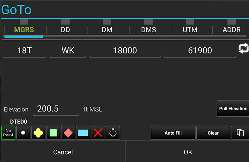
Select from the MGRS (military grid reference system), DD (decimal degrees), DM (degrees - minutes), DMS (degrees-minutes-seconds), UTM (Universal Transverse Mercator) or ADDR (address) tabs on the Go To interface and enter the location data of interest. Select the Cycle button when using either the MGRS or UTM entry methods to reformat the text fields. The first cycle mode will combine the Easting/Northing into one field with the following cycle mode combining the entire coordinate entry into one large field.
The coordinate entry tabs can be reordered by long pressing and dragging the coordinate entry tab to the new desired location in GoTo.

Enter the Latitude, Longitude and Elevation in the space provided for MGRS, DD, DM or DMS searches. If an elevation source is available, the elevation value can be automatically populated by tapping the Pull Elevation button. By default, the source with the highest resolution for the specified location will be used, but this can be configured in Settings > Tool Preferences > Specific Tool Preferences > Coordinate Entry Preferences.
An address can be entered to drop a marker or pan the map to the desired location. After entering an address, select Find. This will populate the Add Address box in the Go To window. Check the Set the Address as the Title box to place the address on the map as a label. If a marker is selected, the address will be the marker’s label. If no marker is selected, the address will be placed alone on the map as a label.

Additional address providers can be configured by placing an XML file with the provider information into atak/tools/address. The address lookup provider used for the ADDR tab can be configured in the Settings > Tool Preferences > Specific Tool Preferences > Address Lookup Preferences. The chosen address provider will be displayed in the Go To window on the ADDR tab.
Source
ATAK 5.7 Software User Manual, 13 March 2026 (Unclassified), pages 63–63.