Downloading Offline Map/Imagery
Overview
Covers downloading map tiles for offline use in ATAK, so your maps keep working when you don't have a network or cell connection in the field. ATAK can display maps two ways — Online, where tiles stream from the internet on demand, or Local, where tiles you've already downloaded are read straight from the device. This module covers downloading tiles for Local use, either as a base map or as an overlay.
Prerequisites
- ATAK installed on the device.
- An internet connection to download the tiles (only needed up front — not while using them later).
- Enough free device storage for the area you plan to download — larger areas and finer detail both increase file size.
Steps
Open the map selection tool
-
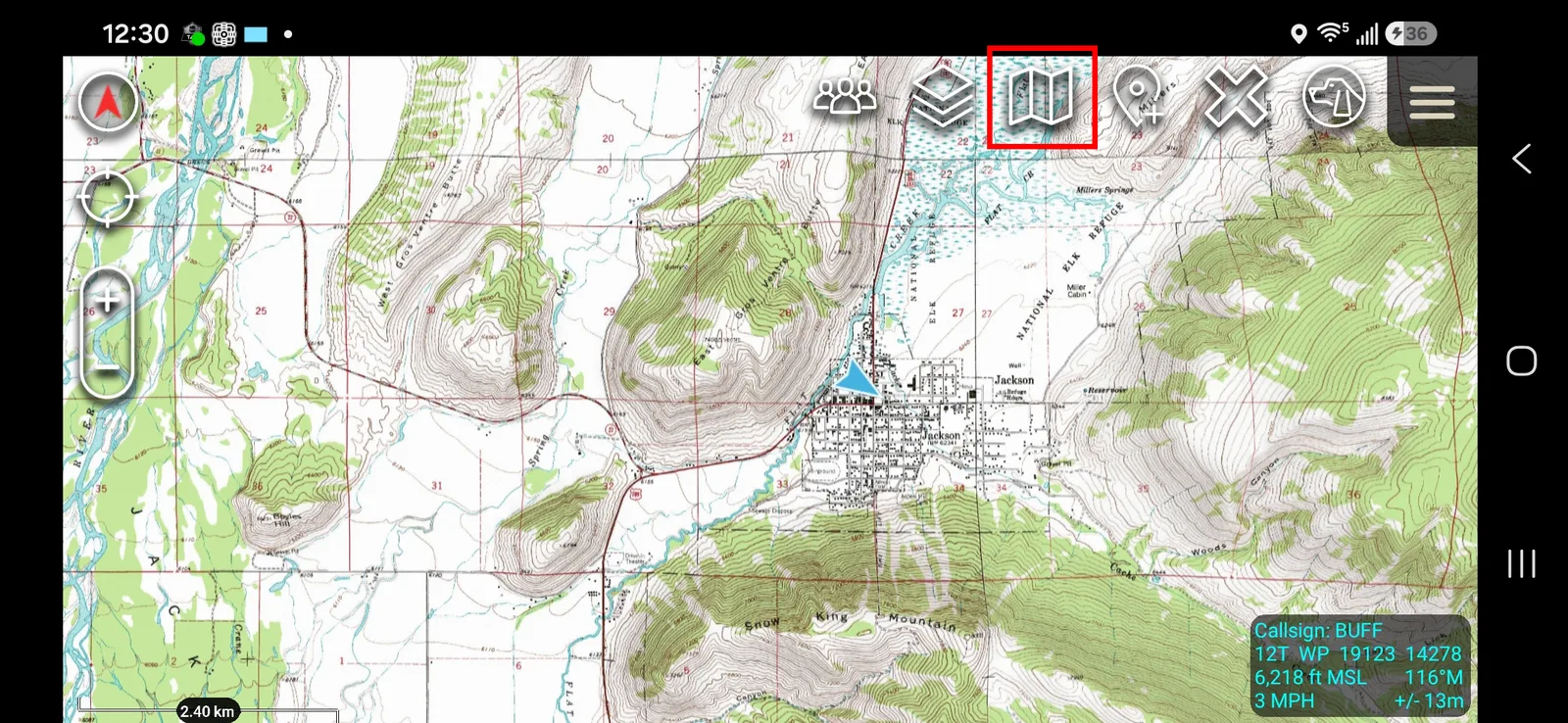
From the main map screen, tap the map icon in the top toolbar (highlighted below).
-
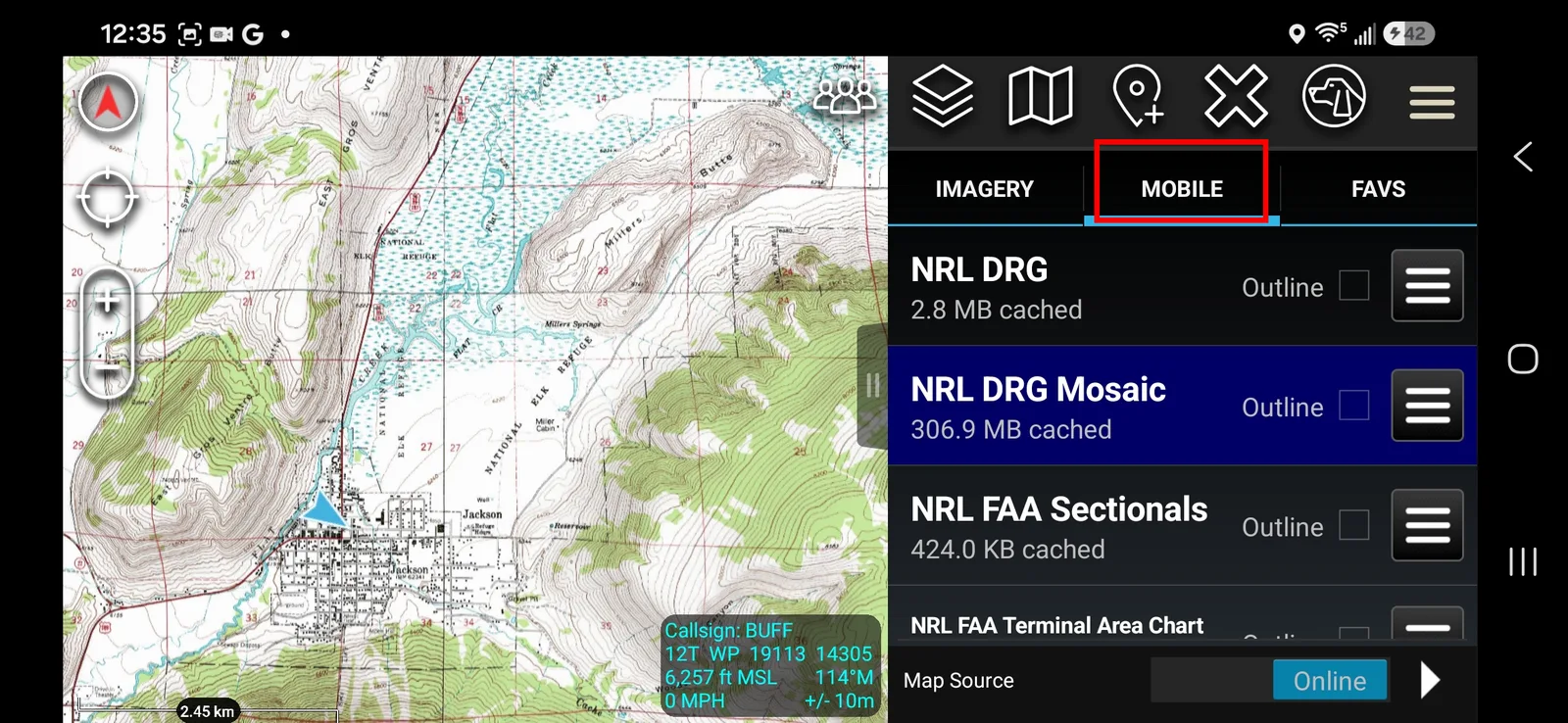
Tap the MOBILE tab (highlighted below). This lists the map sources you can stream over the internet or download for offline use — each one a mosaic of map tiles warped onto the Earth's surface. At the bottom of the page, Map Source shows Online highlighted in blue.
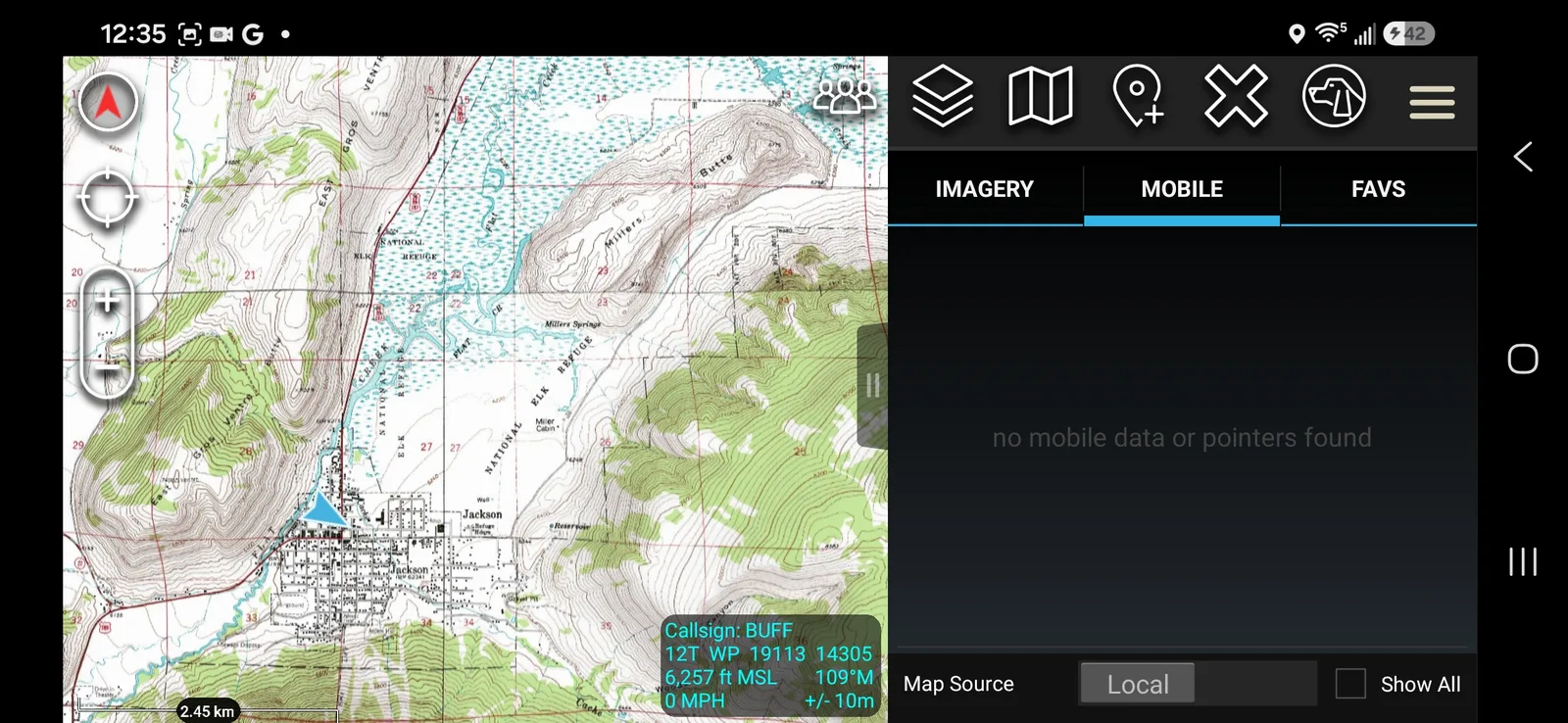
Toggling Map Source switches between Online and Local. This is the same slider you'll use later to switch to your offline maps once they're downloaded. If you toggle to Local before downloading anything, you'll see "no mobile data or pointers found":
Select an area to download
-
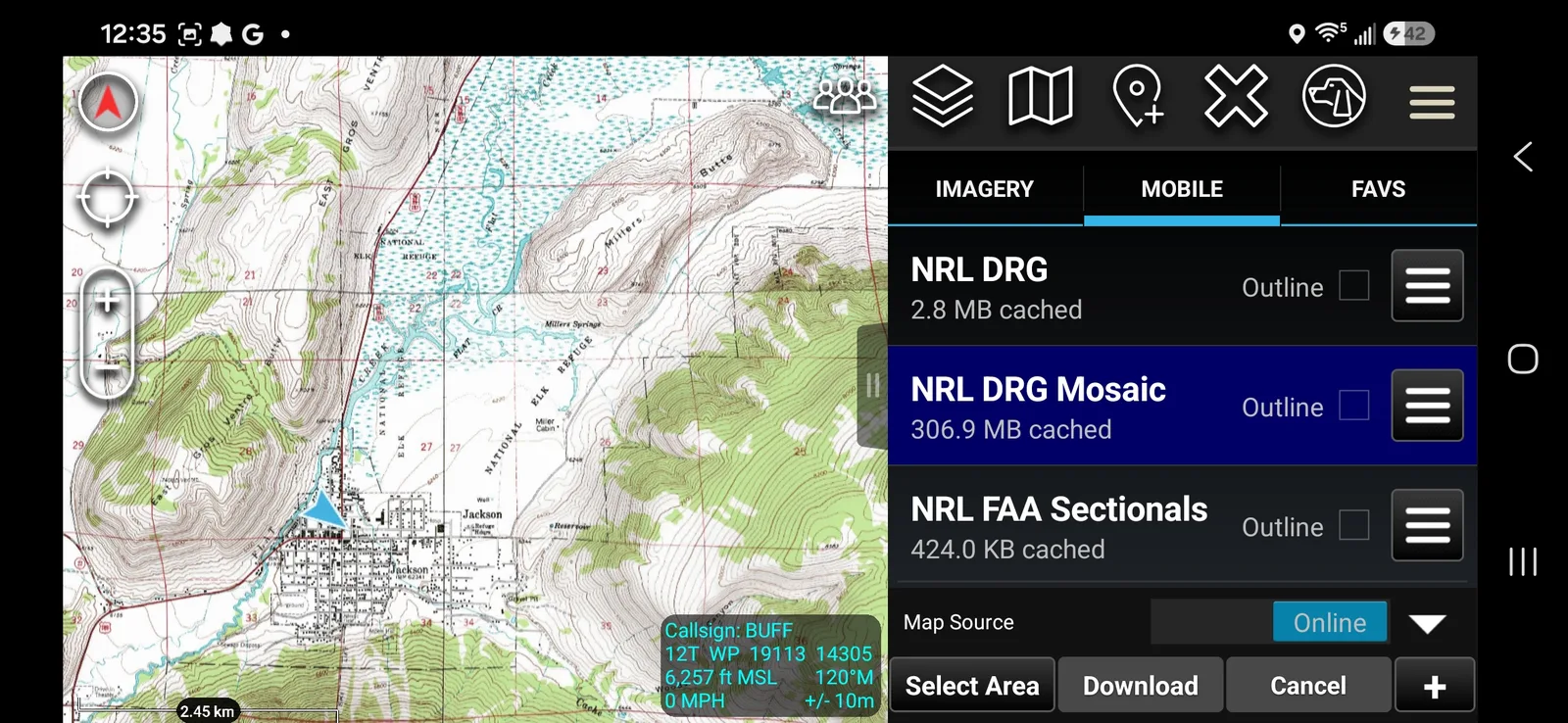
Toggle back to Online, tap the map layer you want to download — in this example, NRL DRG Mosaic — then tap Select Area at the bottom of the page.
-
Choose a drawing tool: Rectangle, Free Form, Lasso, or Map Select.
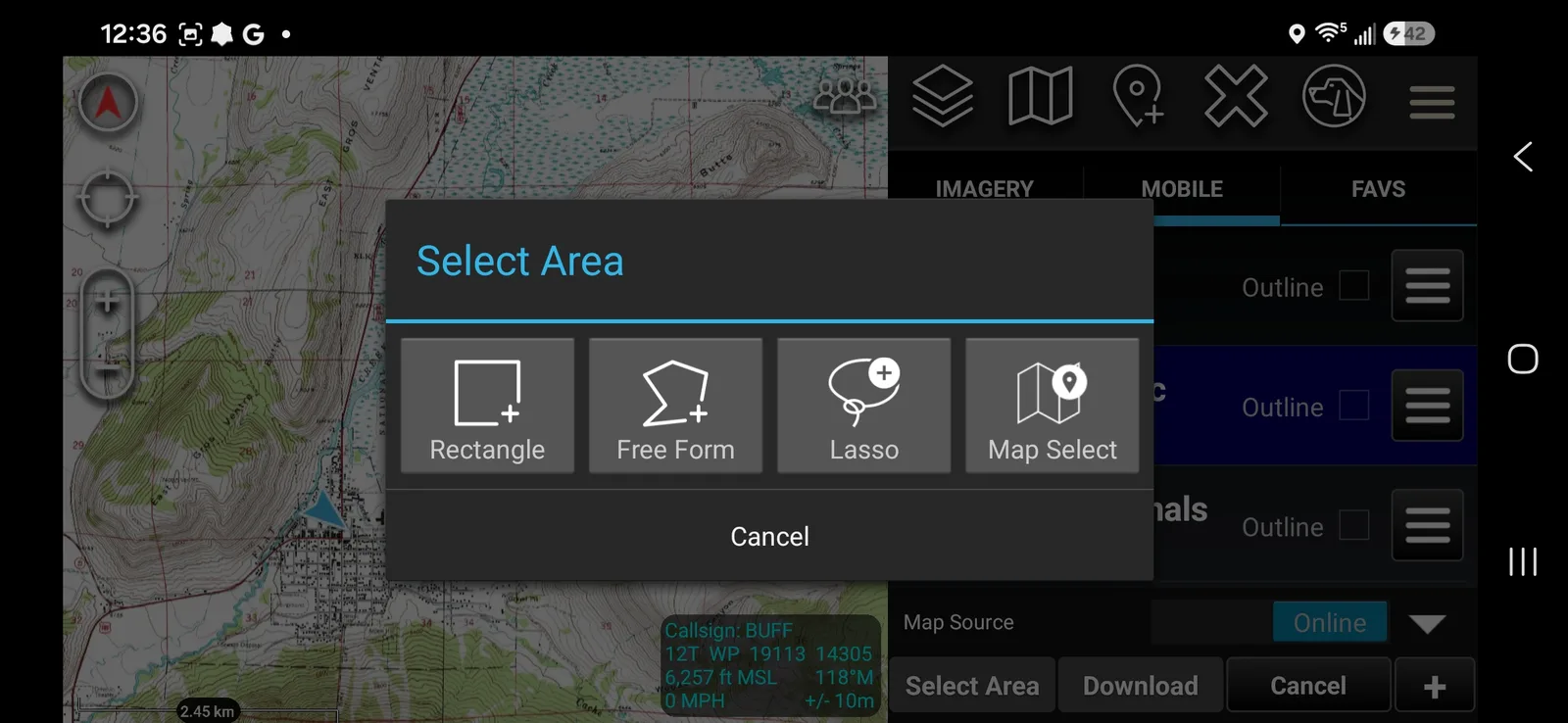
There's a direct relationship between the size of the area you select and the resulting file size. Only download areas you actually anticipate operating in.
-
Draw the area on the map. The first time you do this, ATAK shows an on-screen hint — for Rectangle, this is a "three point entry": tap the first corner, then the second, then drag to set the depth.
Set the fineness and download
-
Once you finish your selection, a slider menu appears controlling how fine or coarse the downloaded map will be.
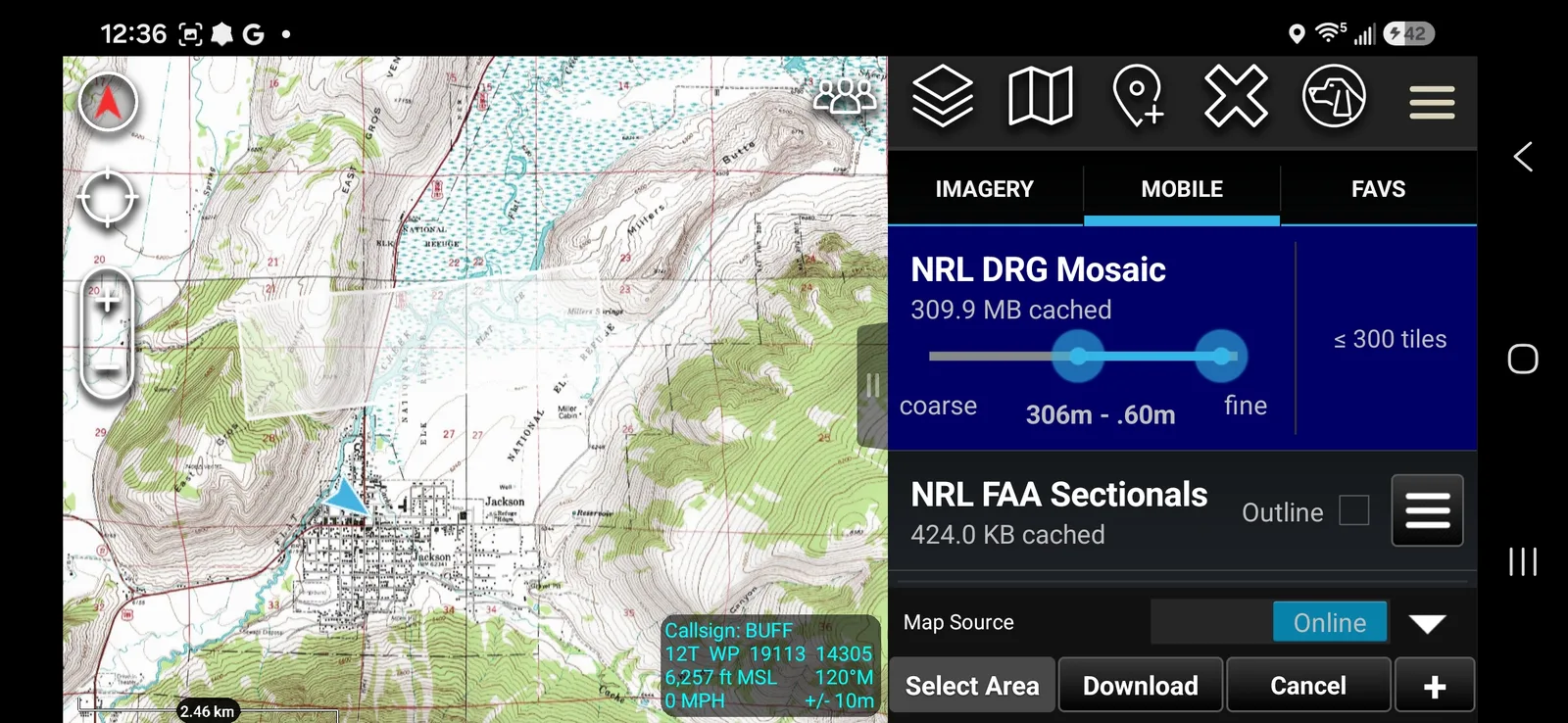
- The right slider sets the zoom level of your most detailed tiles. Increasing fineness dramatically increases tile count, file size, and download time — 1 to 5 meters is adequate detail for most cases.
- The left slider sets the zoom level of your least detailed tiles. Leaving both sliders aligned gives you a single zoom level offline; moving the left slider outward gives you multiple zoom levels — less detail zoomed out, more detail zoomed in. In general, you do not need to touch the left slider.
-
Here the right slider has been pulled in to 5m, dropping the tile count from roughly 300 to about 30.
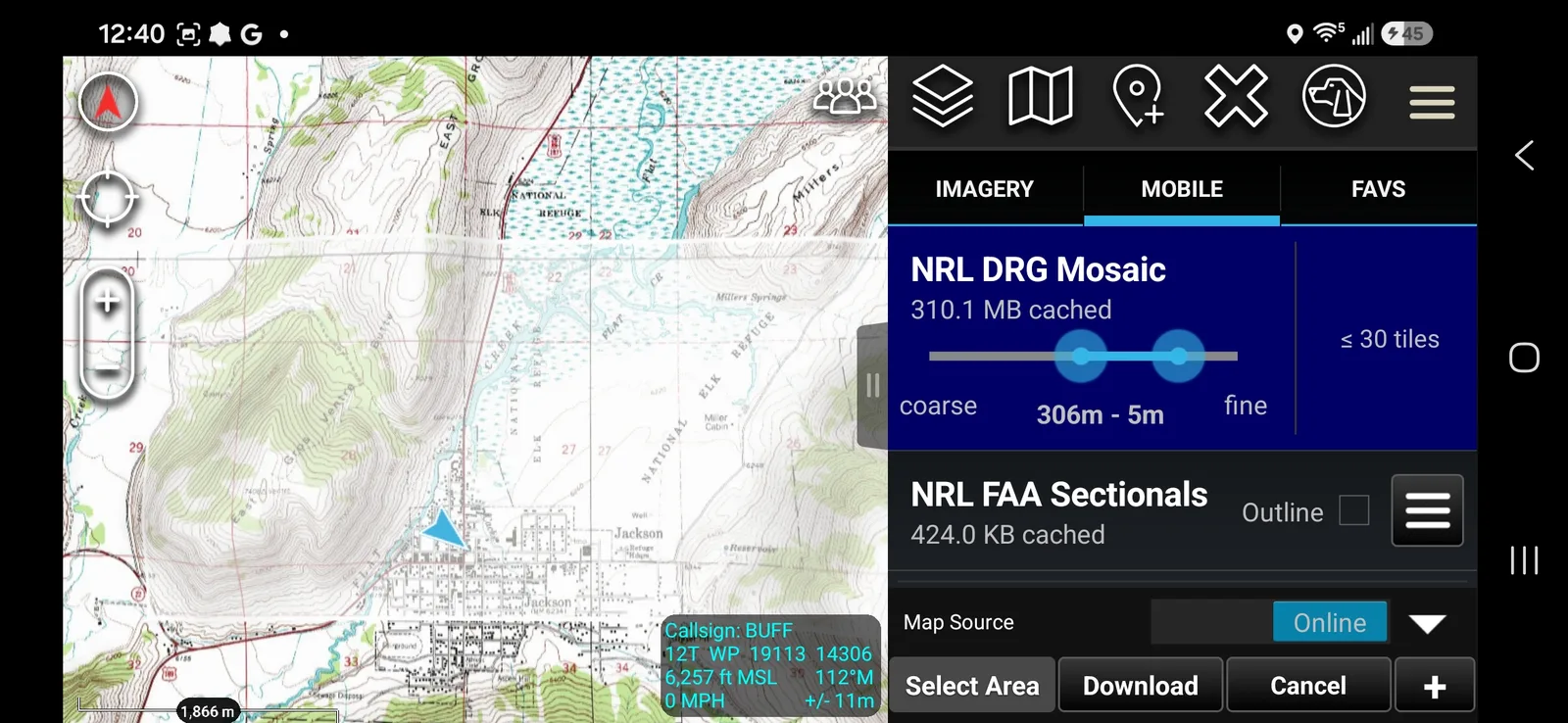
The tiles you download were already generated on a server ahead of time. At the coarser end, some tiles you receive may cover area outside the region you selected — that's expected.
-
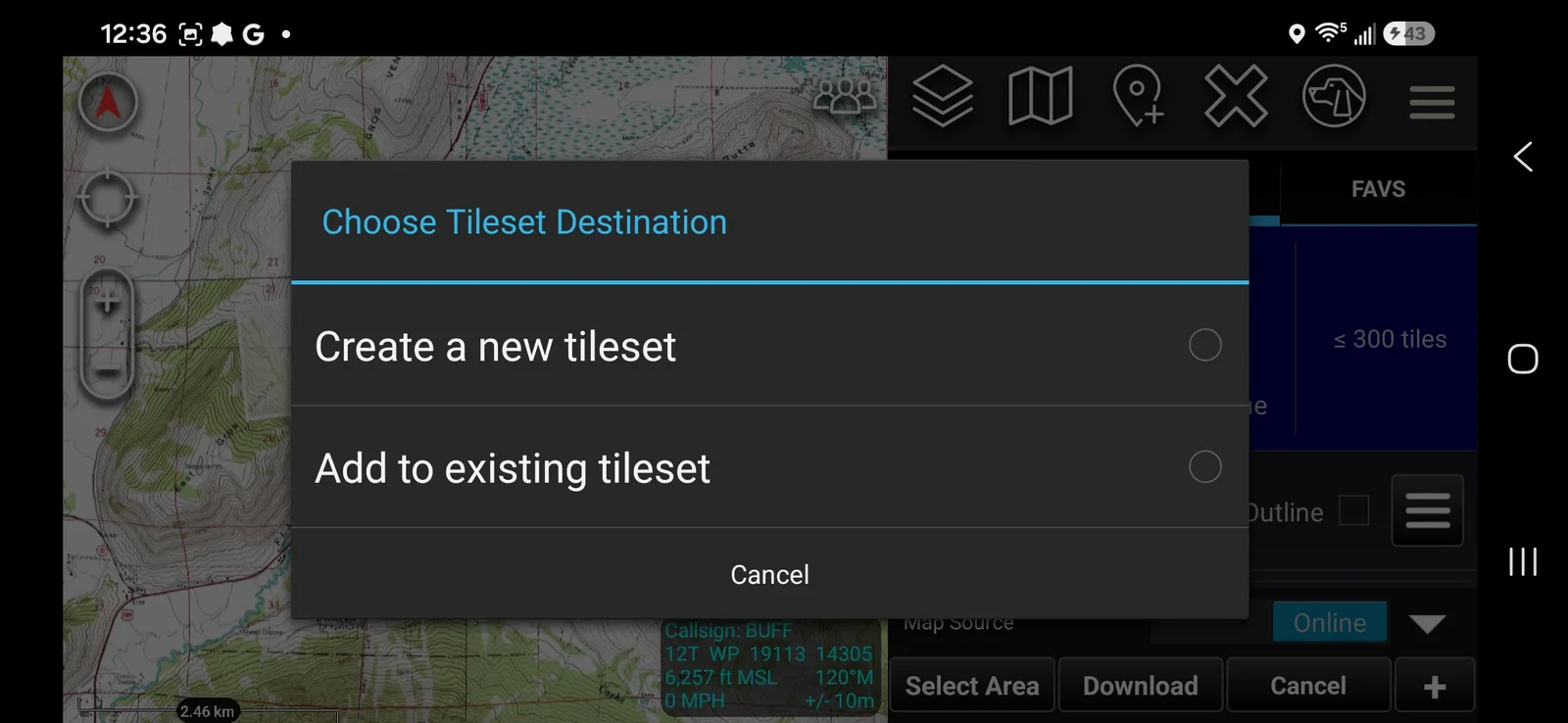
Tap Download. Select Create a new tileset and give it a name.
-
Below the name field, an optional checkbox decides how the download is saved:
- Unchecked — saves as a base map. Toggle it on and off through the map selection tool; it replaces whatever base map you currently have selected.
- Checked — saves as an overlay. Instead of replacing your online base map, you toggle it on top from the Overlay Manager tool.
Tap Download again to start.
-
Green status text at the bottom tracks progress (tile count, elapsed time, layer count).
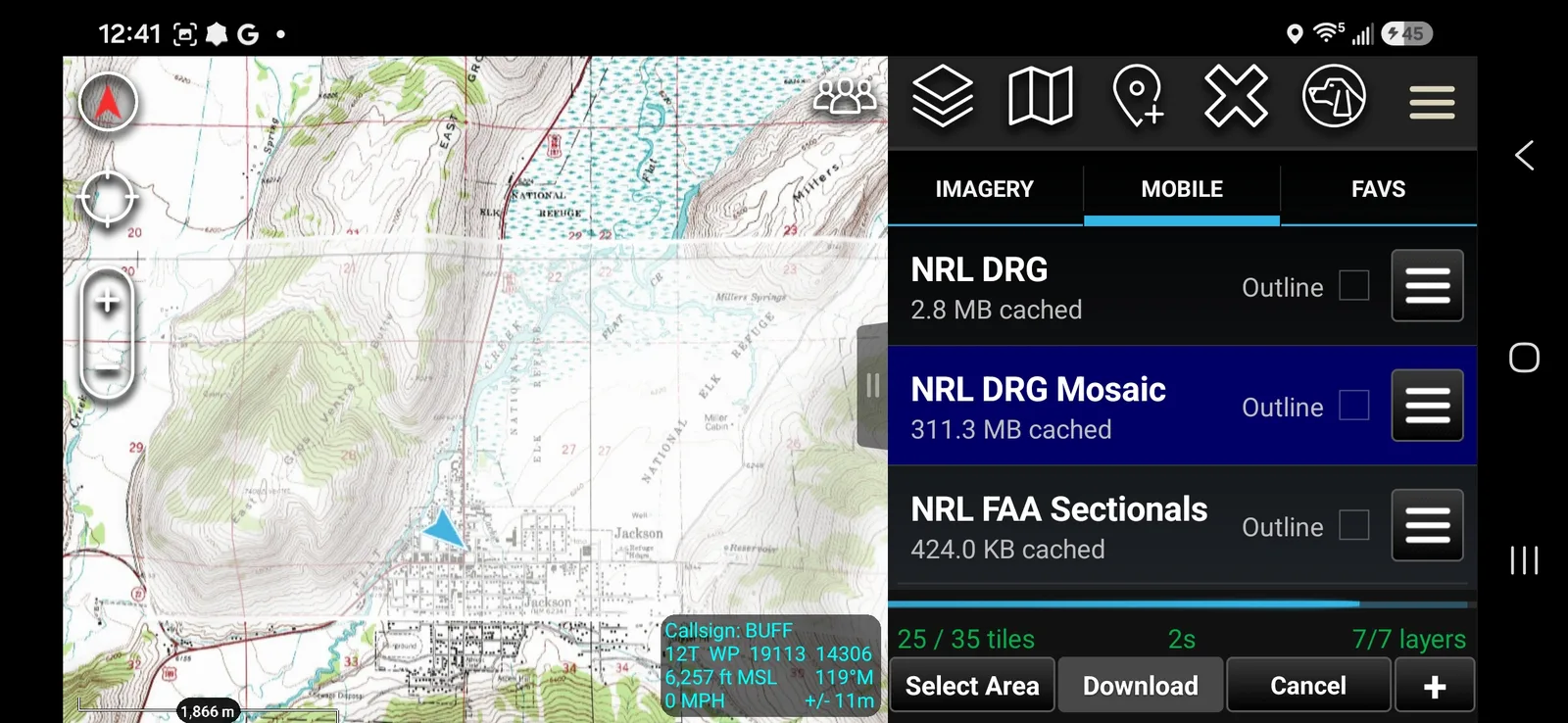
Download speed depends on both the source server and your internet connection. Large areas can take multiple hours — for big downloads, leave ATAK running (ideally overnight) rather than waiting on it.
Use your downloaded map
-
If you downloaded a base map, toggle Map Source to Local. A list of your previously downloaded areas appears — select one to display it.
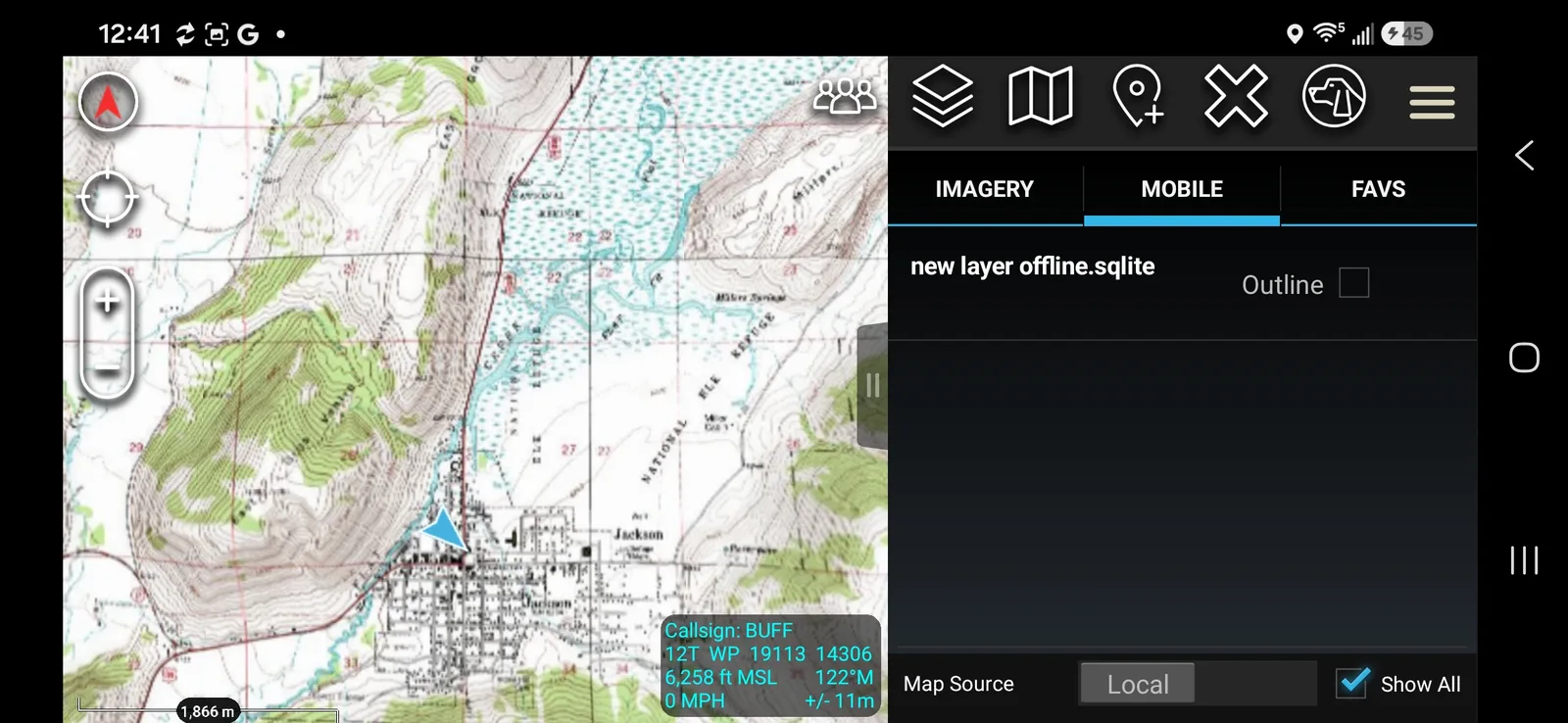
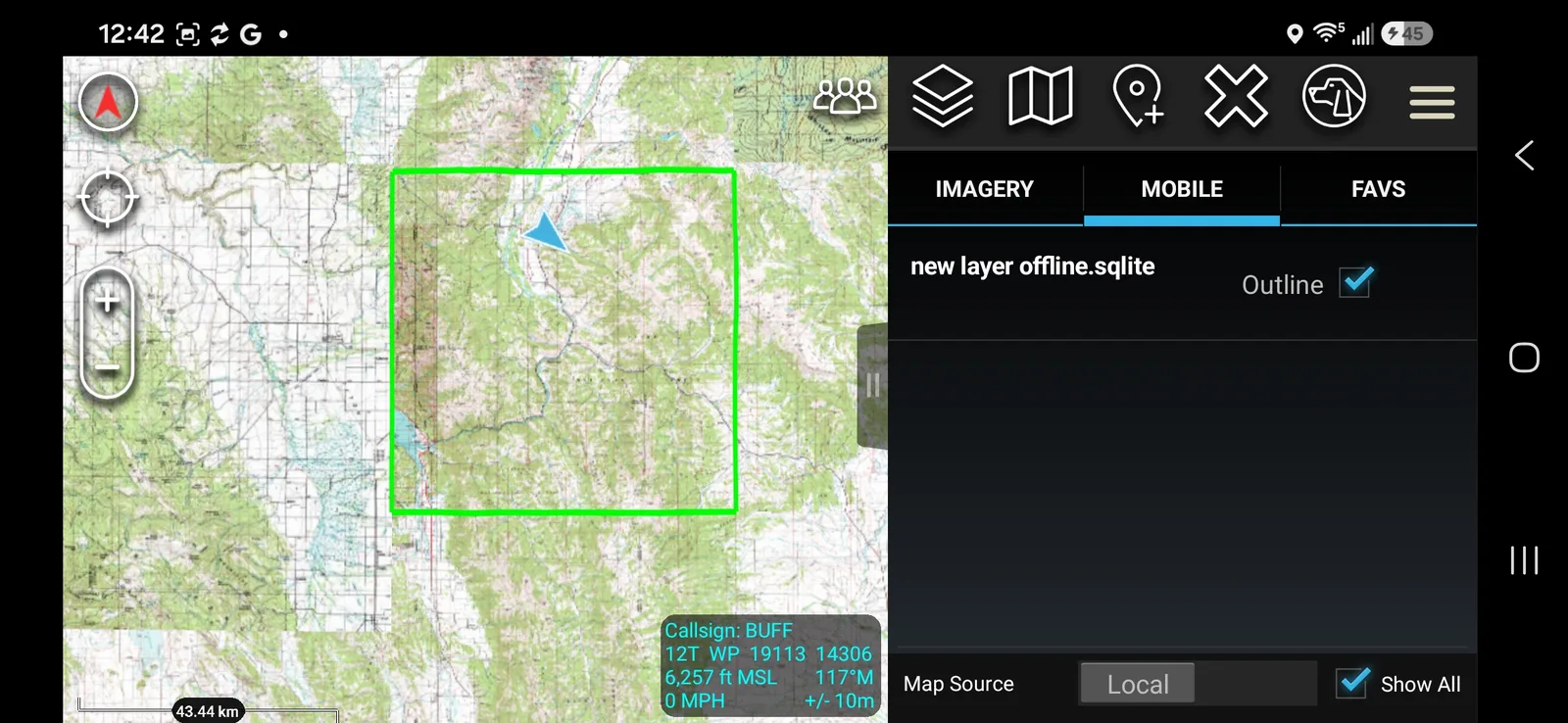
Checking the Outline box draws a colored perimeter around the downloaded area — this always traces the outermost tiles downloaded, which can extend a bit past your original selection at coarser fineness settings.
To go back to streaming maps, toggle Map Source back to Online and select your desired map.
-
If you downloaded an overlay, you can leave your online base map on — no need to toggle Map Source. Open the menu, select Overlay Manager, and scroll down to Image Overlays.
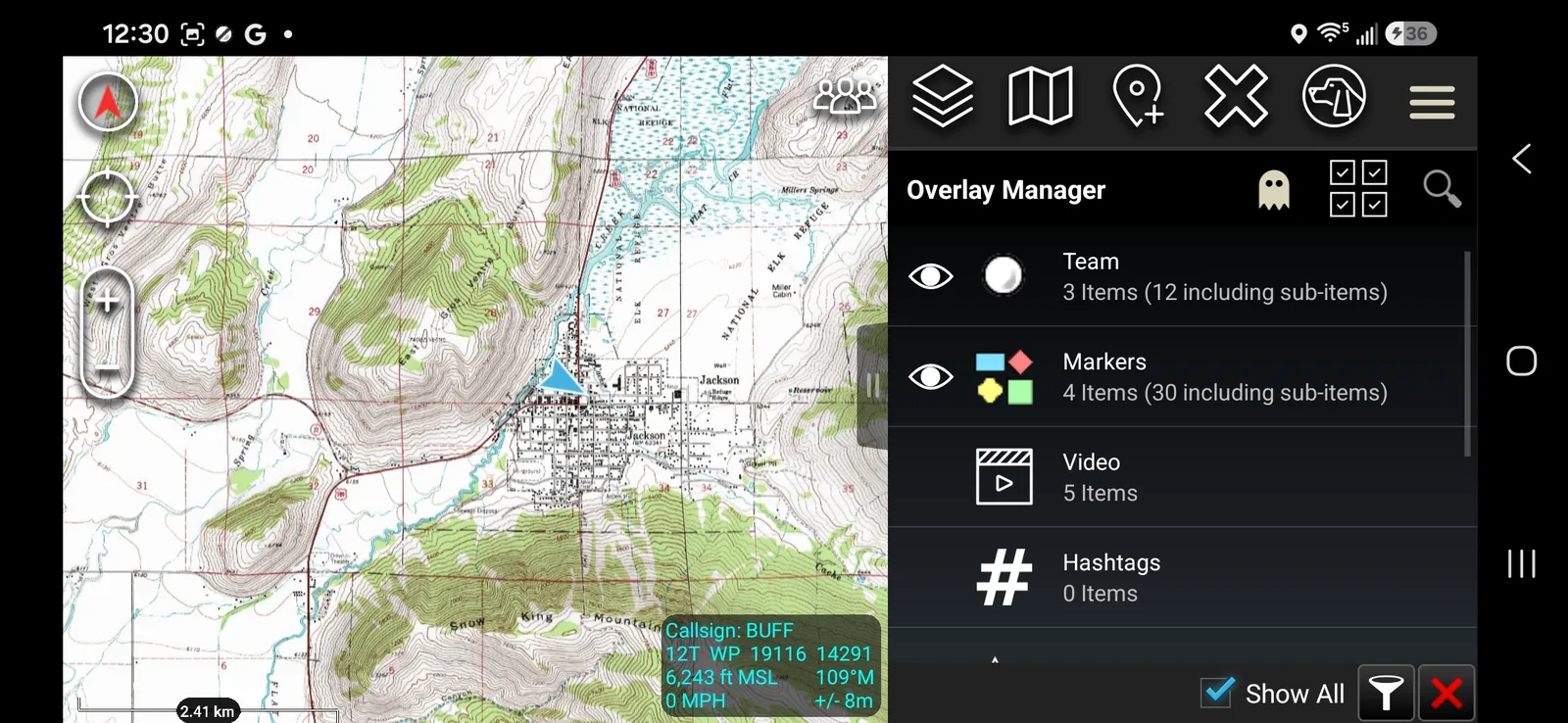
Your downloaded map is listed there. Tapping it repositions your display to the map and brings up its settings. Tap the eyeball icon next to its name to toggle it on or off.
Troubleshooting
- Download seems stuck or is taking a long time: download speed depends on both the source server and your own internet connection — a large area at fine detail can legitimately take multiple hours. Leave ATAK running rather than assuming it's frozen.
- Download is much larger than expected: check the fineness slider — pulling the right slider too far toward "fine" dramatically increases tile count and download time. Only download the area you actually plan to operate in.
- Can't find a downloaded map: base map downloads show up under Map Selection > Mobile once Map Source is toggled to Local. Overlay downloads show up under menu > Overlay Manager > Image Overlays, with Map Source left on Online. Confirm you saved it with the checkbox in the state you meant to.
- Local map shows nothing: confirm Map Source is actually toggled to Local, not still on Online.