Upgrading to AuthFlow 1.1
Overview
Covers upgrading the ATAK AuthFlow plugin to version 1.1: checking your ATAK version, checking which AuthFlow version is installed, removing the old version (0.1) if you have it, and installing 1.1 from Watchtower.
Once AuthFlow 1.1 is installed, continue to AuthFlow 1.1 Configuration to set the plugin's preferences and log in.
AuthFlow 1.1 will not run on ATAK versions earlier than 5.7. Check your ATAK version first (Step 1) and update ATAK if needed before installing the plugin.
Prerequisites
- ATAK 5.7 or higher installed on your Android device.
- Access to Watchtower (Apps and Plugins) in ATAK.
Steps
Check your ATAK version
-
Open ATAK. On the opening (splash) screen, look at the bottom-left corner for the version number. It must read 5.7 or higher (for example,
Version 5.7.0.15, highlighted below).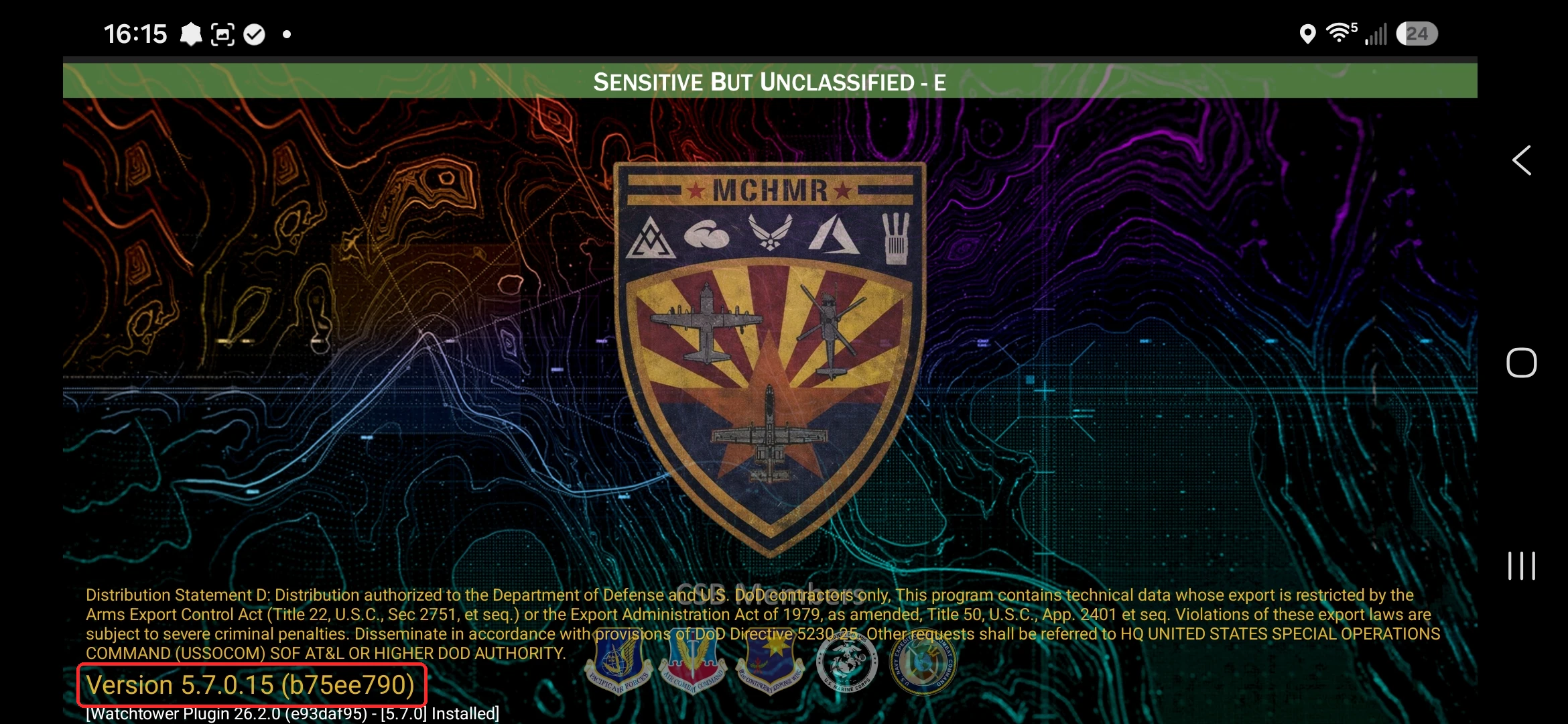 note
noteIf your version is lower than 5.7, update ATAK before continuing. AuthFlow 1.1 will not run on earlier versions.
Check your installed AuthFlow version
-
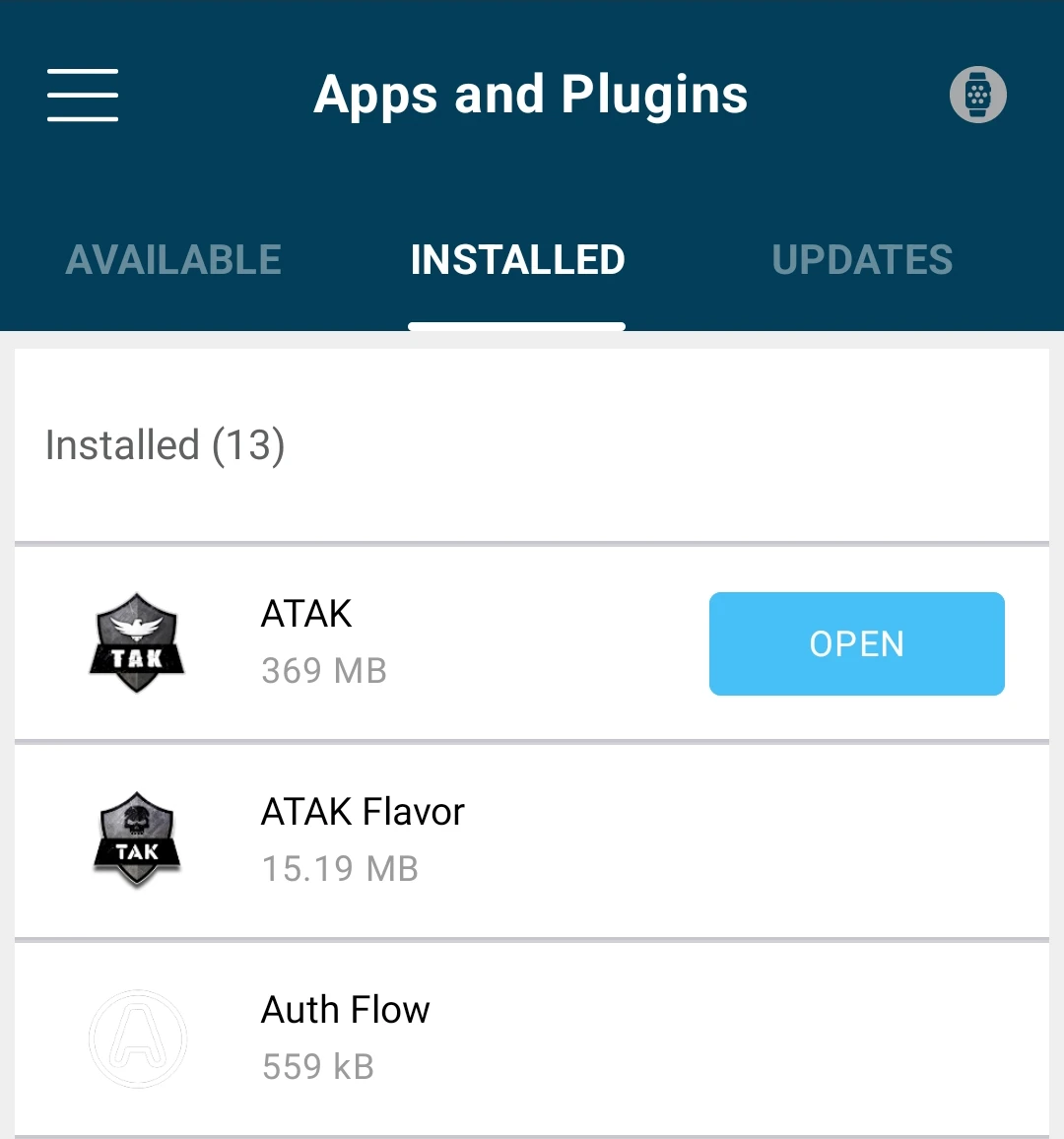
Open Watchtower and go to Apps and Plugins, then tap the Installed tab. Find Auth Flow in the list and tap it.
-
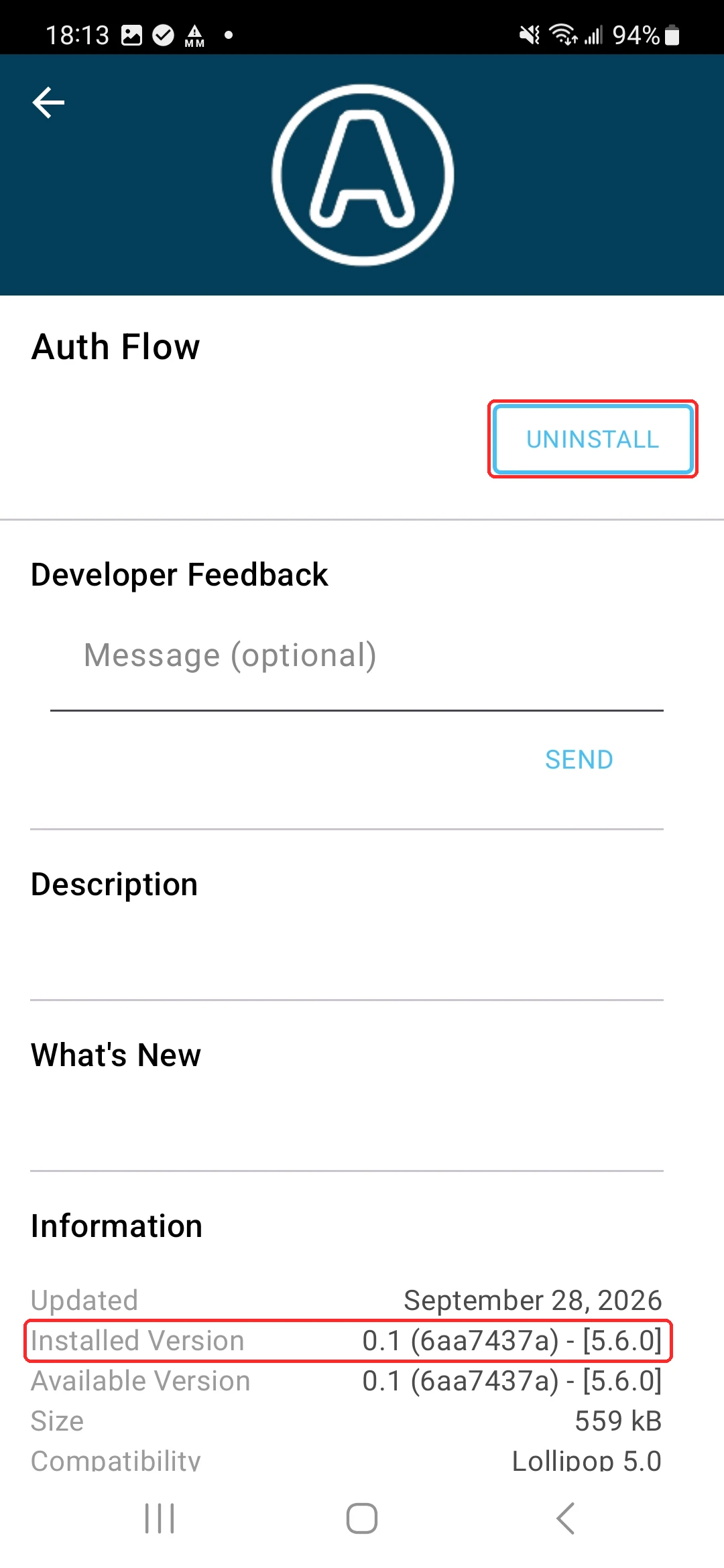
On the Auth Flow page, scroll down to Information and check Installed Version. If it reads 0.1, you have the old version and must uninstall it before installing AuthFlow 1.1.
 note
noteIf your Installed Version is already 1.1 (for example,
1.1 (85e1afca) - [5.7.0]), you're up to date and can skip the uninstall and install steps.
Uninstall the old version (0.1)
-
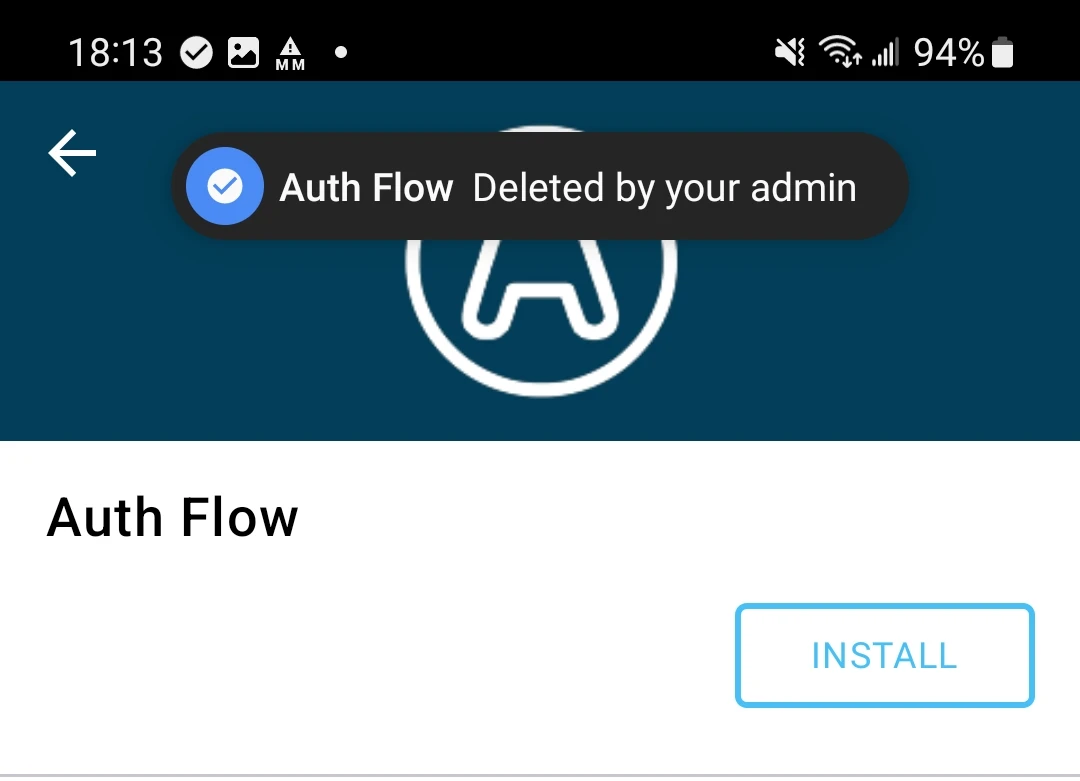
Tap Uninstall. Once it finishes, the button changes to Install, confirming the old version is removed.
 note
noteYou may see a message like "Auth Flow Deleted by your admin" at the top of the screen. This is expected after uninstalling.
Install AuthFlow 1.1
-
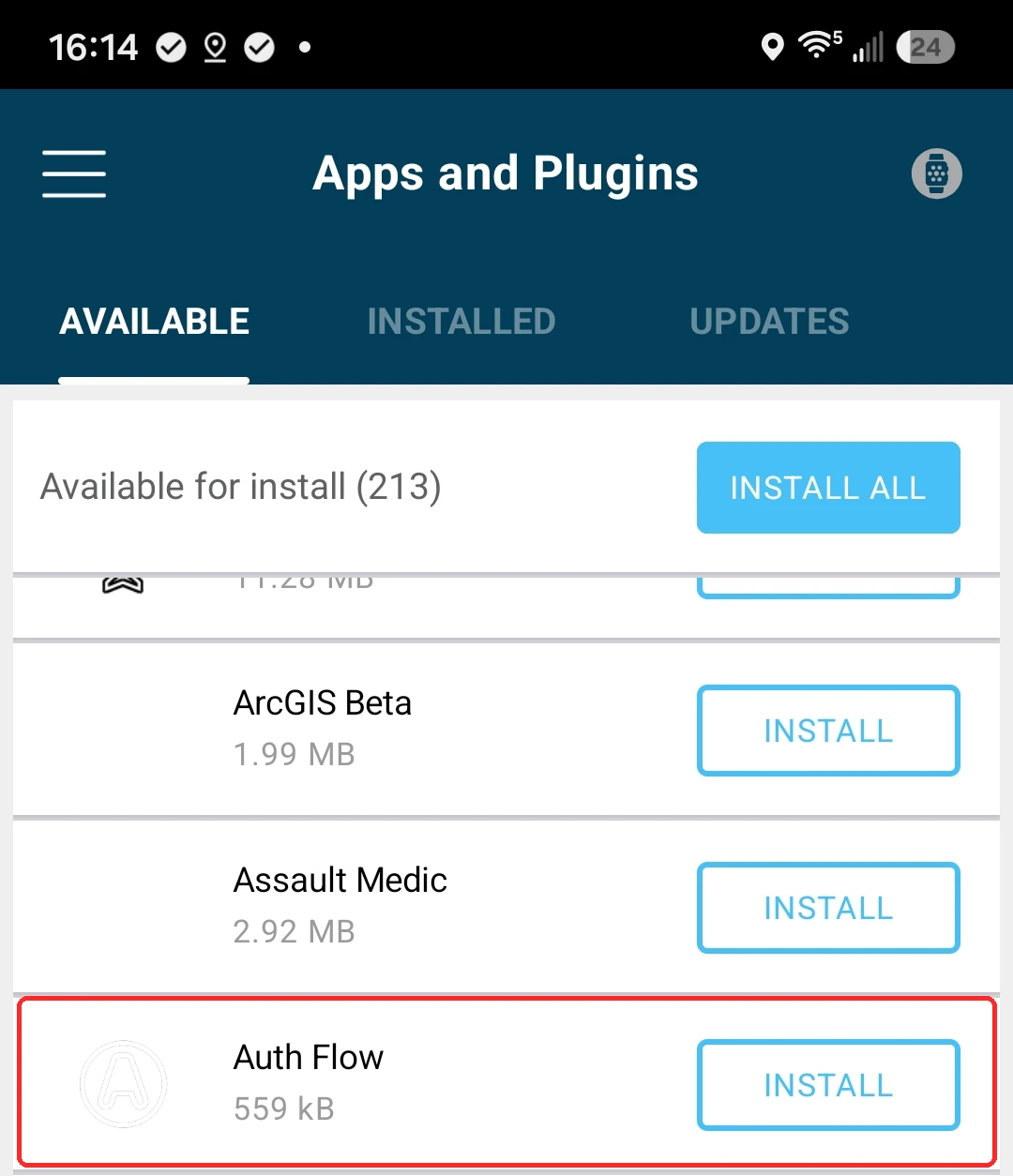
In Watchtower's Apps and Plugins, tap the Available tab, scroll to Auth Flow, and tap it.
-
On the Auth Flow page, confirm the version shown is 1.1 with [5.7.0] (for example,
1.1 (85e1afca) - [5.7.0]), then tap Install (both highlighted below).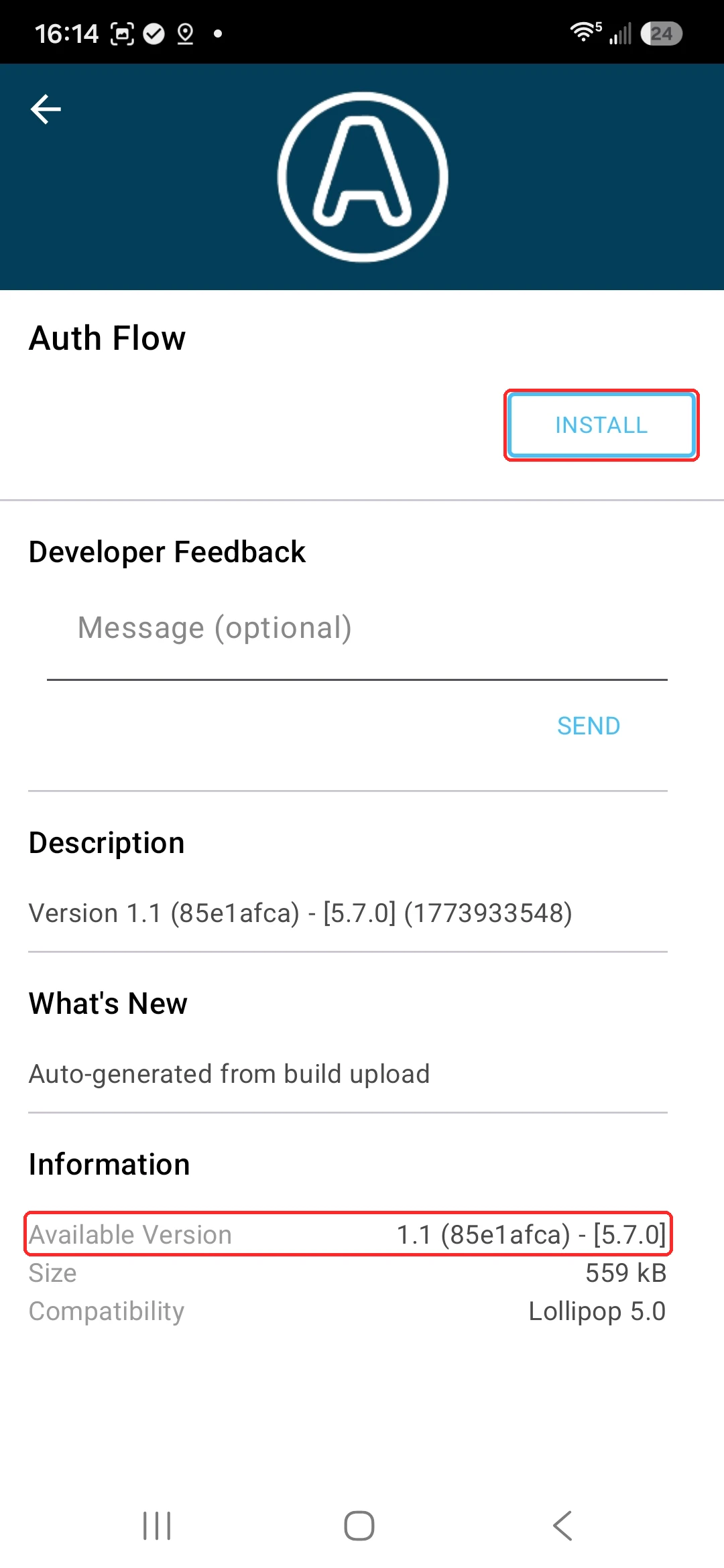
-
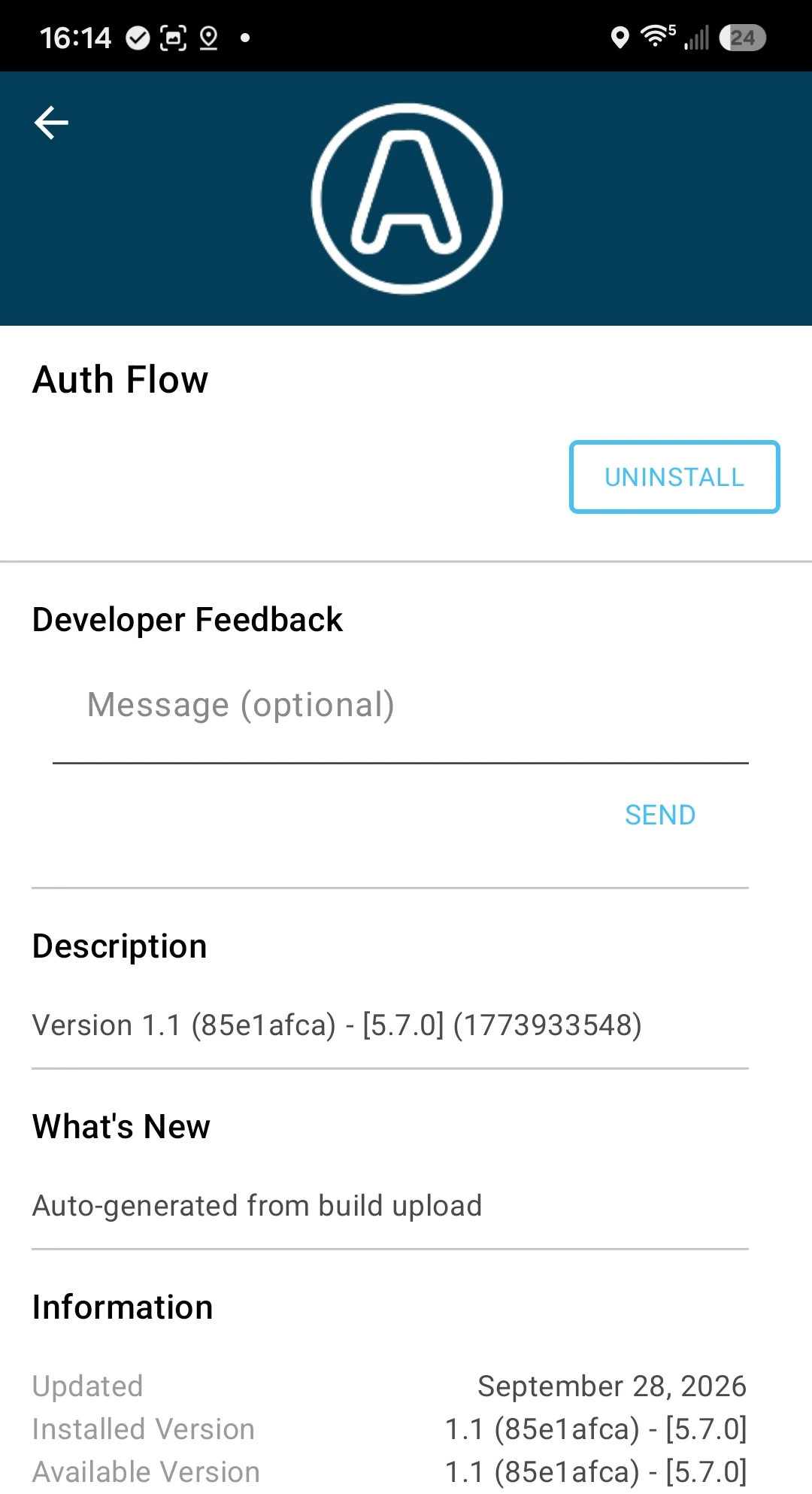
When the install finishes, the button changes to Uninstall and Installed Version shows 1.1 (85e1afca) - [5.7.0]. AuthFlow 1.1 is now installed.
Next step
Continue to AuthFlow 1.1 Configuration.
Troubleshooting
- AuthFlow 1.1 won't install or run: confirm ATAK is version 5.7 or higher (see Step 1).
- Installing 1.1 fails or the old version keeps loading: check Installed Version in Watchtower (Step 3). If it still reads 0.1, uninstall it first (Step 4).
Related modules
- AuthFlow 1.1 Configuration
- AuthFlow 0.1 Configuration (previous version)
- Installing ATAK