Updating Password
Overview
Covers changing your Tactical ID / IdentityHub password from inside an authenticated session — for when you know your current password and just want to change it. If you're locked out and can't log in at all, use Forgot/Reset Password instead.
Prerequisites
- Your current username and password.
- Access to your authenticator app if MFA is enabled on your account (not all accounts have this configured).
Steps
- Go to
https://auth.mchmr.aiand log in with your current username and password. - If your account has MFA enabled, you'll be prompted for an Authentication code — open your authenticator app, enter the one-time code, and click Continue. (Most typical user accounts won't see this step.)
- You land on the My applications page. Click the settings (gear) icon in the top right.

- On the account settings page, find the Change your password section and click Change password.
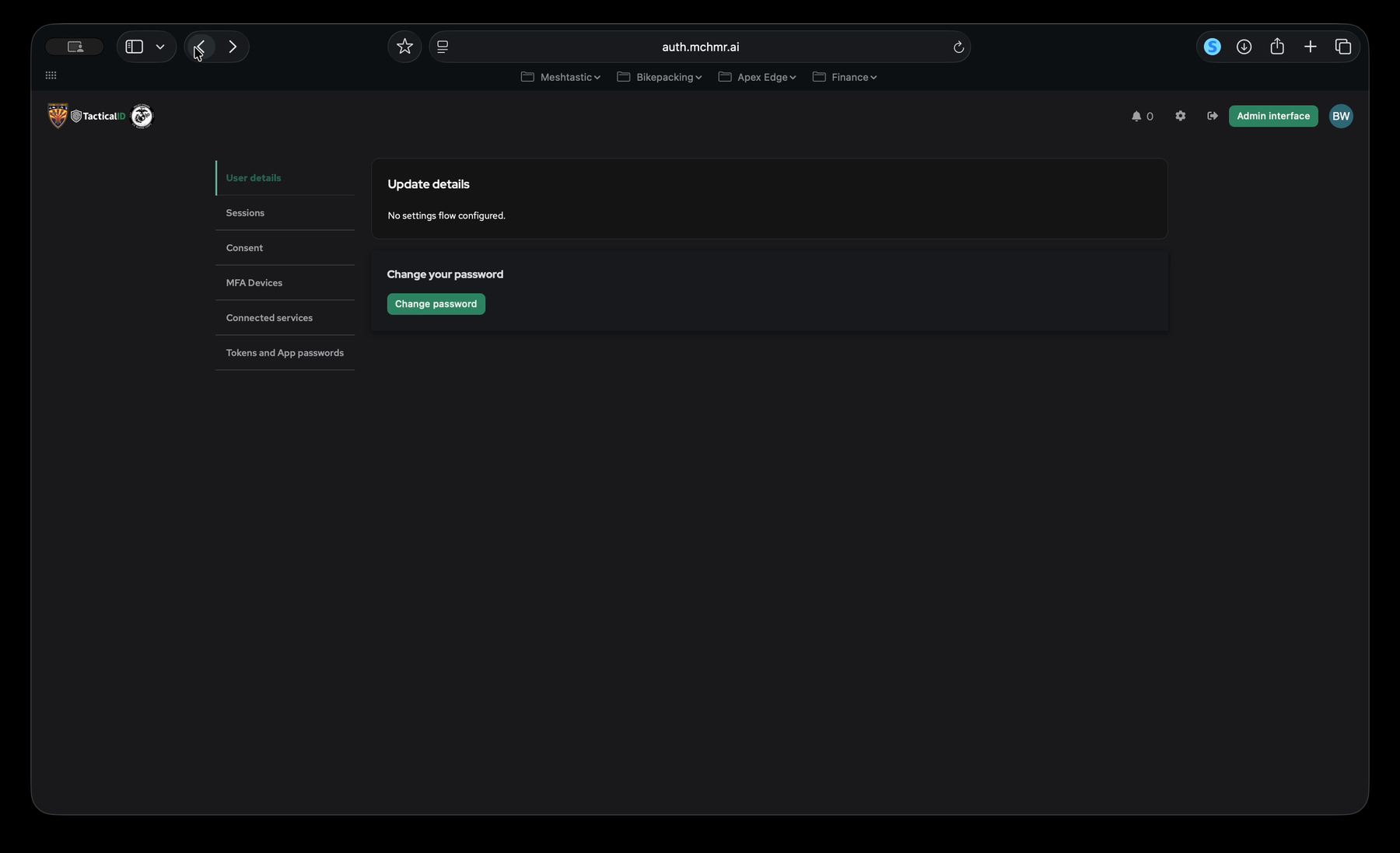
- On the Change password screen, enter your new password in Password and Password (repeat), then click Continue.
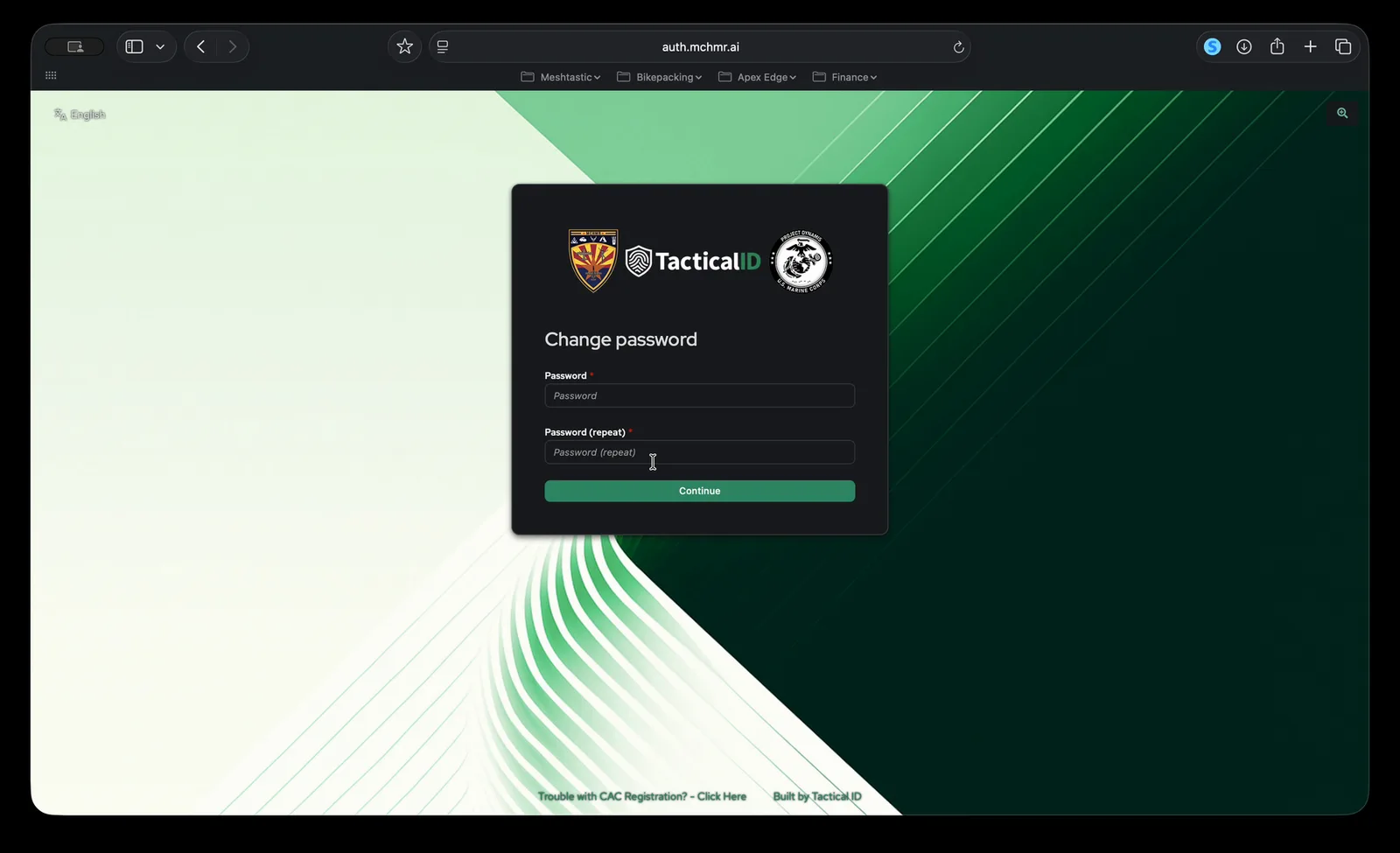
- Your password is updated — log in going forward with the new password.
Troubleshooting
- No "Change password" button visible: make sure you're on the account settings page (gear icon from My applications), not the My applications page itself.
- Don't have an authenticator app / lost MFA access: contact your Apex Edge administrator for help recovering access.
- Forgot your current password entirely: this flow requires knowing your current password — use Forgot/Reset Password instead.
- "No settings flow configured" under Update details: this is expected — that card isn't used for password changes; use the Change your password card below it instead.