Cloudflare One (Windows)
Overview
Cloudflare One is the Zero Trust security agent that protects your device's internet traffic. This module covers downloading and installing the Windows client, and connecting it to the MCHMR network using your Tactical ID account.
This is the Windows desktop version. For the Android version installed through Watchtower's app catalog, see Cloudflare One (Android).
Prerequisites
- A Tactical ID account (username and password) — see New User Registration.
- A Windows 10 or Windows 11 machine with admin rights to install software.
- An internet connection.
Steps
Part 1: Download and Install
-
Go to the Cloudflare One Client download page and click Download latest stable release under the Windows section.

-
Once the
.msifile finishes downloading in your browser, click Open file to launch the installer.
-
Windows configures and installs Cloudflare One Client. This takes a few moments.

Part 2: First-Time Setup and Enrollment
-
When the client opens for the first time, it asks what you'd like to use it for. Select Cloudflare One Client (not Private Browsing) and click Continue.

-
On the Enroll your device screen, enter
mchmras your team name and click Continue.
-
Your default browser opens to the Tactical ID login page. Enter your Tactical ID username and password, then click Log in.

-
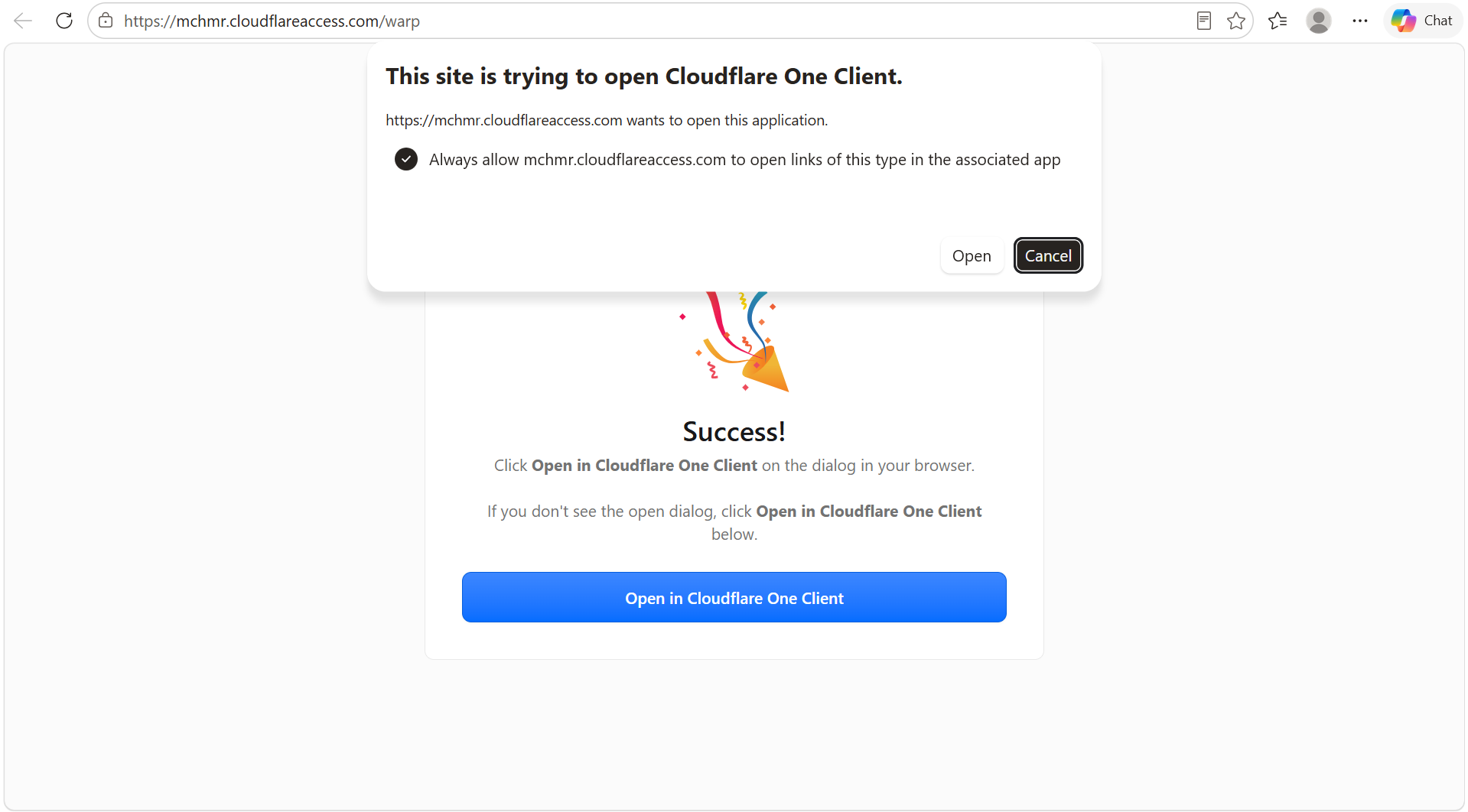
After logging in, your browser asks to open Cloudflare One Client. Check Always allow mchmr.cloudflareaccess.com to open links of this type in the associated app, then click Open.
Part 3: Connecting
-
Back in the client, you'll see a Login successful confirmation, then the Disconnected screen. Click Connect.

-
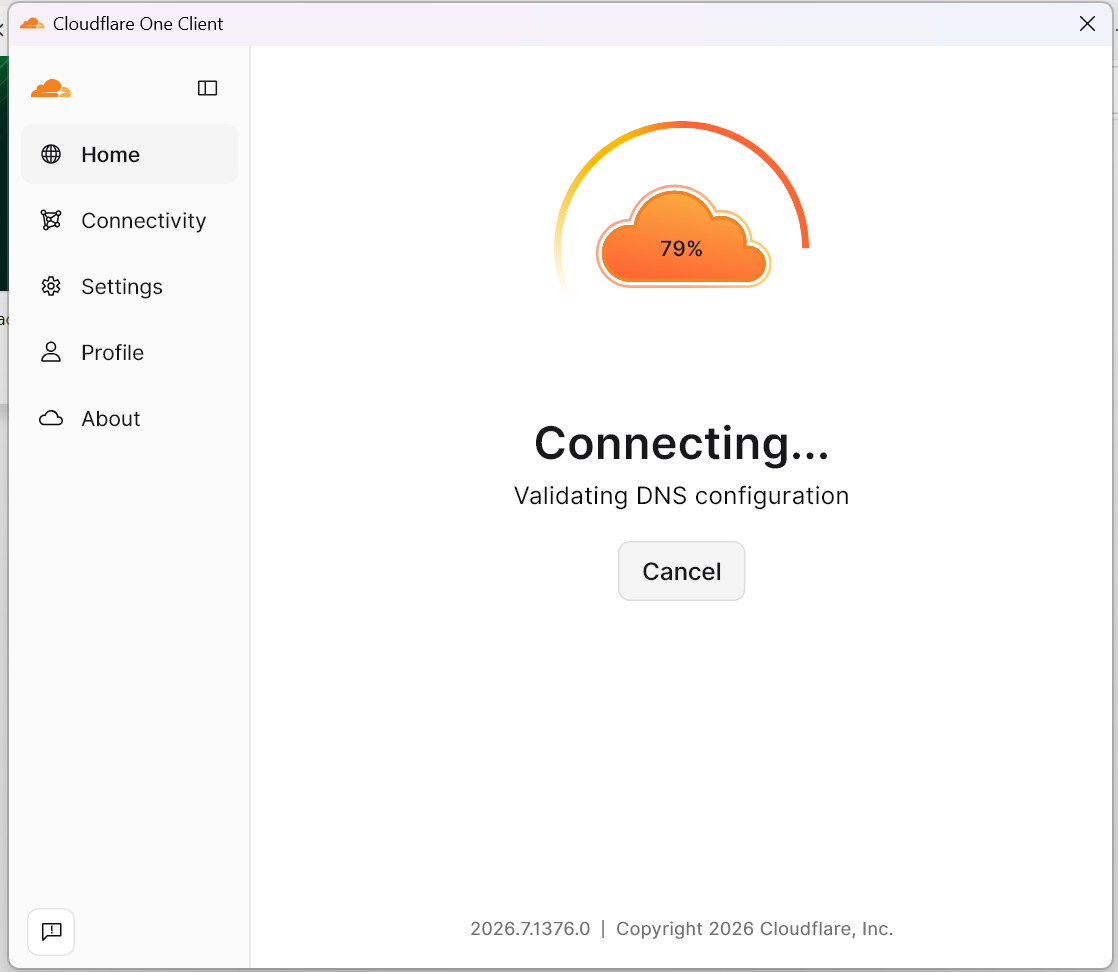
The client briefly shows Connecting... while it validates your DNS configuration.
-
Once connected, the client shows Connected — your DNS queries and included routes are now protected.
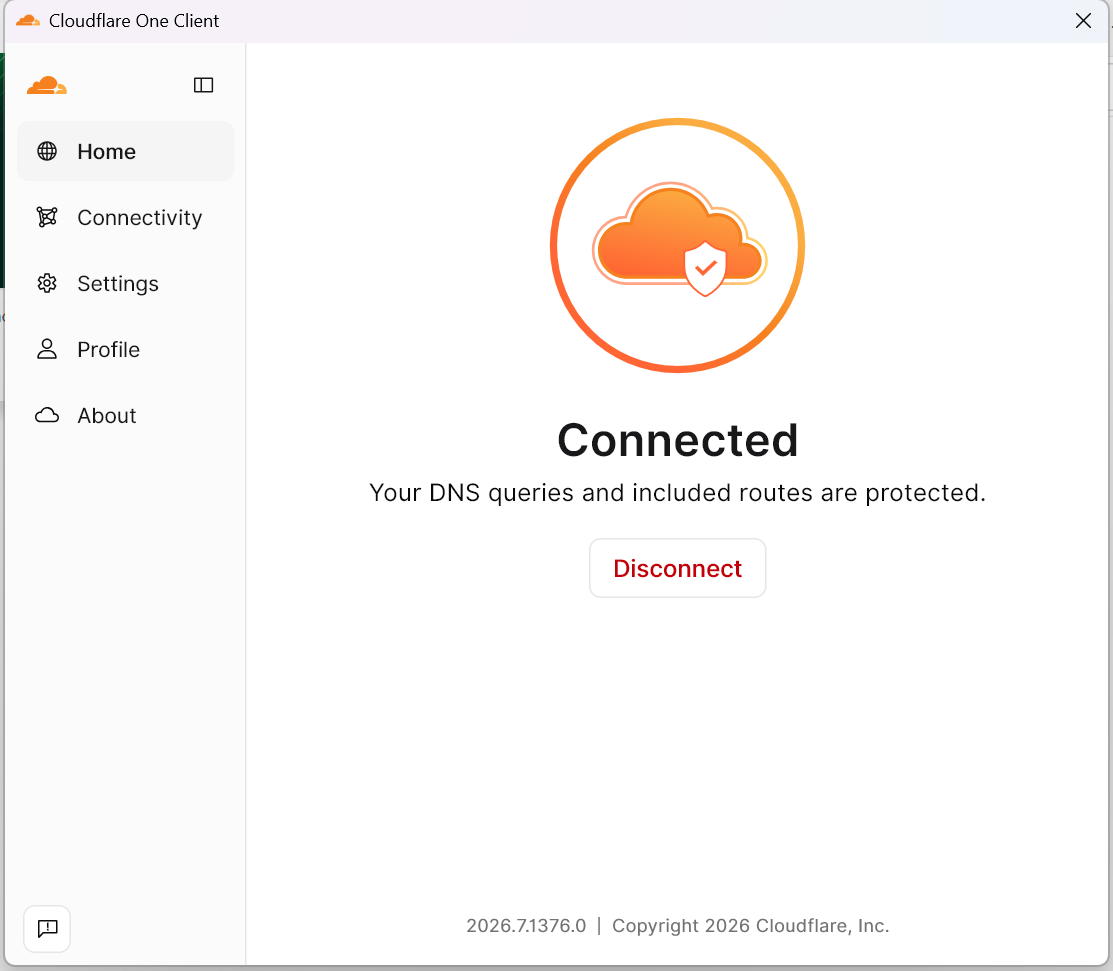
The client remembers your enrollment, so you won't see the team name or login screens again — toggle Disconnect/Connect on the Home screen any time.
Understanding Split Tunneling
By default, this connection uses split tunneling — only traffic to a specific set of addresses is routed through Cloudflare's network while you're connected. Everything else (general internet browsing, apps unrelated to MCHMR) bypasses the tunnel entirely and goes out through your normal network connection as usual. Being Connected does not mean all of your traffic is going through MCHMR — only what's on this list is.
To see the current list yourself, click Settings in the left navigation, then open Split Tunnel.

The list includes Cloudflare's own infrastructure ranges, plus the domains *.mchmr.ai and *.c2pcmobile.com.
Screenshots
Inline above, next to each step.
Troubleshooting
- If the browser doesn't prompt you to open Cloudflare One Client after logging in, make sure the client is still running (check your system tray) and try logging in again.
- If your team name doesn't work, confirm you entered
mchmrexactly — this is case-sensitive. - If the client gets stuck on Connecting..., disconnect and reconnect. If it persists, verify your machine has a working internet connection.
Related modules
- Cloudflare One (Android) — the Android/Watchtower version of this same app.
- New User Registration — creating the Tactical ID account used to log in here.